
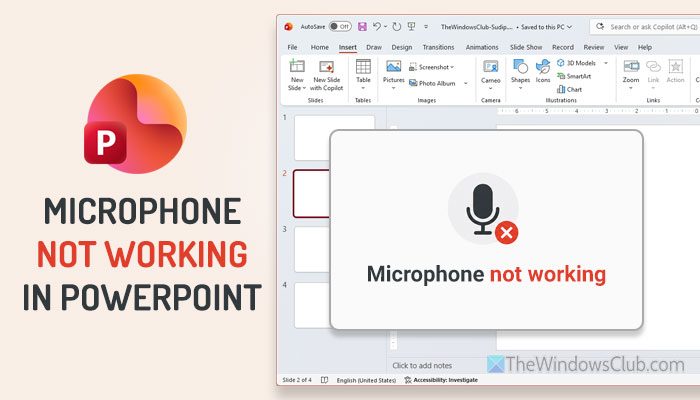
If the microphone is not working in PowerPoint and you are unable to record audio or perform a cameo, here is how to fix the issue in Windows 11. Here you can find all possible reasons and solutions to fix this problem.
Why is microphone not working in PowerPoint?
If the microphone is not working in PowerPoint, one of these could be the reason:
- Microphone access turned OFF on your computer.
- Microphone access is enabled, but something is preventing your microphone from working in certain apps.
- There are some hardware problems with your microphone or external audio recorder.
- PowerPoint has not been updated, and some bugs are blocking it from using the microphone.
- An incorrect microphone is selected as the default microphone.
Microphone not working in PowerPoint
If the microphone is not working in PowerPoint, follow these solutions:
- Check privacy settings for microphone
- Check for hardware problems
- Run PowerPoint with admin permission
- Set the correct microphone
- Update, reinstall audio driver
- Disable hardware acceleration
- Temporarily disable all add-ins
- Update PowerPoint and Windows
- Repair PowerPoint.
1] Check privacy settings for microphone
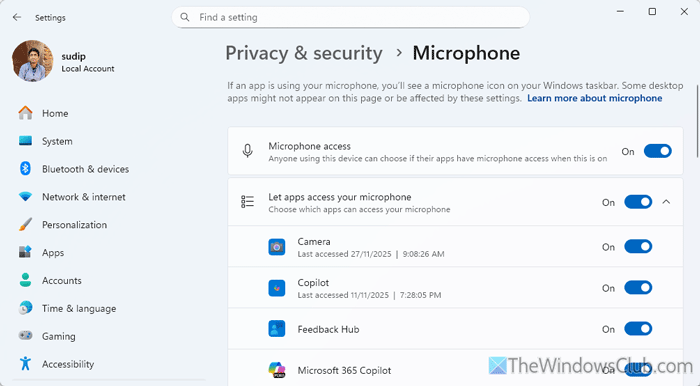
If microphone access is blocked in Windows Settings, just verify the setting and enable it.
To check the privacy settings for the microphone, follow these steps:
- Press Win+I to open Windows Settings.
- Go to Privacy & security > Microphone.
- Toggle the Microphone access button to turn it ON.
- Toggle the Let apps access your microphone button to turn ON.
- Toggle the Let desktop apps access your microphone button to turn it ON.
Also, make sure that the PowerPoint is listed in the list.
Read: How to know which app is using Mic, Location, Camera on Windows 11
2] Check for hardware problems
If you have an external microphone, it is recommended to check whether the hardware is in working condition. You can connect your microphone to another computer and try recording the audio. However, if you use an integrated microphone, you can record audio with another application.
3] Run PowerPoint with admin permission
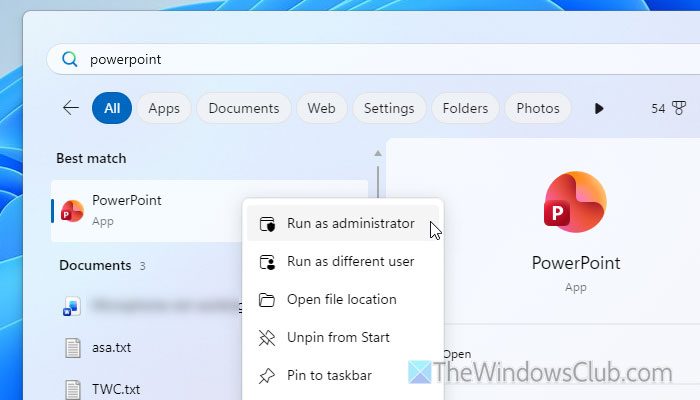
Although PowerPoint doesn’t need the administrative privilege to run on your computer, some features require that permission. That is why it is suggested to run PowerPoint with administrator permissions.
For that, search for PowerPoint in the Taskbar search box, right-click on the corresponding search result, select Run as administrator. Then, click the Yes button on the UAC prompt.
Read: Run as administrator option not working, showing or missing in Windows 11
4] Set the correct microphone
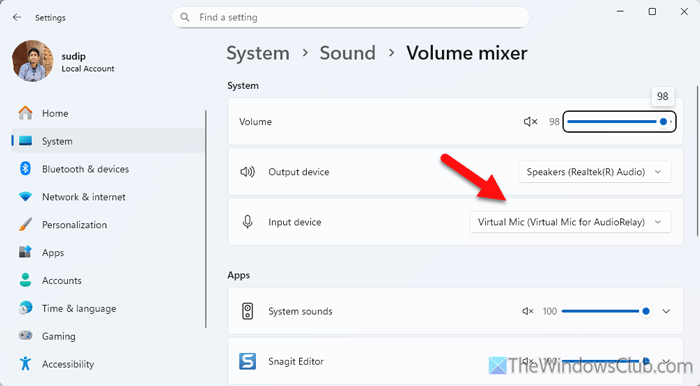
It is very important to set the correct microphone. Let’s assume your selected or default microphone isn’t connected right now, and you want to record audio in PowerPoint. For obvious reasons, it won’t work. That is why it is suggested to check the microphone settings.
For that, open the Windows Settings panel, and go to System > Sound. Then, click on the More sound settings option, and switch to the Recording tab.
Choose the correct microphone and click on the Set Default button.
There is another option that you can find if you navigate to System > Sound > Volume mixer in the Windows Settings panel. Here you can see an option called Input device. Expand this menu and choose the correct microphone you want to use now.
Note: You can open the Volume mixer settings by right-clicking the volume icon in the system tray.
5] Update, reinstall audio driver
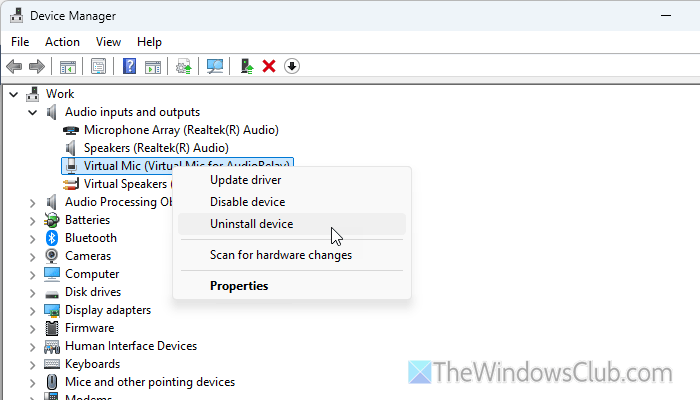
If you haven’t downloaded or installed the audio driver, we suggest following this article to install it on Windows 11. On the other hand, if you have already installed it, open the Device Manager to uninstall the driver. Then, you can follow the same guide to download the audio driver.
6] Disable hardware acceleration
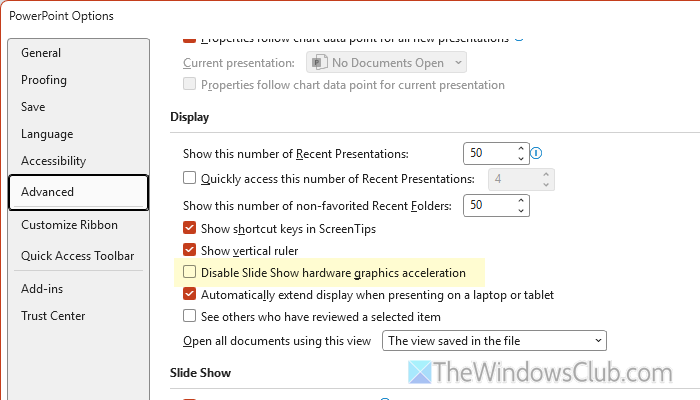
Although it is related to graphics, you can still apply this method to fix the aforementioned problem. It is called hardware acceleration. You can find this setting in the PowerPoint Options wizard. Open it and go to Advanced > Display.
Remove the tick from the Disable Slide Show hardware graphics acceleration checkbox and click the OK button.
Read: Animations not working in PowerPoint
7] Temporarily disable all add-ins
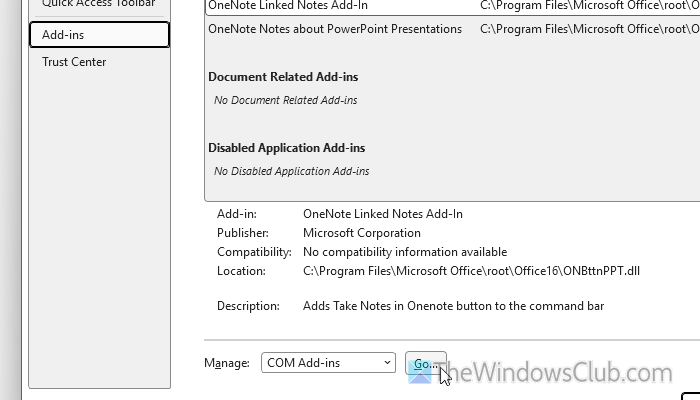
Extensive use of the add-ins may cause this problem. To disable all add-ins in PowerPoint, open the Options wizard and go to Add-ins. Then, choose the COM Add-ins option and click the Go button. Remove the tick from all checkboxes, then click the OK button.
If it removes the issue, enable one add-in at a time to find the flawed add-in.
Read: How to add Add-ins in PowerPoint
8] Update PowerPoint and Windows
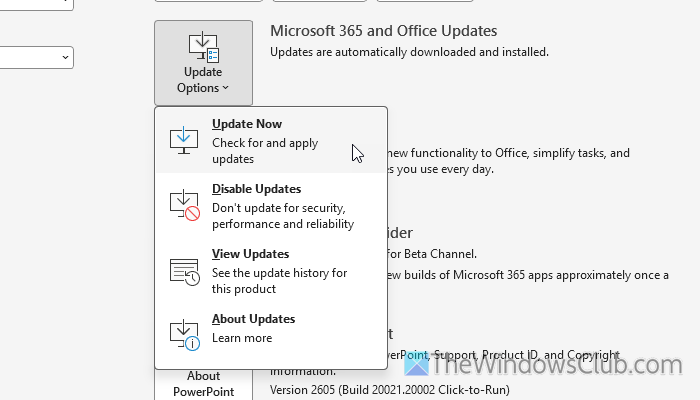
To update PowerPoint, follow these instructions:
- Open PowerPoint on your computer.
- Go to File > Account.
- Click on Update Options > Update Now.
To update Windows 11, open the Windows Settings panel and go to the Windows Update section. Find out if an update is available or not. If yes, let them be downloaded. Finally, click the Restart now button.
9] Repair PowerPoint
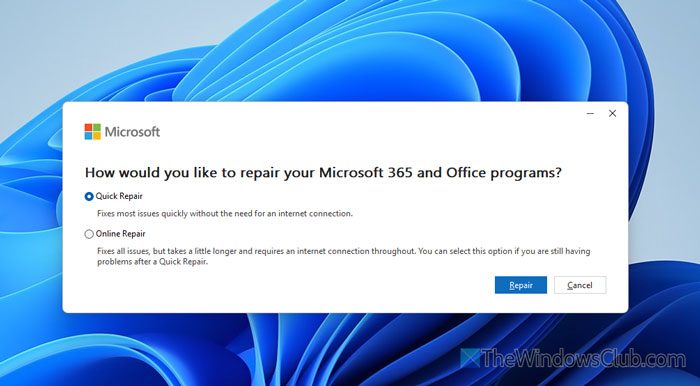
To repair PowerPoint, follow these steps:
- Open the Windows Settings panel.
- Go to Apps > Installed apps.
- Find Microsoft 365 and click on the corresponding three-dotted icon.
- Select the Modify option.
- Choose the Quick Repair option and click the Repair button.
- If it doesn’t do anything, choose the Online Repair option, and click the Repair button.
Read: PowerPoint Cameo not showing or working in Windows 11
Why won’t my microphone work on PowerPoint?
The main reason microphones won’t work in PowerPoint is incorrect privacy settings. If Windows 11 is blocking apps from using the microphone, you can’t fix it without enabling this option.
How to enable microphone in PowerPoint?
To enable the microphone in PowerPoint, open Windows Settings and go to Privacy & security > Microphone. Enable the Let desktop apps access your microphone button to turn it ON.
