
Is the Outlook (new) app not sending notifications on your desktop? Several users have reported that they are not receiving notifications for new emails, despite having enabled notification settings. As a result, affected users miss out on important emails and alerts. Hence, it becomes crucial to fix the new Outlook app notifications not working” issue.
Before we get to the working fixes, let us try to understand the scenarios that may trigger this issue. In general scenarios, it might be the case that you have unknowingly disabled your in-app notifications previously. Your Windows notification settings can also be at fault. It’s possible that you have turned off desktop notifications, enabled Focus Assist, activated Do Not Disturb, or switched on Battery Saver.
In some cases, your mailbox sync settings may be causing the issue, or there might be a glitch with your email account. Another reason could be that your Outlook or Mail app is outdated or corrupted.
Outloook app Notifications not working in Windows 11/10
If the new Outlook app’s notifications are not working or showing up on your PC, you can use the solutions below to fix this issue:
- Check your in-app notification settings.
- Turn on Outlook app notifications in Windows Settings.
- Check and configure mailbox sync settings.
- Let the Outlook app run in the background.
- Delete and then re-add your email account.
- Disable Focus Assist.
- Ensure the Do not disturb mode is not On.
- Make sure Battery Saver mode is disabled.
- Update the Outlook app
- Repair or reset your Outlook app
1] Check your in-app notification settings
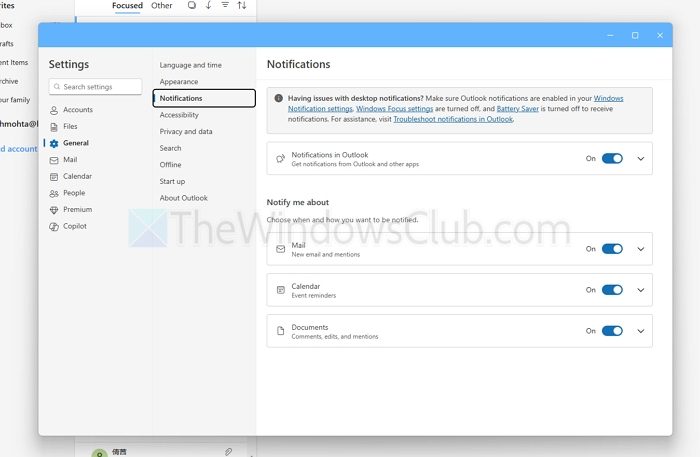
Before moving on to other fixes, make sure your in-app notification settings are set up correctly. Notifications may be disabled in the new Outlook app. And thus, you are not receiving any Mail notifications for new emails and activities on your desktop. Hence, if the scenario applies, configure your in-app notification settings accordingly and then check if the problem is resolved.
- Open the Outlook App, and click on the settings icon on the top-right
- Go to General > Notifications
- Ensure it’s enabled
Here are the steps to configure Mail app notification settings on Windows 11/10:
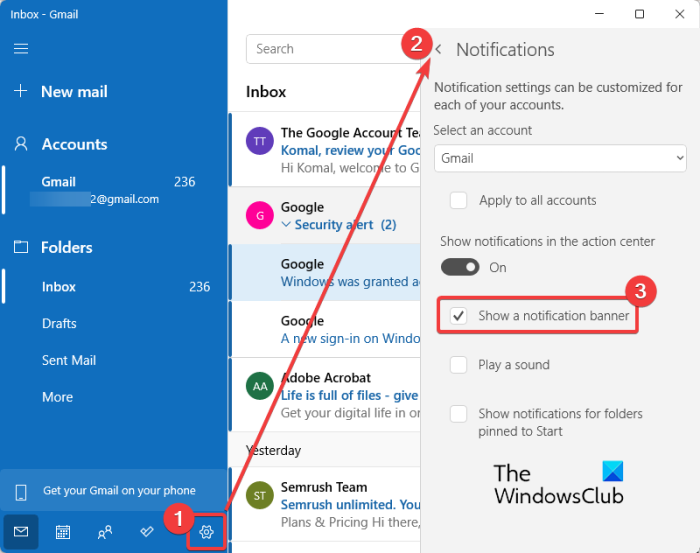
- Firstly, open the Mail app and click on the Settings (gear-shaped) icon from the bottom of its GUI.
- Now, from the appeared menu options on the right side, click on the Notifications option.
- Next, make sure the Show notifications in the action center toggle is enabled.
- After that, check the option named Show a notification banner.
- Also, if you want to play a notification sound, enable the Play a sound checkbox.
- Once you have set up Mail notification settings, check if the problem is resolved.
If your in-app notification is enabled, but you still don’t receive email notifications, try other solutions to resolve the problem.
2] Turn on email notifications in Windows Settings
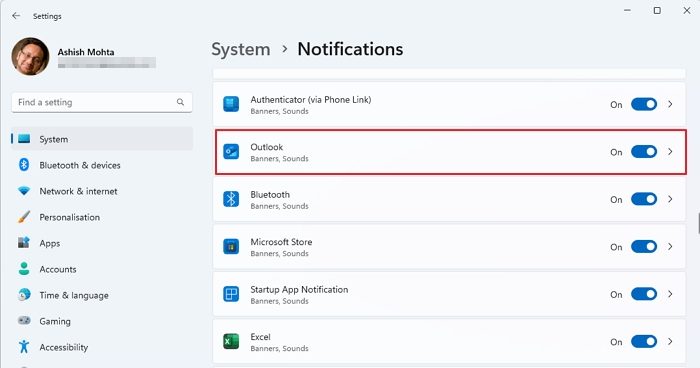
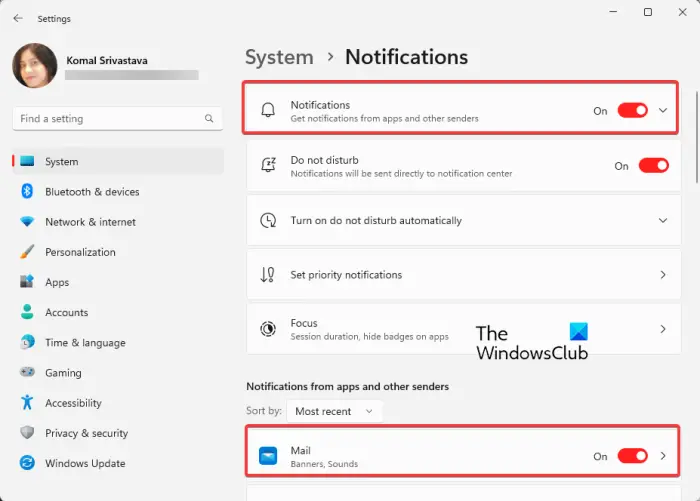
Another thing to ensure is that your notifications are enabled in Windows Settings. You may have previously disabled your notification settings. Additionally, Windows allows you to customize notification settings for individual apps. You may have disabled Outlook notifications intentionally or unintentionally. If the case fits, enable email notifications from Windows Settings. Here’s how:
- Firstly, open your Settings app and go to System > Notifications.
- Now, make sure the Notifications toggle is set to On.
- Next, scroll down and check if the Notification toggle associated with the Outlook app is enabled. If not, switch it on and see if the problem is fixed.
If the problem persists, proceed to the next potential fix.
Read: Cannot open Hyperlinks in Outlook email on Windows.
3] Check and configure mailbox sync settings
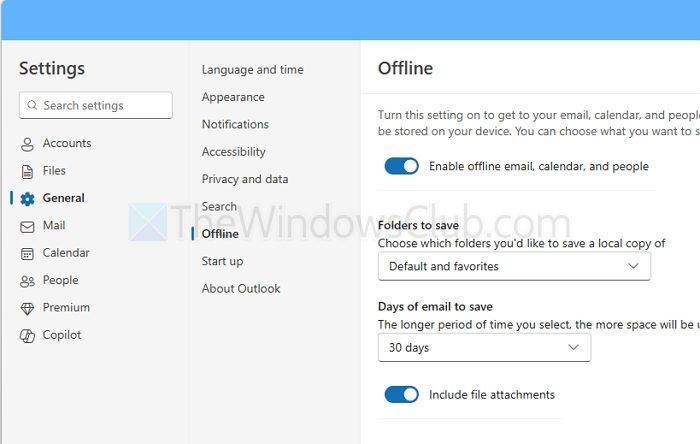
The new Outlook app doesn’t offer any sync settings that let you control when the emails sync with the app. It happens instantly. However, you can go to Settings > General > Offline and choose folders and attachments to be available for up to 180 days.
You might not be getting email notifications or the notifications might be arriving late due to your Mailbox sync settings. These settings are used to specify how frequently the app should download new content from the server. So, modify these settings and see if it helps you fix the “Mail notifications not working” issue.
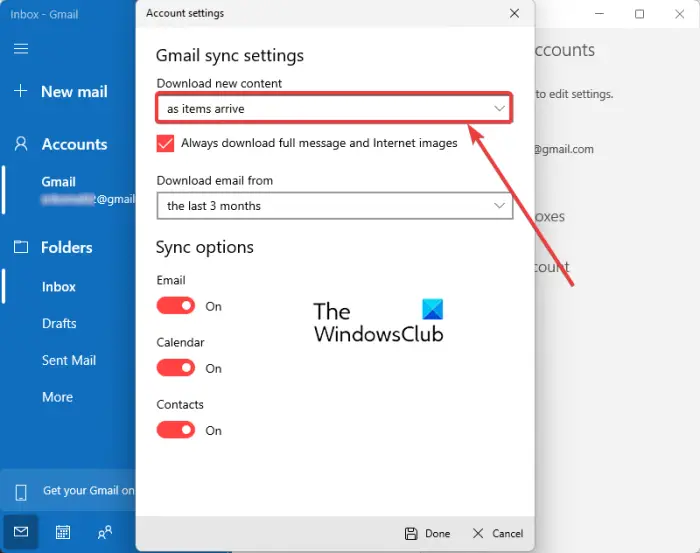
Here’s how you change your mailbox sync settings in the Mail app on Windows 11/10:
- First, open your Mail app and click on the settings icon.
- Now, click on the Manage accounts option and then select your email account.
- Next, press the Change mailbox sync settings option.
- In the next Account settings prompt, choose as items arrive under the Download new content option.
- After that, make sure the Email, Calendar, and Contacts options are enabled.
- Finally, press the Done button and then see if email notifications are working fine or not.
4] Let the Outlook app run in the background
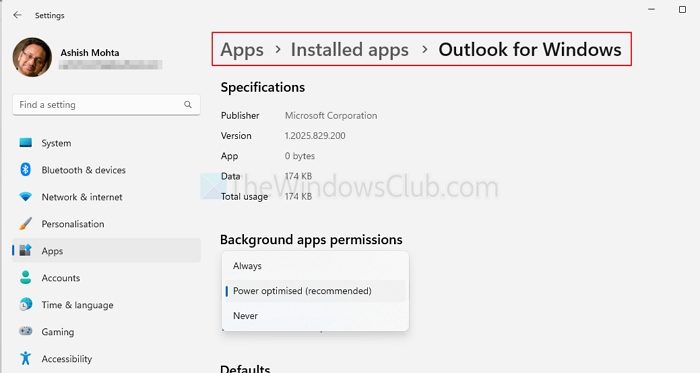
The issue at hand might be caused if you have refused the Outlook app from running in the background. By default, Windows settings are configured to optimize and save power, which is why unused apps are not allowed to run in the background. So, you will only receive Mail notifications when the app is open. Now, in that case, you can allow the Outlook app to run in the background to receive notifications on new emails and important alerts.
- Go to Settings > Apps > Installed Apps
- Find Outlook for Windows and click on the three dots to select Advanced Options
- Under Background apps permissions, make sure it is set to always
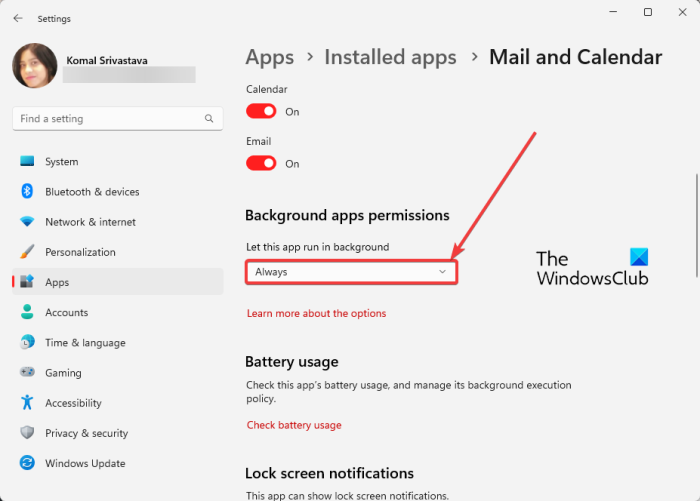
Here’s how you can do that for the Mail App
- Firstly, launch the Settings app and go to the Apps > Installed apps section.
- Now, scroll down to the Mail and Calendar app and click on the three-dot menu button associated with it.
- Next, choose Advanced options, and on the next page, move down towards the Background apps permissions section.
- After that, set Let this app run in background to Always.
See if the email notifications are working now or not.
Read: New Outlook app not syncing in Windows.
5] Delete and then re-add your email account
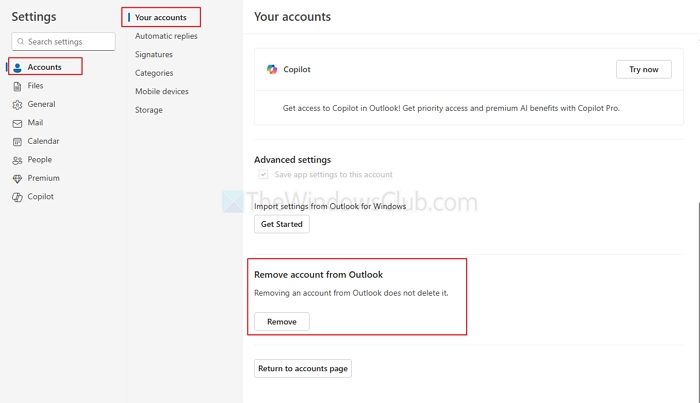
If Outlook app notifications are still not working on your computer, there may be an account issue causing the problem. Hence, you can try removing your account from the Outlook New app and then add it again to check if the problem is resolved.
- Go to Settings > Accounts > Your accounts
- Select the account you need to re-add in the Outlook new app
- Click on the Remove button.
- To add again, go to the Your accounts section, then click on the Add accounts button and follow the process.
Here are the steps to do that in the Mail app
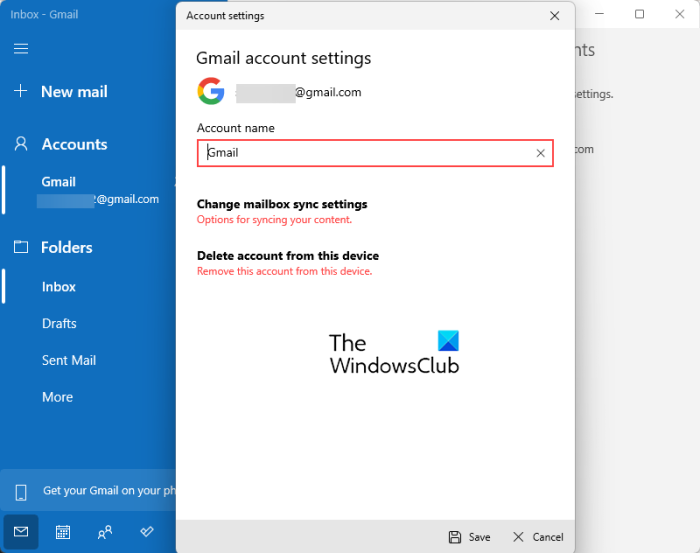
- Firstly, open Mail and click on the Settings icon at the bottom.
- Now, select the Manage accounts option and click on the Delete account from this device option.
- Next, press Delete to confirm account removal.
- Once done, reopen the Mail app and then add your account again using the correct credentials.
Hopefully, you will receive new notifications now. However, if you don’t, there are alternative methods that can help you resolve the issue.
6] Disable Focus Assist
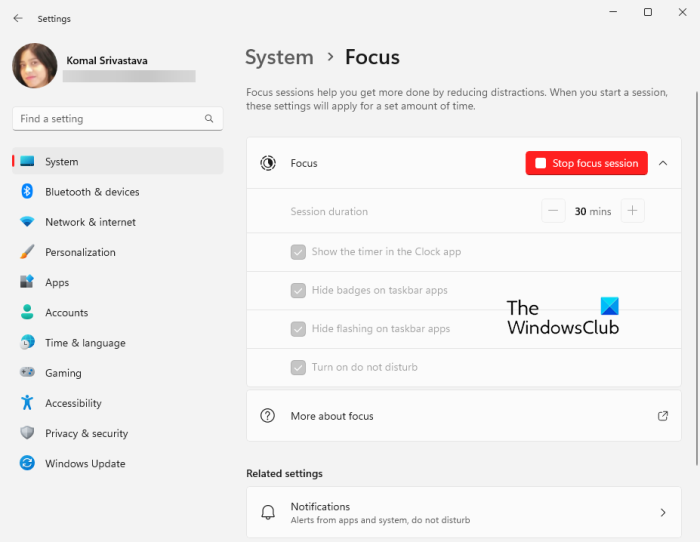
Focus Assist is a useful feature in Windows that essentially silences all distracting notifications, allowing you to concentrate on your primary task. Now, if this feature is enabled, you won’t receive any new notifications, including Outlook notifications. Hence, if the scenario is applicable, disable the Focus Assist feature and then see if the problem is fixed. Use the steps below to do that:
- First, open Settings and go to System > Focus.
- Now, click on the Stop focus session button.
- Once done, check if you are getting the Mail notifications or not.
7] Ensure the Do Not Disturb mode is not on
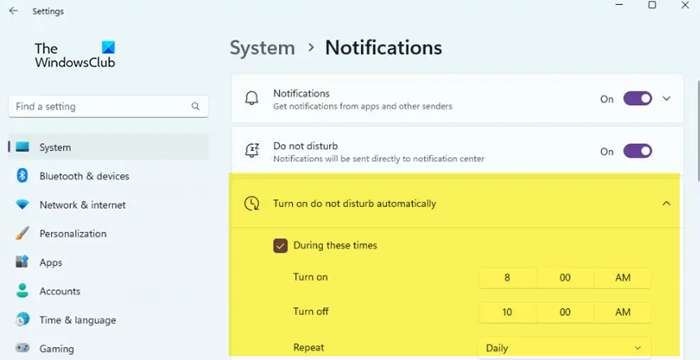
If you have enabled Do Not Disturb on your PC for certain time durations, you won’t receive Mail notifications during the specified times. Hence, check if you have enabled the Do Not Disturb mode for the time being. If so, disable it using the steps below:
- First, open Settings and navigate to System > Notifications.
- Now, make sure to enable the toggle associated with the Do not disturb option.
RELATED: Outlook not responding; Keeps crashing, has stopped working, freezes or hangs.
8] Make sure Battery Saver mode is disabled
Windows provides a Battery Saver mode that helps conserve battery by limiting notifications and background activities. Now, if you have enabled this function, you won’t receive Mail notifications on your desktop. Hence, disable Battery Saver on your computer and see if it resolves the issue. Here’s how you can do that:
- First, launch Settings and move to System > Power & battery.
- Now, expand the Battery section and click on the Turn off not button present next to the Battery saver option.
Check if you are now receiving email notifications.
9] Update Outlook App
Ensure your Outlook or Mail app is up to date. Such issues are often caused by using an outdated version of an app. Hence, to avoid such performance issues and access new features, update to the latest version of the Mail or Outlook app.
The Mail app has been deprecated, so switch to the new Outlook app.
Read: Error 0x8007007E in Windows Update, Outlook or Printer [Fix]?
10] Repair or Reset your Outlook app
If the above solutions don’t work, try repairing your Outlook app to see if it resolves the issue. Windows provides a dedicated feature to repair Microsoft Store apps, eliminating any corruption associated with them. Hence, if the Outlook app has corrupted data or cache, which is causing the issue at hand, Windows will repair it. If that doesn’t help, you can reset the Outlook app to its original state and see if the notifications are working again.
Here are the steps to repair or reset the Outlook app:
- First, open Settings and go to Apps > Installed apps.
- Now, locate the Outlook for Windows app, select the three-dot menu button, and click on Advanced options.
- After that, scroll down to the Reset section and tap on the Repair button.
- Once the process is finished, reopen the app and check if the problem is resolved.
- If not, use the Reset button and confirm the app resetting process. See if the Mail notifications are working now.
The steps to repair the Mail app is the same, except that you need to look for the Mail and Calendar app.
Hope this will help.
How do I get email notifications to pop up on my desktop?
To receive Gmail notifications on your desktop, open Gmail, click the Settings button, and then select the “See all settings” option. Now, scroll down to the Desktop notifications option and select either New mail notifications on or Important mail notifications on as per your requirement.
Why is my Outlook app not working Windows 11?
If your Outlook app is not working or opening on Windows 11 or 10, it may be due to corrupted or infected system files. Hence, you can perform SFC and DISM scans to fix this issue. Besides, corruption in the Mail app can also prevent it from opening or working properly. In that case, you can reset or repair the app to resolve the issue.
Now read: Outlook emails are automatically deleted.
