
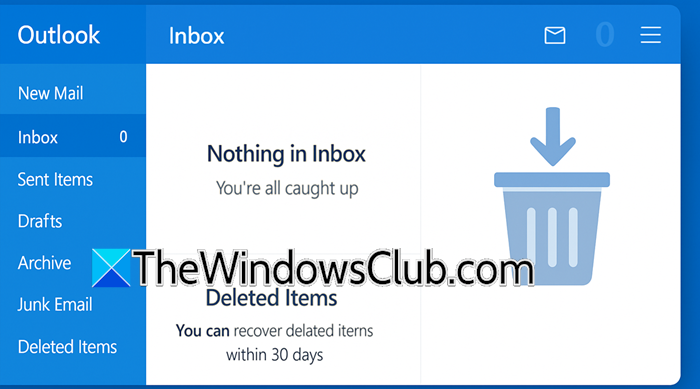
I opened Outlook a couple of days back and noticed that some of my emails had been deleted without my consent. This is a very peculiar and annoying issue, as most of us use MS Outlook as our work email client, and losing important emails can have serious repercussions. Therefore, in this post, we are going to talk about this issue and see what you can do if Outlook emails are automatically deleted.
Why are my emails suddenly deleted in Outlook?
Your emails may suddenly disappear in Outlook due to automated rules moving or deleting messages, overly aggressive junk filters falsely trashing legitimate mail, retention policies or AutoArchive settings purging older items automatically, or sync issues (especially with POP/IMAP) causing server deletions to propagate locally. Additionally, the Empty Deleted Items on exit feature or corrupted mailbox data can trigger unexpected loss. Check these settings first to isolate the cause.
Fix Outlook emails are automatically deleted
If Outlook emails are automatically deleted, you need to follow the solutions mentioned below.
- Disable Empty Deleted items on Exit
- Disable Auto-Archive
- Check Outlook Rules
- Reset Junk Email Settings
- Repair your Outlook Profiles and files
Let us talk about them in detail.
1] Disable Empty Deleted items on Exit
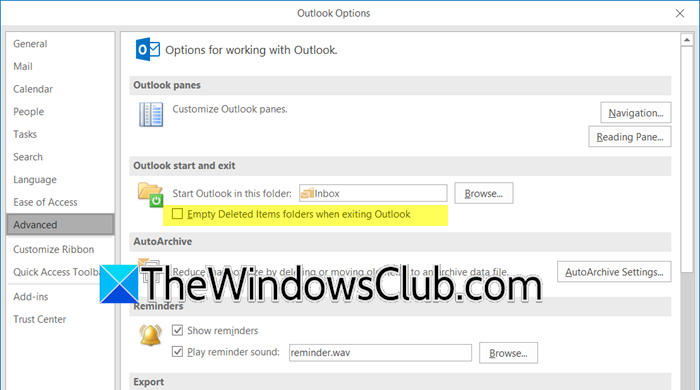
As implied by this option, when enabled, it clears out the Delete items folder when one closes Outlook. By unchecking it, we can stop automated purge cycles tied to app closure, retaining deleted emails until you manually empty the folder, and it prevents accidental data loss. To do so, you can follow the steps mentioned below.
- Open MS Outlook.
- Go to File > Options.
- Now, click on Advanced and untick Empty Deleted items folders when exiting Outlook.
- Click on Ok.
Finally, check if the issue is resolved.
Note: This option is not available on Outlook web as there is no local exit option.
2] Disable Auto-Archive
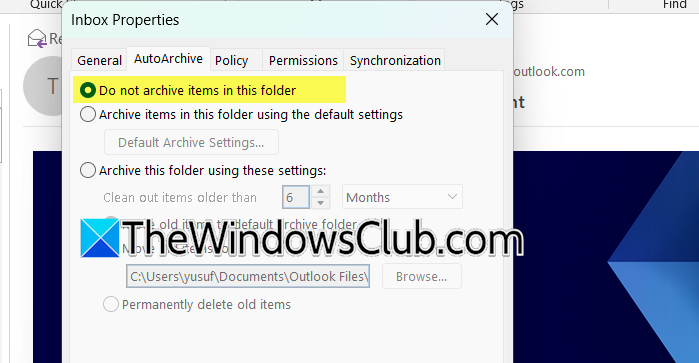
AutoArchive applies global settings, such as deleting items older than six months, but individual folders can have their own settings that override these general rules. Disabling the AutoArchive feature for a specific folder prevents any archiving or deletion, even if the global policies are still active. Folders like Sent Items often have unique AutoArchive rules, such as purging emails after three months. By explicitly disabling AutoArchive for these folders, you can avoid the unexpected disappearance of emails.
To disable Auto-Archive, you need to follow the steps mentioned below.
- Right-click on the folder, for example, the Inbox, and click on Properties.
- Now, go to the AutoArchive tab and tick Do not archive items in the folder.
- Click on Apply > Ok.
Finally, check if the issue is resolved.
3] Check Outlook Rules
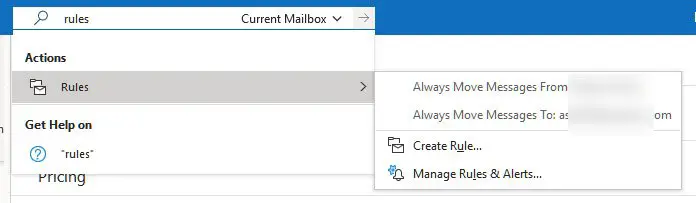
Rules process emails as soon as they arrive. Deleting strict rules stops automated deletion chains from running. In this solution, we are going to check and delete those aggressive rules to resolve the issue.
- Open Outlook.
- Outlook Classic: Go to Home > Rules. Then, go to Manage Rules & Alerts. Outlook New: Click on Settings (gear icon) > Mail > Rules.
- Review all rules (client or server) and delete rules that contain actions like.
- “permanently delete it”
- “delete it”
- “move to Deleted Items” (if combined with auto-purge policies).
- “Delete message”
- “Move to Deleted Items”
- “Remove message” (IMAP accounts).
Finally, check if the issue is resolved.
Read: How to Auto Delete email in Outlook selectively
4] Reset Junk Email Settings
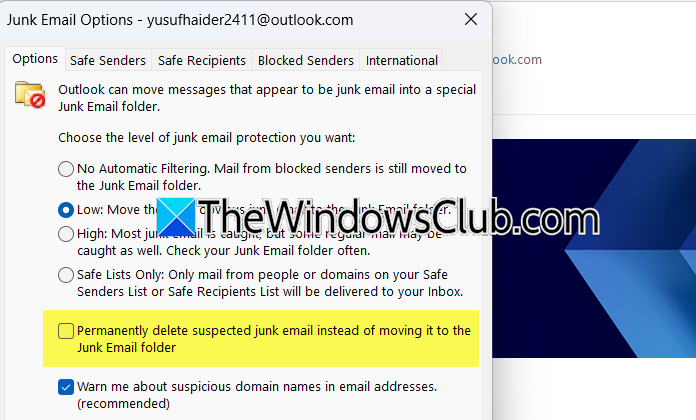
Outlook’s junk filtering can accidentally delete legitimate emails, especially those scoring above 4 out of 9. To prevent automatic deletion, users can set the filtering threshold to Never. Outlook also deletes items in the Junk folder after 10 to 30 days, depending on organizational policy. To protect important messages from deletion, users should add them to the Safe Senders list to keep them in the Inbox and prevent them from being purged.
Outlook Classic
- In the Outlook app, go to Home.
- Now, click on Junk > Junk Email Options.
- Now, go to the Options tab and disable or untick Permanently delete suspected junk email instead.
- Go to the Safe Senders tab and add important domains or addresses.
- Finally, click on Apply.
Outlook Web or Outlook New
- In Outlook, click on the cog icon to open Settings.
- Go to Mail > Junk email.
- Disable the Automatically filter junk email.
- Expand Safe senders and domains, add critical contacts, and click on Save.
Also Read: Outlook has stopped working
5] Repair your Outlook Profile and files
Next up, we are going to repair the Outlook Profile and files as if they’re corrupted; you will surely encounter this issue. We recommend that you go through our guide on how to repair Outlook profiles and PST files and see if that helps. Hopefully, it will do the job for you.
We hope that with the help of these solutions, you will be able to resolve the issue.
How to fix Outlook automatically deleting emails?
To prevent Outlook from automatically deleting emails, first disable the auto-purge feature for the Deleted Items folder upon exit, scrutinize and remove any email rules that trigger deletion or moving messages to Deleted Items. You need to clear junk email filter settings to avoid false positives, and disable both global and folder-specific AutoArchive or retention policies that enforce automated deletion based on age. Additionally, verify account sync settings to ensure emails aren’t being purged from the server unintentionally, and audit third-party add-ins for conflicts.
Also Read: Outlook.com problems, errors, and issues.
