
Installing a BIOS update is recommended, as it improves your system’s stability and hardware compatibility. However, some users reported a significant drop in system performance and game FPS after updating the BIOS. If your laptop’s performance and FPS drop after the BIOS update, this article will help.
Laptop’s performance and FPS drop after BIOS update
Use the following fixes if your laptop’s performance and FPS drop after the BIOS update:
- Check the BIOS settings
- Change your power plan
- Update the chipset driver
- Check the issue in the Clean Boot state
- Perform the clean installation of the GPU driver (if applicable)
- Force the game to use the dedicated GPU
- Monitor your GPU and CPU temperature
- Contact support
All these fixes are explained in detail below.
1] Check the BIOS settings
Updating a BIOS may also reset all settings to their default values. Check this. If the XMP profile was previously enabled, the BIOS update might have disabled it, causing your RAM to run at a lower speed. As a result, your system’s overall performance has dropped, and you are experiencing low FPS in video games.
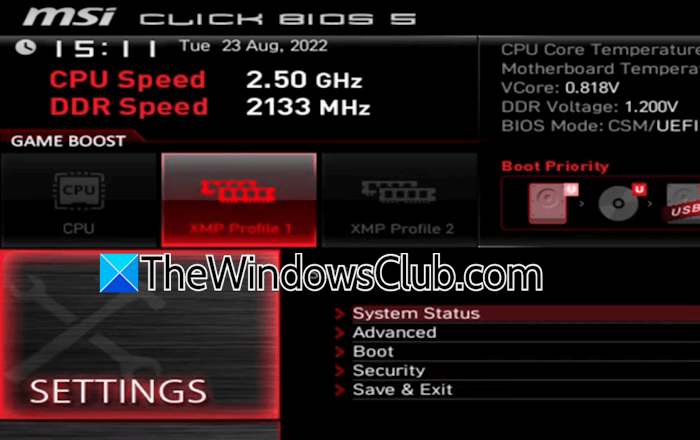
Motherboards of different brands have different keys to enter the BIOS. Use the right key to access your system’s BIOS. You can also refer to your system’s user manual.
2] Change your power plan
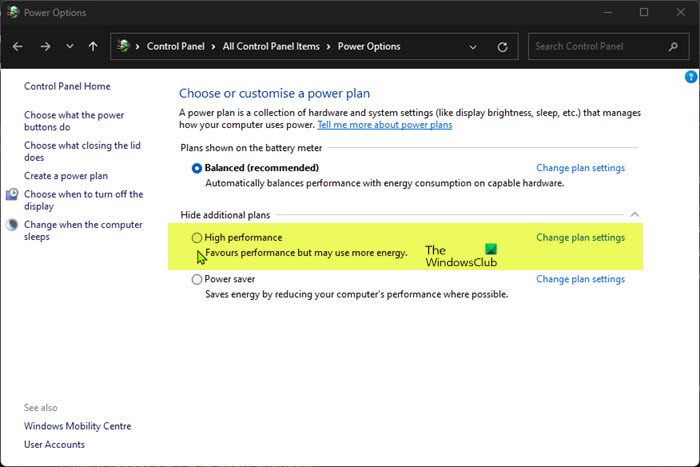
Change your power plan to high performance. The High Performance power plan delivers the maximum performance as compared to the Power Saver and Balanced power plans. Check this in the Control Panel. Follow these steps:
- Open the Control Panel.
- Type power in the Control Panel search bar and select Power Options from the search results.
- Select the High Performance power plan.
If only the Balanced power plan is available, you can restore the missing default power plans by running the required commands in the Command Prompt. Computer systems that support Modern Standby Mode allow only the Balanced Power Plan. If the commands to restore the missing default power plans do not work, Modern Standby Mode might be active on your system. In this case, you have to disable it first.
3] Update the chipset driver
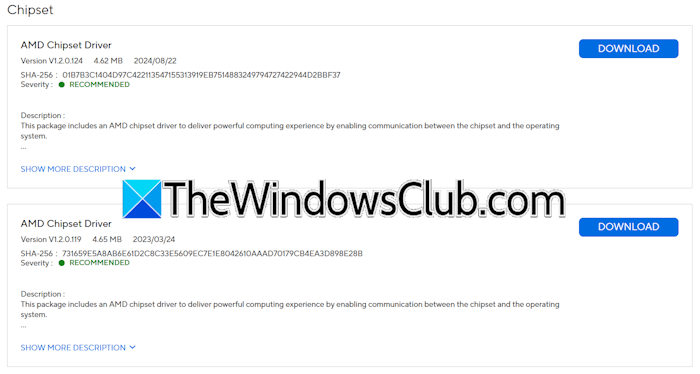
A chipset is a collection of electronic components on a motherboard that manages the flow of data between the CPU, GPU, RAM, storage, and peripherals. The chipset driver helps the Windows operating system to properly communicate with the chipset hardware. If your laptop’s performance and FPS drop after the BIOS update, updating the chipset driver can help fix this issue.
4] Check the issue in the Clean Boot state
The issue might not be due to the BIOS update. A third-party program or service might be consuming your system resources, causing a drop in your system’s performance. To check this, enter the Clean Boot state and monitor your system’s performance. If the issue does not occur in the Clean Boot state, you need to find the problematic third-party service or application.
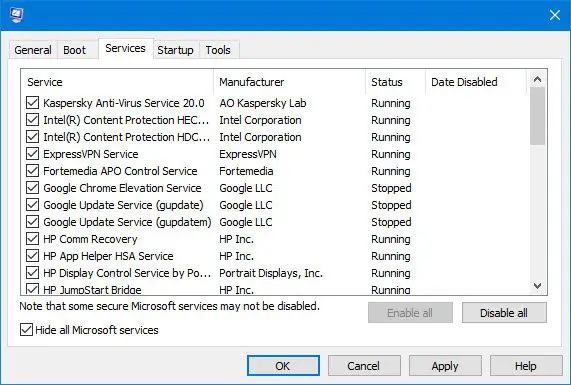
Nahimic service, associated with the Nahimic audio software, can sometimes show high GPU usage, causing a significant drop in FPS while playing video games. If your system has Nahimic software, uninstall it and see if it helps.
5] Perform the clean installation of the GPU driver (if applicable)
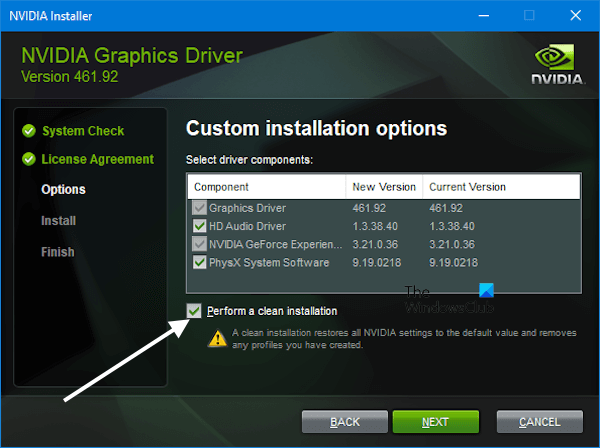
A corrupt GPU driver can also cause a drop in FPS. Therefore, if the issue still persists, reinstalling the GPU driver can help. For this, you can use dedicated tools, such as NVIDIA Installer or AMD cleanup utility, or a third-party tool, like DDU (Display Driver Uninstaller).
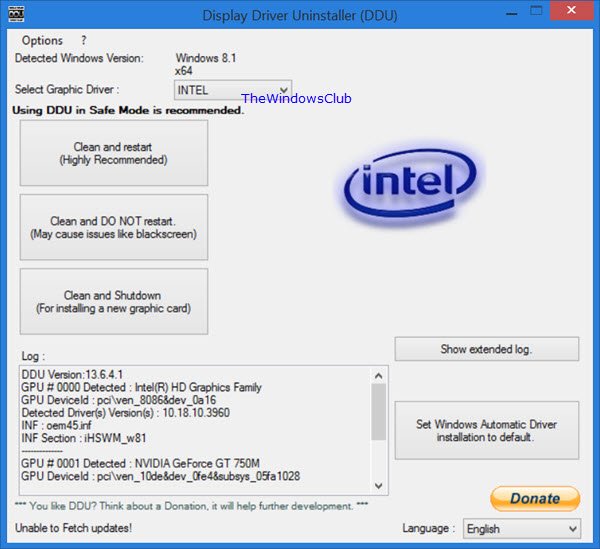
If you use DDU, first, download the latest version of the GPU driver from the official website. After that, boot in Safe Mode and completely remove the GPU driver using DDU. Now, exit Safe Mode and run the installer file to install the GPU driver from scratch.
6] Force the game to use the dedicated GPU
In Windows, you can force a game to use the dedicated GPU. Follow these steps:
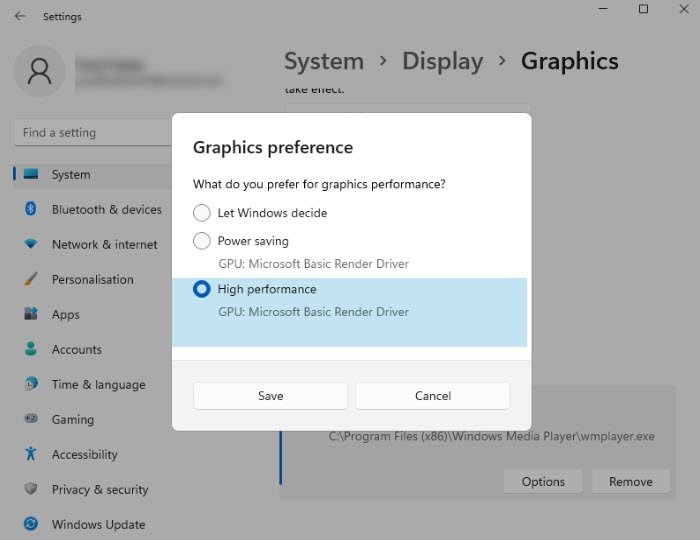
- Launch Windows 11 Settings.
- Go to System > Display.
- Select Graphics.
- Scroll down and see if your game is available on the list. If not, click Add desktop app and select the exe file of your game.
- Click Add.
- Now, select your dedicated graphics card in the drop-down.
7] Monitor your GPU and CPU temperature
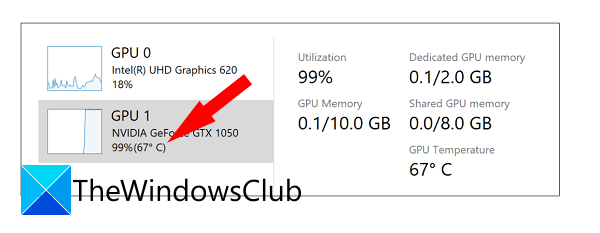
You should also monitor your GPU or CPU temperature. High PC temperature affects its performance, causing games to lag. To monitor GPU temperature, you can use the built-in tool, Task Manager. To monitor your CPU temperature, you can use free software, like Core Temp.
If the temperatures are high, clean your laptop for proper ventilation. Also, check the thermal paste. Take professional help to replace the thermal paste.
8] Contact support
If, despite trying these fixes, the issue persists, you should contact the manufacturer’s support. You will find the contact information on the official support website.
That’s it. I hope this helps.
Can a BIOS update affect FPS?
A BIOS update does not affect the FPS of a game. It helps improve the system’s stability and hardware compatibility. Therefore, if you are looking for a better performance in games, a BIOS update is not the way to go.
Why does my laptop suddenly drop FPS?
There can be multiple causes for a sudden drop in the FPS of your games. The most common cause is the high CPU or GPU temperature. High CPU or GPU temperatures trigger thermal throttling, forcing the CPU or GPU to reduce its clock speeds to avoid overheating. Apart from that, corrupt game files can also cause a drop in FPS.
Read next: Tips to optimize Windows for better performance.
