
There could be times when the soft keyboard or touch keyboard, or on-screen keyboard may not be working in a VirtualBox virtual machine. If so, follow these workarounds to get rid of this problem and start typing as usual.
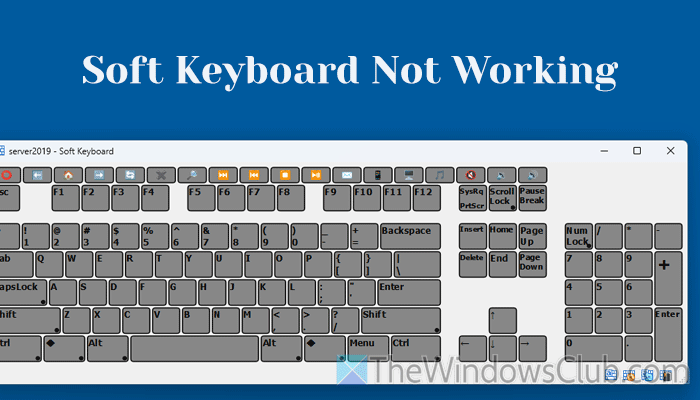
Keyboard not working in VirtualBox virtual machine
If the keyboard is not working in a VirtualBox virtual machine, follow these solutions:
- Choose correct pointing device
- Change keyboard input settings
- Enable keyboard auto capture
- Install Guest Additions
- Use in-built on-screen keyboard of Windows
To learn more about these solutions, continue reading.
1] Choose correct pointing device
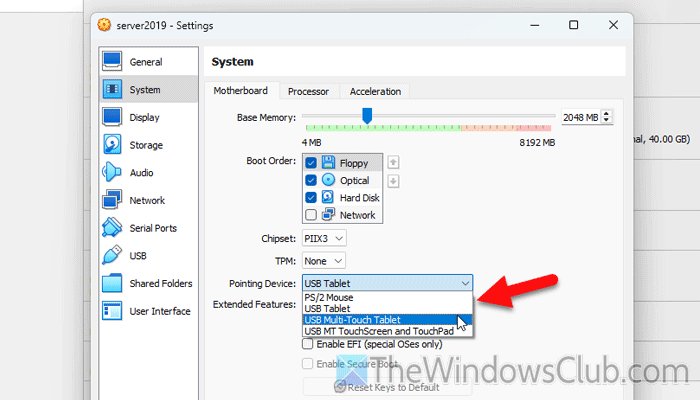
VirtualBox offers four different pointing devices that help you use your mouse and keyboard in a simulated way, such as a PS/2 device or a USB tablet. You can try switching between them to check if it resolves the issue. To change the pointing device settings in VirtualBox, follow these steps:
First, you need to open VirtualBox on your computer and choose a virtual machine. Then, click on the Settings button and switch to the System tab.
Make sure that you are in the Motherboard tab. If so, head to the Pointing Device list and choose something that is not already selected.
Click the OK button to save the change.
Read: Mouse pointer or cursor disappears on Windows device
2] Change keyboard input settings
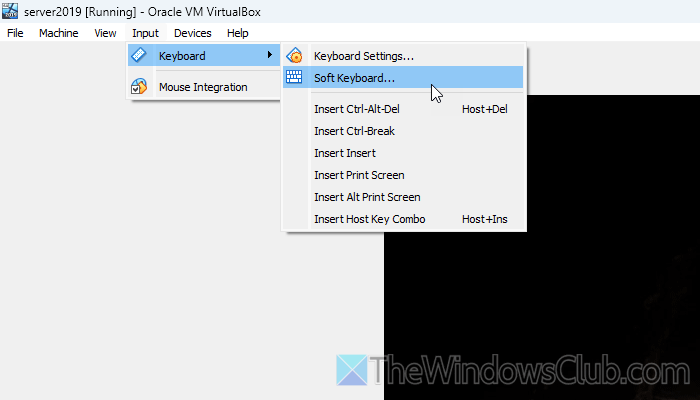
For your information, the soft keyboard is not always enabled by default. You need to activate it manually when you want to use it on your virtual machine. In case you do not know how to enable the Soft Keyboard or touch keyboard, follow these steps:
First, open the virtual machine and start it. Then, go to Input > Keyboard and choose the Soft Keyboard option.
Once you do that, the on-screen keyboard will appear. If you are done, you can click the close button to hide it.
Read: Best VirtualBox Keyboard Shortcuts to improve performance
3] Enable keyboard auto capture
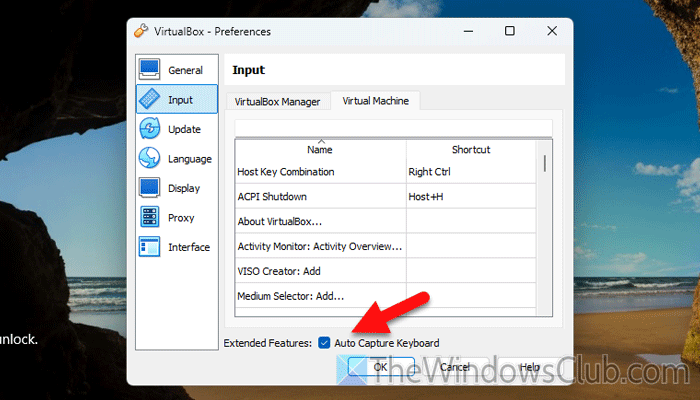
By default, VirtualBox captures the keyboard automatically – whether it is the soft keyboard or a physical keyboard. However, if you have changed the settings earlier or even though you haven’t, checking this option is worth a try. That said, you need to start your virtual machine first. Then, go to Input > Keyboard and choose the Keyboard Settings option.
Next, go to the Input tab if it is not already opened and switch to the Virtual Machine tab. Next, tick the Auto Capture Keyboard checkbox and click the OK button to save the change.
Read: Keyboard not typing, not working or Unresponsive on Windows
4] Install Guest Additions
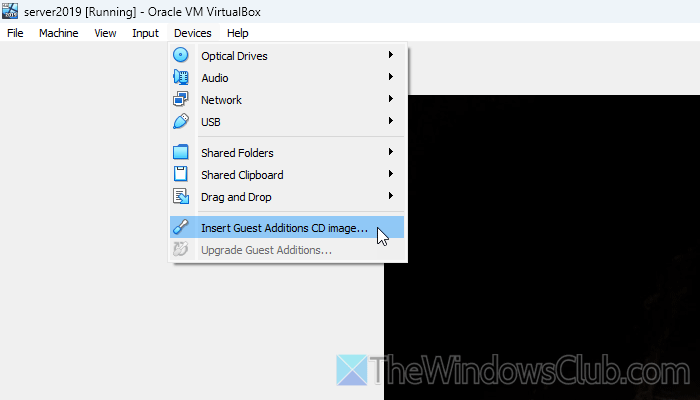
Guest Additions is like a package of drivers that builds a better establishment between your hardware and the virtual machine. To install the Guest Additions in VirtualBox, follow these steps:
- Start the virtual machine and go to Devices > Insert Guest Additions CD image.
- Go to the Devices and drives section and choose the VirtualBox Guest Additions.
- Double-click on the VBoxWindowsAdditions.exe file.
- Go through the screen instructions and click the Install button.
Once done, you need to click the Reboot now button to restart your virtual machine.
Read: Unable to install Guest Additions in VirtualBox
5] Use in-built on-screen keyboard of Windows
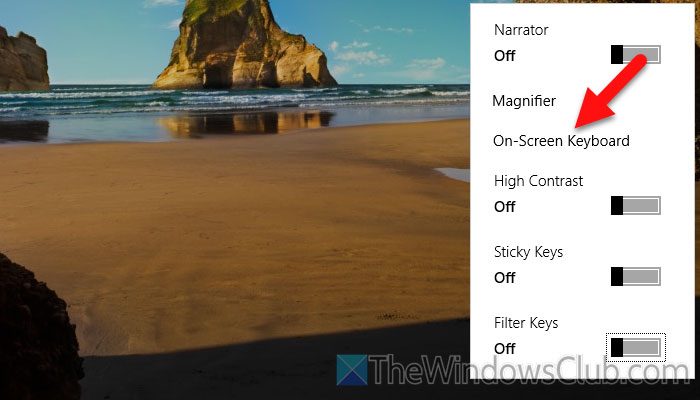
If the VirtualBox-powered on-screen keyboard is not working, you can always opt for the Windows-powered on-screen or touch keyboard to type almost anywhere in Windows 11/10, Windows Server, etc.
To enable the on-screen keyboard when you are trying to log in, you need to click on the Accessibility button and choose the On-Screen Keyboard option.
If you want to enable the touch keyboard when you are already signed in, you need to press Win+Ctrl+O. However, as your keyboard is not working in this case, you need to use your mouse to enable it.
Having said that, right-click on the Start Menu and click on Settings. Then, go to Accessibility > Keyboard and toggle the On-screen keyboard button to turn it ON.
Read: Bluetooth not working in VirtualBox
How do I enable the keyboard on VirtualBox?
If you want to enable the on-screen keyboard or the touch keyboard in VirtualBox, you need to start the virtual machine first. Then, go to Input > Keyboard > Soft Keyboard. However, if you want to enable the physical keyboard, there is nothing you need to do.
Why is my keyboard not working in VM?
There could be various reasons why your keyboard is not working in the VirtualBox virtual machine, and some of the reasons are:
- It is not mapped to virtual machines.
- Keyboard auto capture is not turned on.
- The keyboard has some driver-related problems, and it is not being detected.
Read: Bluetooth disconnects after opening virtual machine in VirtualBox
