
If Bluetooth on your host or parent computer gets disconnected after opening a virtual machine or virtual OS, here is how you can fix the problem. Whether you are running Windows 11/10, Windows Server, Linux, or any other OS on the virtual machine, follow these instructions if you use VirtualBox on a Windows 11/10 PC.
Bluetooth disconnects after opening virtual machine in VirtualBox
If Bluetooth disconnects after opening a virtual machine in VirtualBox, follow these solutions:
- Disable USB filter
- Restart Bluetooth service
- Reinstall Bluetooth driver
- Use Bluetooth Troubleshooter
- Disconnect Bluetooth devices in virtual OS
To learn more about these solutions, continue reading.
1] Disable USB filter
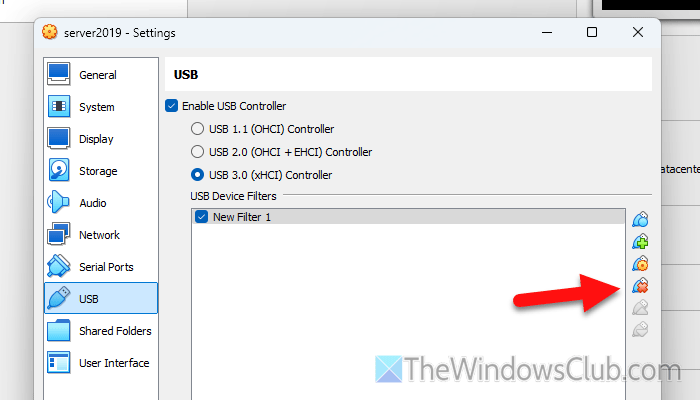
It is the very first thing you need to do since it is directly related to Bluetooth devices and your virtual machine software. In case you don’t know, a USB filter helps you filter the type of USB devices you want to use with a virtual machine. The same thing could cause a conflict between your host computer and the virtual OS.
To disable the USB filter in VirtualBox, follow these steps:
- Open VirtualBox.
- Select a virtual machine and click on Settings.
- Go to the USB section.
- Select the filter you want to delete and click on the Removes selected USB filter button.
- Click the OK button.
After that, you need to restart the virtual machine software.
Read: VirtualBox USB not detected in Windows 11
2] Restart Bluetooth service
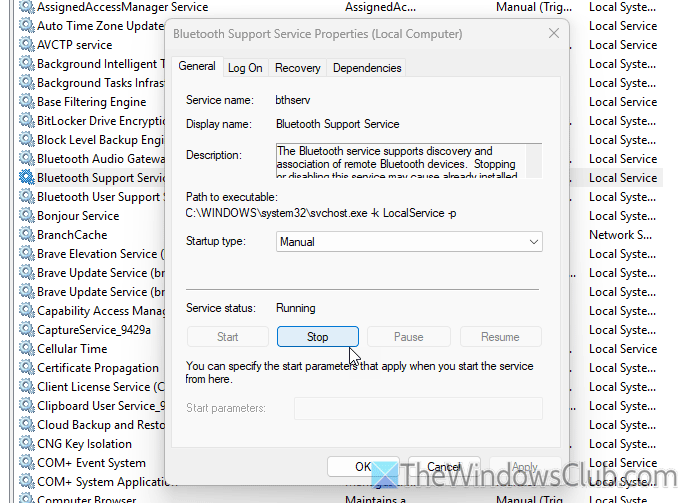
Bluetooth Support Service helps you discover, connect, and use remote Bluetooth devices with your computer. If this service is not running, you cannot use the Bluetooth facility. Therefore, it is highly recommended to check this service’s status and restart it, if needed.
For that, do the following:
- Open the Windows Services Manager.
- Find the status of Bluetooth Support Service.
- Double-click on it and click the Stop button.
- Choose Manual as the Startup type.
- Click the Start button.
- Let the process be finished.
3] Reinstall Bluetooth driver
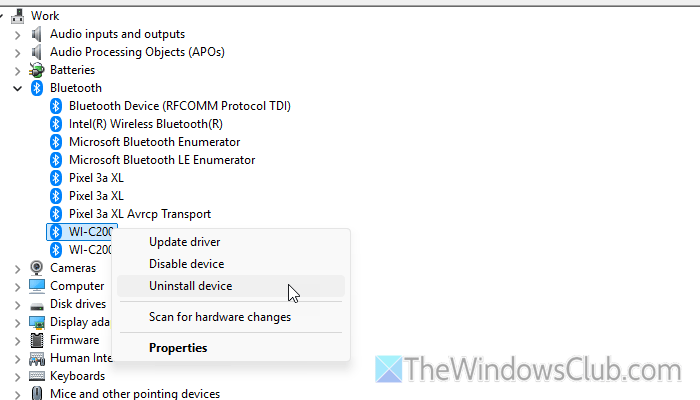
Most of the Bluetooth devices come with an additional driver. Although this driver may not be mandatory all the time, it is suggested to install it if you are having some issues with Bluetooth.
For your information, we always recommend you download any driver from the official website only. In case you already have it on your computer, uninstall it using the Device Manager and reconnect it to start the driver/device installation process. For that, do the following:
- Right-click on the Start Menu and select Device Manager.
- Expand the Bluetooth section.
- Right-click on the Bluetooth device and select the Uninstall device option.
- Let the process be finished.
However, if you want to update the Bluetooth driver, you need to follow these steps:
- Press Win+I to open the Windows Settings panel.
- Go to Windows Update > Advanced options > Optional updates > Driver updates.
- Tick the update checkbox and click the Download & install button.
Read: How to Update Bluetooth drivers in Windows 11
4] Use Bluetooth Troubleshooter
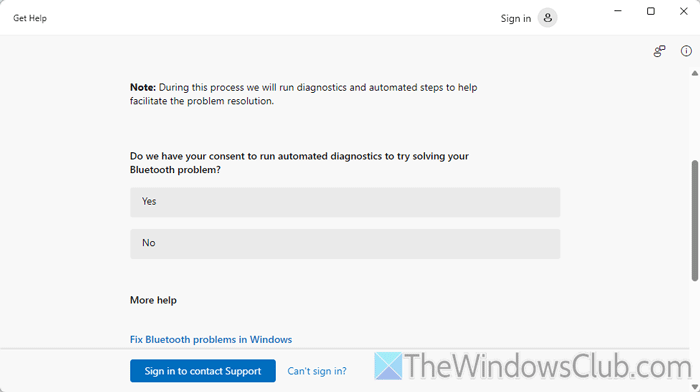
To use the Bluetooth Troubleshooter, you need to use the Get Help app. After opening it, search for Bluetooth Troubleshooter and follow the screen instructions. Once you click on the Yes button, it will start checking your system for possible reasons of the issue. Following that, it will rectify the issue automatically.
Once the process is done, we would suggest you restart your computer and reconnect the Bluetooth device.
5] Disconnect Bluetooth devices in virtual OS
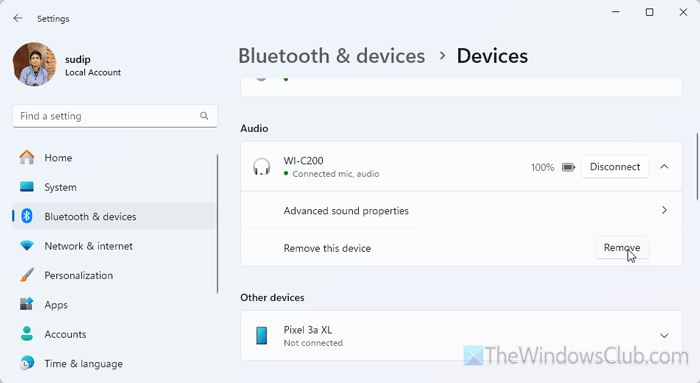
Many people use Bluetooth headphones and other Bluetooth devices with the virtual OS. If you connect your device to the virtual OS, it may not work with the host computer or OS. On the other hand, if you keep it connected even though you shut down the virtual OS, you can still find the same problem.
In such situations, you need to disconnect the Bluetooth headphones in the virtual OS first. Then, you need to open the Windows Settings and go to Bluetooth & devices > Devices. Find the Bluetooth devices and remove them accordingly.
Then, try to reconnect the headphones to your host OS.
Read: Bluetooth Mouse keeps disconnecting or not working in Windows 11
Why is my Bluetooth getting disconnected automatically?
There could be several reasons why Bluetooth keeps getting disconnected automatically, whether it is a Bluetooth headphone, mouse, keyboard, or any other device. The most common reason is an interference caused by other devices or software, or drivers.
Why does my Bluetooth randomly disable?
If your Bluetooth device has a low battery, it could be disabled automatically and randomly. Apart from that, a faulty driver, an incorrect setting in some third-party music player, etc., could also cause the same problem.
