
If Bluetooth is not working in VirtualBox, here is how you can get rid of this issue on Windows 11/10 PC. Whether it is a Bluetooth mouse, keyboard, headphone, or any other device, you can follow the same instructions to troubleshoot the Bluetooth issue in VirtualBox.
Fix Bluetooth not working in VirtualBox
If Bluetooth is not working in VirtualBox, follow these solutions:
- Remove USB filter
- Disconnect headphones from host computer
- Install Guest Additions
- Run Bleutooth Troubleshooter
- Update VirtualBox
- Install VirtualBox Extension Pack
To learn more about these solutions, keep reading.
1] Remove USB filter
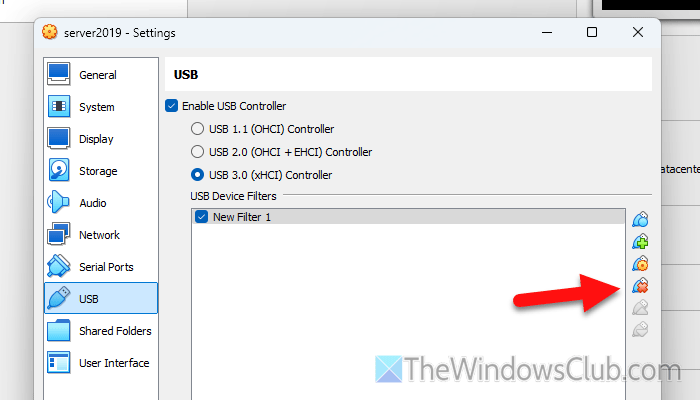
USB filter helps you decide whether you want to use a specific USB device with your virtual OS or not. An incorrect setting of the same facility can also block you from using Bluetooth. Therefore, follow these steps to remove the USB filter:
- Open VirtualBox on your PC.
- Select the virtual machine and click on the Settings option.
- Switch to the USB tab.
- Double-click on a USB filter to view its details.
- Select the filter and remove it.
- Click the OK button.
After that, you need to close all windows and restart VirtualBox.
Read: USB device is busy with a previous request — VirtualBox error
2] Disconnect headphones from host computer
In order to connect your headphones or any other Bluetooth devices to your virtual OS, you need to disconnect it from the host computer first. After that, it will start working with the virtual OS.
Whether it is a Bluetooth headphone or any other audio device, it is highly recommended to disconnect it from the host computer before you start using it with the virtual OS.
Read: Bluetooth Headphones not working on Windows
3] Install Guest Additions
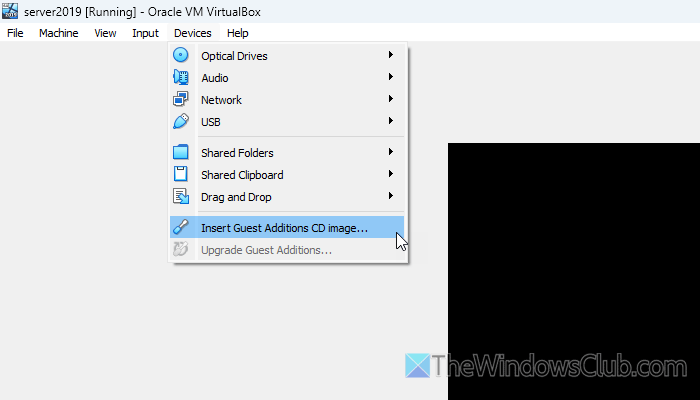
Guest Additions contains some additional system drivers for your virtual OS. To install Guest Additions in VirtualBox, follow these steps:
- Open VirtualBox and start a virtual machine.
- Go to Devices and select the Insert Guest Additions CD image option.
- Go to the Devices and drives section and double-click on VirtualBox Guest Additions.
- Select VBoxWindowsAdditions.exe and go through the screen instructions by clicking the Next button.
Finally, you need to restart your virtual machine to complete the installation process.
Read: Unable to install Guest Additions in VirtualBox
4] Run Bluetooth Troubleshooter
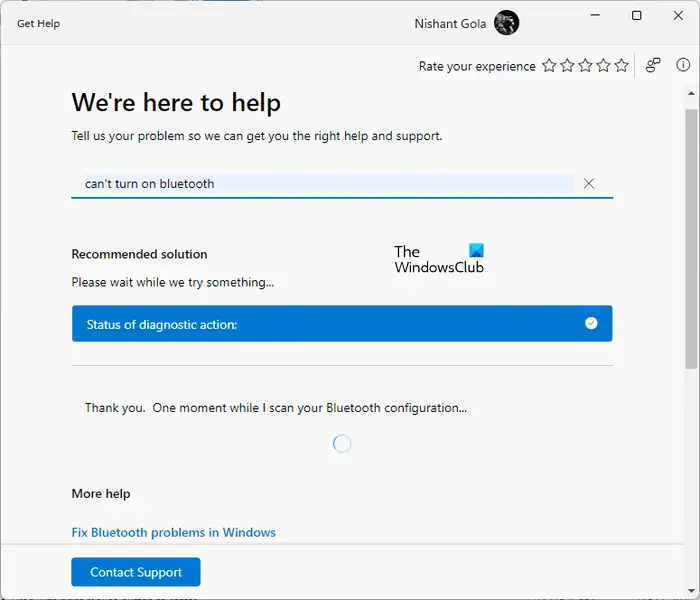
To run Bluetooth Troubleshooter, follow these steps:
- Open the Get Help app on your computer.
- Search for Bluetooth troubleshooter in the search box.
- Follow the screen instructions.
We suggest you use the Bluetooth Troubleshooter on the virtual OS as well. In case you are using Windows 11 or Windows 10, you can follow the same steps as above. However, if you are using Windows Server, you need to follow these steps to run the Bluetooth Troubleshooter:
- Press Win+I to open Windows Settings.
- Go to Update & Security > Troubleshoot.
- Select the Bluetooth Troubleshooter and click the Run the troubleshooter button.
- Follow the screen instructions.
In most cases, you may find an error saying that there is no Bluetooth adapter connected to your computer. In such situations, you need to download and install the Bluetooth driver on your host computer first. Then, do the same with your virtual computer.
Next, you can uninstall the device from the Device Manager and reinstall it.
5] Update VirtualBox
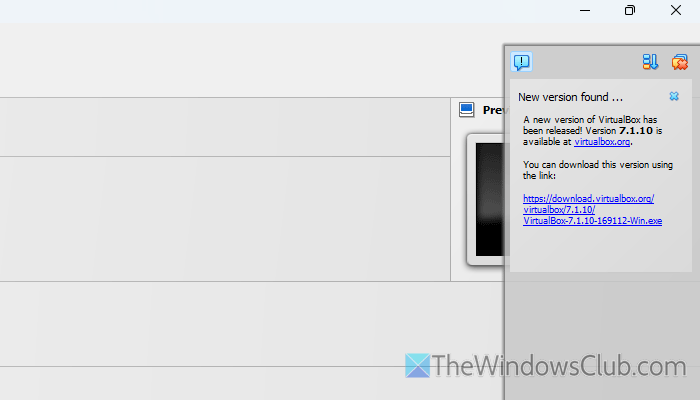
To update VirtualBox, follow these steps:
- Open VirtualBox on your computer.
- Go to File > Check for Updates.
- Find the panel on the right-hand side.
- Click on the New version found option.
- Click the download link to start downloading.
After that, you can go through the installation process.
Read: VirtualBox VM is not opening or starting in Windows
6] Install VirtualBox Extension Pack
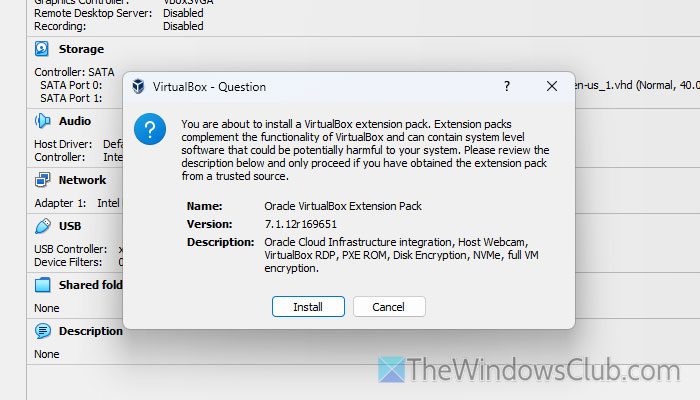
VirtualBox Extension Pack is an additional package of VirtualBox software that adds some more options and features to the core VirtualBox. To install the VirtualBox Extension Pack, follow these steps:
- Open virtualbox.org and download the VirtualBox Extension Pack.
- Double-click on the downloaded package.
- Click the Install button.
Once done, restart the VirtualBox and check if you can use Bluetooth with the virtual OS.
Read: VirtualBox USB not detected in Windows 11
How do I turn on Bluetooth on my virtual machine?
To turn on Bluetooth on your virtual machine, you need to connect it first. To do this, open the Windows Settings, go to Bluetooth & devices, and turn on Bluetooth. Then, connect the device by clicking the Connect button.
How do I enable a wireless network in VirtualBox?
To enable a wireless network in VirtualBox, open the Settings panel and go to the Network section. Then, tick the Enable Network Adapter checkbox and select an option from the Attached to checkbox. Next, expand the Advanced section and enter the required details.
Read: VirtualBox can’t connect to the Internet.
