
The WiFi indicator on an HP laptop indicates the status of the WiFi signal. If it turns orange or red, it indicates that the laptop cannot connect to the WiFi. If your HP laptop wireless light stays orange and you cannot connect to the internet, the solutions provided in this article will help you.
HP laptop wireless light stays orange
Use the following fixes if your HP Wi-Fi light stays orange and you cannot connect to the internet.
- Perform the Hard Reset
- Clear CMOS
- Reseat the wireless card (if possible)
- Download and install the Intel Driver and Support Assistant (if applicable)
- Uninstall and reinstall the wireless adapter
- Update BIOS
- Reset BIOS
- Perform System Restore
- Hardware fault
All these fixes are explained below in detail.
1] Perform a hard reset
The first step is to perform a hard reset. Follow these steps:
- Turn off your laptop.
- Disconnect all the peripherals and remove the battery.
- Disconnect the charger.
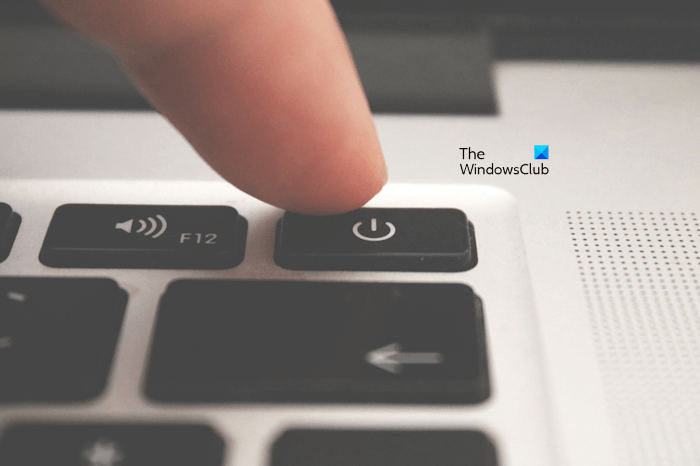
- Press and hold the power button for up to 45 seconds.
- Insert the battery and turn on your laptop.
2] Clear CMOS
If hard resetting your laptop does not help, try clearing the CMOS. For this, you have to open your laptop. Completely turn off your laptop and disconnect the charger. Now, open your laptop and locate the silver coin-shaped battery. It is the CMOS battery. Gently pull it out of its socket. Wait for a few minute and insert it again with the right polarity. Now, assemble the laptop and turn it on. See if the issue persists.
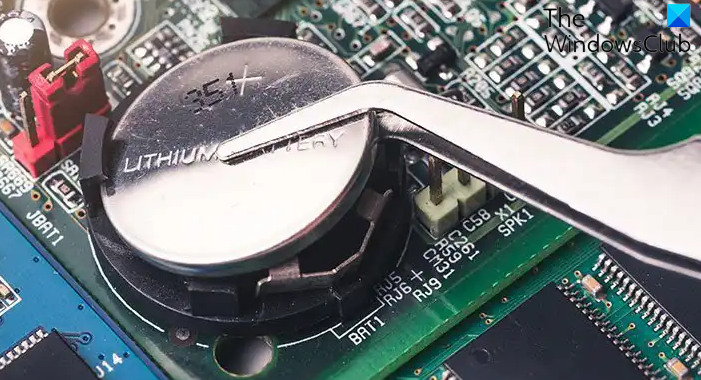
If you are not comfortable clearing the CMOS by opening the laptop, it is advisable to seek professional help.
3] Reseat the wireless card (if possible)
Your wireless card might not be seated properly, which is why this issue is occurring. This usually happens if you have recently cleaned your laptop by opening it. Check this and reseat the wireless card.
4] Download and install the Intel Driver and Support Assistant (if applicable)
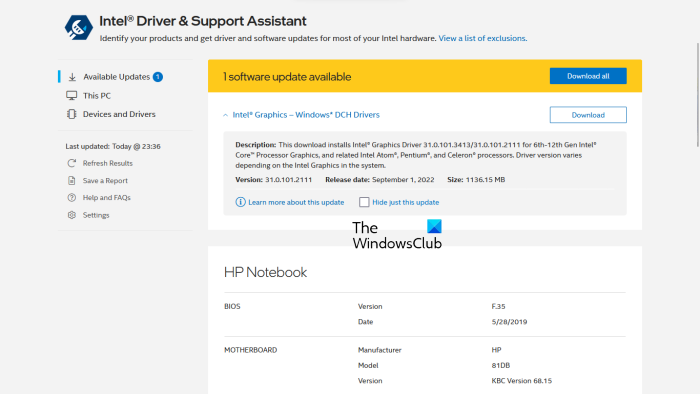
If your system has an Intel wireless card, you can use the Intel Driver and Support Assistant to update your wireless card driver. You can view the wireless card driver in the Device Manager. Now, visit the official website of Intel and download the Intel Driver and Support Assistant. Install and launch it. It will automatically detect the outdated Intel drivers on your system and update them to the latest version.
5] Uninstall and reinstall the wireless adapter
A corrupt WiFi card driver can also cause this issue. Uninstalling and reinstalling the wireless adapter can help. Follow these steps:
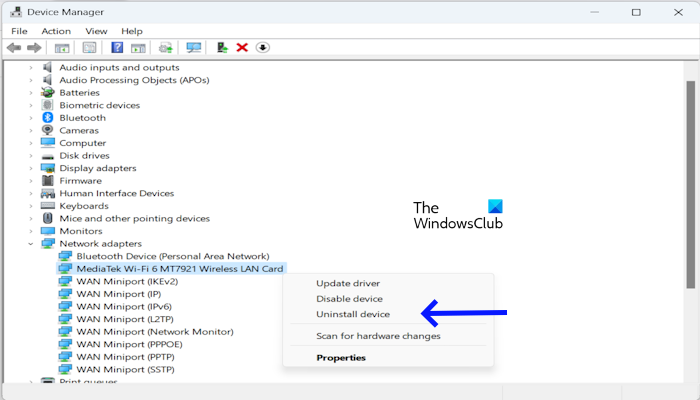
- Open the Device Manager.
- Expand the Network adapters branch.
- Right-click on your Wi-Fi card driver and select Uninstall device.
- Restart your computer or scan for hardware changes.
If this does not work, download the latest version of your WiFi card driver from the official website of your computer manufacturer and install it manually.
6] Update BIOS
An outdated BIOS can also cause this problem. Updating BIOS to the latest version improved hardware compatibility. First, check the current version of BIOS installed on your computer through the System Information. Now, visit the official website of your computer manufacturer and check the available BIOS version. If an updated version of BIOS is available, download and install it.
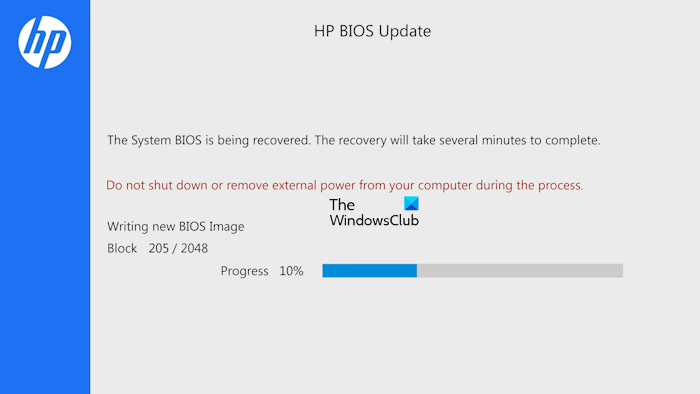
When updating the BIOS, ensure a continuous power supply is maintained to your laptop, even if it is fully charged. This is because the interruption in power supply during a BIOS update can damage the motherboard.
7] Reset BIOS
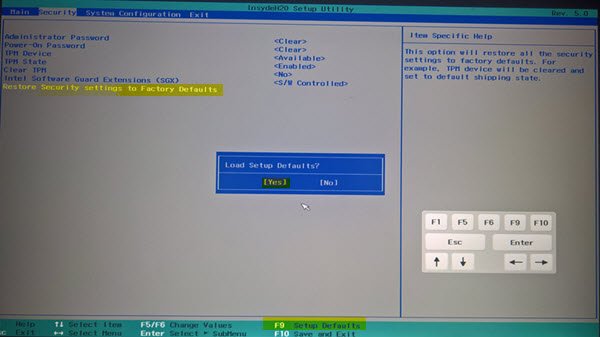
If updating the BIOS does not work, reset it to the default settings. Enter your system BIOS and locate the setting to reset it to the default settings.
8] Perform System Restore
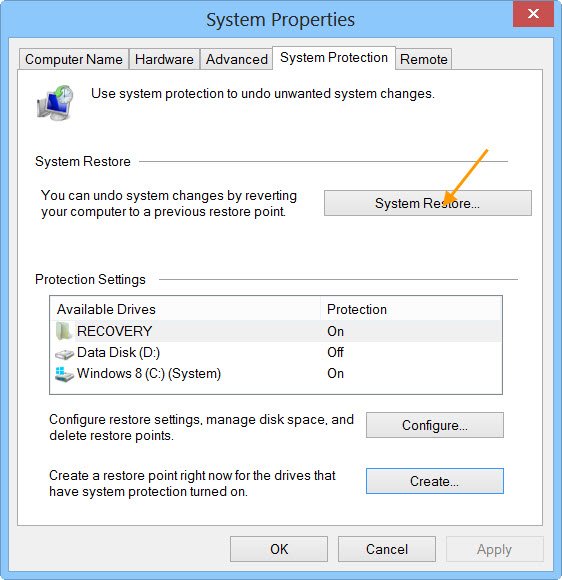
You can restore your system to the previous point in time. This will work if the problem is occurring due to software issues. Launch System Restore and select the restore point that was created before the problem existed.
9] Hardware fault
If none of the above fixes worked, there might be a hardware fault in your system. The problem might also be with the WiFi light itself. Take your system to a good laptop repair shop for further assistance. If your laptop is under warranty, contact the company for support.
That’s it. I hope this helps.
What does the orange light mean on an HP laptop?
The light on an HP laptop indicates the status of the WiFi signal. If it glows orange, it means that your system is facing trouble connecting to the wireless network. If your laptop gets connected to the internet, the color of the WiFi light is other than orange or red.
Why is my HP laptop not letting me turn on WiFi?
There can be multiple reasons why your HP laptop is not letting you turn on WiFi. Look for a physical switch. Some laptop models have a physical switch that allows you to turn WiFi on and off. Other reasons for this issue include a corrupt WiFi card driver, having Airplane mode enabled, etc.
Read next: HP BIOS error 500 or 501 on Windows.
