
Microsoft Support and Recovery Assistant was a diagnostic tool designed to fix problems with Microsoft Office 365, Teams, Outlook, and Office apps. Microsoft deprecated the SaRA command-line tool on March 10, 2026, and replaced it with the more secure Get Help Command Line tool. In this article, we will talk about how to use the new command-line Get Help tool in Windows 11.
How to use the command-line Get Help tool in Windows 11
To use the Get Help command-line tool, you have to download it from the official Microsoft website. The Get Help command-line utility is for Microsoft 365 administrators. If you are a normal user, Microsoft recommends using the troubleshooters in the Get Help app to diagnose and fix issues on Microsoft Office, Microsoft 365, and Microsoft Outlook.
The command-line version of Get Help is an enterprise-ready diagnostic tool you can use to troubleshoot specific client issues affecting Microsoft 365 apps, such as Microsoft Teams and Outlook. This version of Get Help can run both at a command line and through a script such as PowerShell. It is particularly useful to run remotely on computers in an organization.
The key distinction is that GetHelpCmdLine is built on infrastructure with enhanced security. All scenarios previously supported by the SaRACmdLine tool continue to be fully supported in GetHelpCmdLine. The core functionality, however, remains unchanged.
This command-line tool is not supported for the new Outlook and new Teams apps.
Using the Get Help command-line utility
To use the Get Help command-line utility on your Windows 11 computer, open any web browser and visit this Microsoft webpage. Now, download the Command Line Get Help utility. The tool will be downloaded as a zip file. Go to the saved location and extract the file. Now, open the folder. You will find the GetHelpCmd.exe executable file there. Do not run that file.
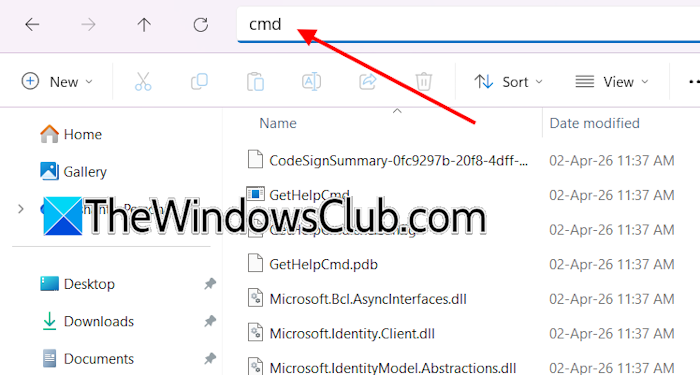
To use this utility, you have to target it to the correct directory; otherwise, it will not work. In the extracted folder, click on the address bar of File Explorer and type cmd. Press Enter after that. This will open the GetHelpCmd utility in the same folder. Now, you can run the Get Help troubleshooting by using appropriate switches and scenarios.
What are the scenarios?
Scenarios are predefined situations or use cases to diagnose and fix specific problems. Microsoft has documented multiple scenarios for troubleshooting various issues.
- ExpertExperienceAdminTask: This scenario scans Outlook for known issues and generates a comprehensive configuration report for Outlook, Office, and Windows. You can run either a full or an offline scan.
- OfficeScrubScenario: You can use this scenario to uninstall any version of Office from your device. This scenario is useful when you cannot uninstall Office completely through the Control Panel of Windows 11 Settings.
- OfficeActivationScenario: This scenario helps fix Office activation issues. It checks and recoveries to reset activation-related settings so that you can successfully activate a subscription version of Office.
- OfficeSharedComputerScenario: It automates checks and recoveries to either enable or disable Office Shared Computer Activation.
- OutlookCalendarCheckTask: This scenario scans your Outlook calendar by using the Calendar Checking tool (CalCheck) for many known issues.
- TeamsAddinScenario: This scenario is for the Teams meeting add-in for Outlook. It automates checks and recoveries to help you get the Teams Meeting add-in for Outlook running.
- ResetOfficeActivation: This scenario is used to reset Office activation. It clears previous activations of Microsoft 365 Apps for Enterprise to remove related licenses and cached Office account information. This action resets Office applications to a clean state. Then, you can activate the applications by using a different Office account or changing to a different license mode.
What are the switches?
Switches are the parameters or command-line options you have to use with the scenarios. They are not case sensitive. Some of these parameters are optional; others are required. The required parameters must be used along with the scenarios.
Microsoft has listed all the switches on the official documentation. We have explained some of these switches here.
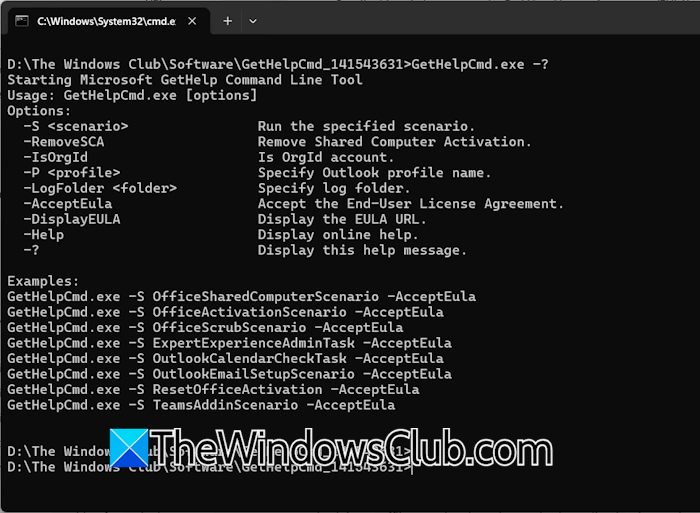
The -? switch is used to display the functions of all the switches that are available for GetHelpCmd.exe. The -S switch is mandatory in the command. It specifies the scenario that you want to use. The context to use this switch is as follows:
-S <scenarioname>
For example, the ExpertExperienceAdminTask scenario is defined to scan Outlook for known issues. Therefore, the correct command with the -S switch is:
-S ExpertExperienceAdminTask
All the switches are explained in the official documentation available on the Microsoft website. You can read the use of all switches there.
Understanding the GetHelpCmd troubleshooting scenarios
Let’s talk about some of the GetHelpCmd troubleshooting scenarios in detail.
Outlook Scan
The -AcceptEula is the required switch for the Outlook scan scenario. Use this switch to accept the End User License Agreement (EULA). This means you won’t get a pop-up to accept the EULA in a separate window. Using this switch automatically accepts the EULA.
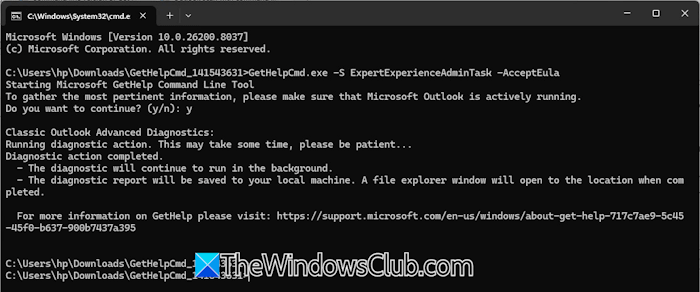
The other switches, -LogFolder, -HideProgress, and OfflineScan are optional switches. If you experience issues with Outlook, you can use the following command in a non-elevated Command Prompt window:
GetHelpCmd.exe -S ExpertExperienceAdminTask -AcceptEula
Office Uninstall
The -AcceptEula and -OfficeVersion are the available switches for the Office Uninstall scenario. As explained above, the OfficeScrubScenario is the scenario for uninstalling Office completely. Use the following command in the elevated command prompt window to uninstall Office.
GetHelpCmd.exe -S OfficeScrubScenario -AcceptEula
The -OfficeVersion is an optional switch used to uninstall a particular version of Office. For example, if you want to uninstall a subscription version of Office, such as Microsoft 365 Apps for Enterprise, you have to use the following command in the elevated Command Prompt window:
GetHelpCmd.exe -S OfficeScrubScenario -AcceptEula -OfficeVersion M365
Outlook Calendar Scan scenario
The Outlook Calendar Scan scenario scans the Outlook Calendar to identify and report issues. You can use this scenario in a non-elevated Command Prompt window.
All switches used in the Outlook Calendar Scan scenario are optional, except the -AcceptEula switch, which is required for all scenarios.
The command to scan the Outlook calendar is:
GetHelpCmd.exe -S OutlookCalendarCheckTask -AcceptEula
The above command will scan the Outlook Calendar for the active profile if Outlook is running. If MS Outlook is not running, the command will scan the calendar for the default Outlook profile.
If you want to scan the calendar for a particular Outlook profile, use the -P <Profile Name> switch.
Reset Office Activation
Sometimes, we need to remove the license and cached Office account information of the previous Office version. In this case, the reset Office activation scenario will be used. This command works for Microsoft 365 Apps for Enterprise.
The -CloseOffice switch is defined to reset Office activation. The command will be:
GetHelpCmd.exe -S ResetOfficeActivation -AcceptEula -CloseOffice
You can also script the command-line version of Get Help to automate the process and simplify your experience. These scripts are used to run non-interactive, interactive, and back-to-back scenarios. All the scripts for these three scenarios are available on the official website. You can download them from the Microsoft link mentioned above.
I hope this helps.
Where is Get Help in Windows?
Get Help is an app that comes pre-installed on Windows 11. It is an automated app that you can use to troubleshoot various issues on your system. For example, if WiFi is not working on your system, you can use the Get Help app to troubleshoot this problem.
How to run the SaRA Cmd tool?
Microsoft has removed the command-line version of the Support and Recovery Assistant due to security vulnerabilities. The SaRA command-line tool has now been replaced by the Get Help Command-line tool.
Read next: Microsoft 365 network connectivity test tool fails.
