
If headphones are not working in a virtual machine on Windows 11/10, here is how to troubleshoot the issue. This is a common guide that is applicable to Hyper-V, VirtualBox, and VMware Player.
Why are headphones not working with virtual machine?
If headphones are not working with the virtual machine, one of these could be the reason:
- Audio is disabled in the settings.
- There is no valid headphone driver installed on the host computer.
- Additional extensions or add-ins are not installed on the virtual machine.
- Headphones are not recognized by the host computer.
Headphones not working with Virtual Machine
If the headphones are not working with the virtual machine, follow these solutions:
- Enable audio in virtual machine
- Ensure your host computer has recognized the headphones
- Install Guest Additions
- Enable Enhanced session mode
- Install Bluetooth driver
- Restart Windows Audio service
To learn more about these solutions, continue reading.
1] Enable audio in virtual machine
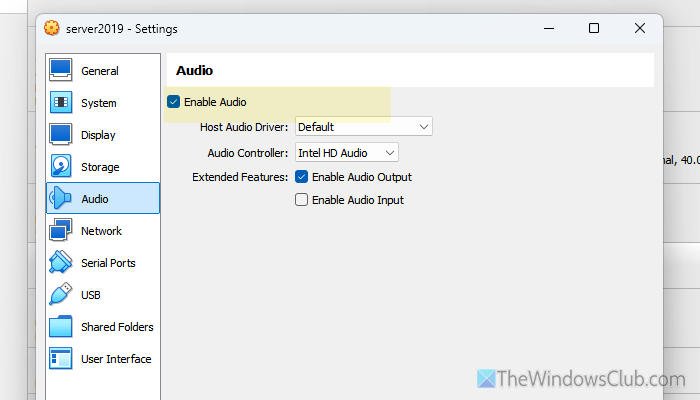
Almost all the virtual machine software allows you to enable or disable audio in a virtual machine. If it is disabled somehow, you won’t get any audio from any output device, including headphones. That said, if you use VirtualBox, open it first.
Then, select the virtual machine and click on Settings. Go to the Audio section and tick the Enable Audio checkbox.
Click the OK button to save the change.
Read: Microphone not working in Oracle VirtualBox VM
2] Ensure your host computer has recognized the headphones
Before using your headphones with a virtual machine, you must ensure that your host computer has recognized it. If it fails to do so, you won’t find it usable for a virtual machine as well.

Read:
- Headphones plugged in, but sound coming from speakers on the Windows PC
- Headphones not showing up in playback devices on Windows
3] Install Guest Additions
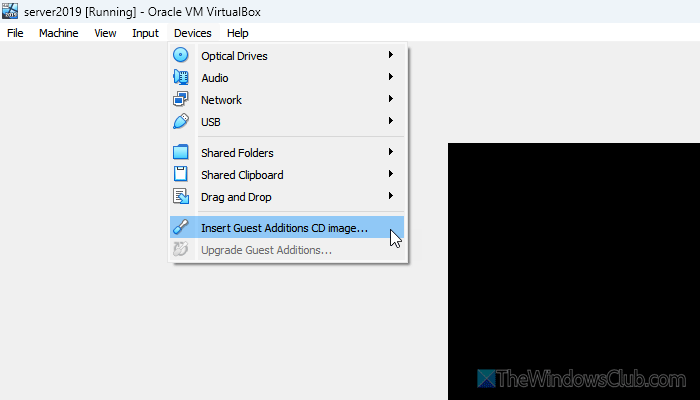
To install VirtualBox Guest Additions, start the virtual machine first. Click on the Devices menu and choose the Insert Guest Additions CD image option.
It will open the File Explorer inside VirtualBox. Head to the Devices and drives section and select the VirtualBox Guest Additions disc. Then, double-click on the VBoxWindowsAdditions.exe and click on the Next button.
Finally, click on the Install button to start the installation. Once done, click on the Reboot now button.
4] Enable Enhanced session mode
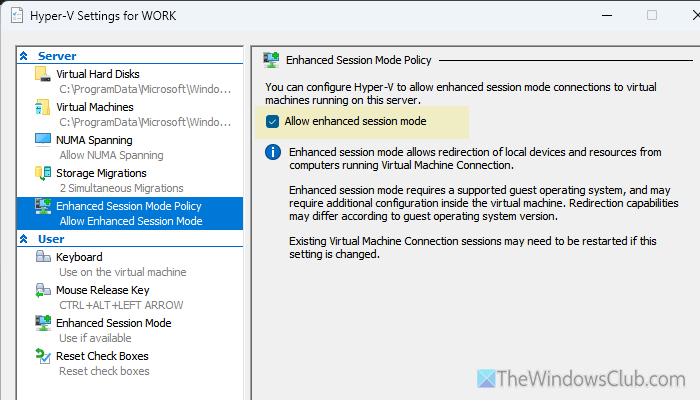
Enhanced session mode in Hyper-V helps you connect your local resources, such as headphones and printers, to your virtual machine. If this option is disabled, you won’t be able to use headphones and some other local input/output devices with your virtual machine.
Therefore, follow these steps to enable Enhanced session mode:
First, open the Hyper-V Manager and click on the Hyper-V Settings option on the right-hand side. Then, switch to the Enhanced Session Mode Policy tab and tick the Allow enhanced session mode checkbox.
Finally, click the OK button to save the change.
However, if you want to enable Enhanced session mode using PowerShell or Terminal, open Terminal with administrator privileges and enter this command:
Set-VMhost -EnableEnhancedSessionMode $True
5] Install Bluetooth driver
If you use Bluetooth headphones, at times, this is mandatory to install the respective driver. Although some Bluetooth headphones work without installing a driver, you may find that they lack one in some situations. Therefore, install the Bluetooth driver on your computer first.
However, if it is already installed, try updating the Bluetooth driver if an update is pending.
Read: How to connect Bluetooth headphones to Windows 11 PC
6] Restart Windows Audio service
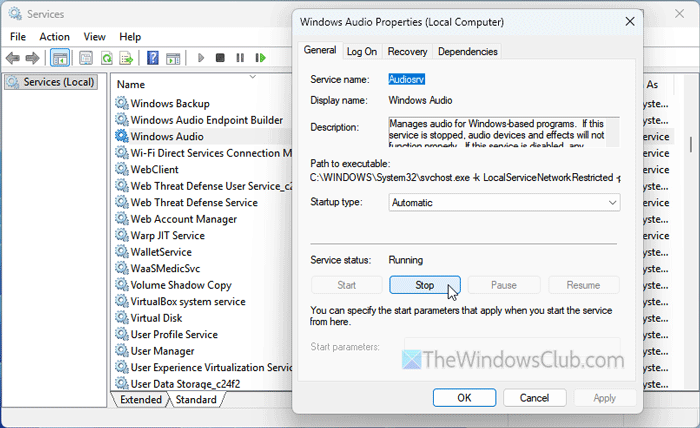
The Windows Audio service helps you establish the connection between your external hardware and your system. Whether you use host or virtual computers, this service must run continuously. To verify that or to restart the Windows Audio service, press Win+R to open the Run prompt, type services.msc, and hit Enter.
Then, double-click on the Windows Audio service and click the Stop button. Choose Automatic from the Startup type menu and click the Start button.
Read: Bluetooth disconnects after opening virtual machine in VirtualBox
How to enable audio on VM?
To enable audio on VM, open VirtualBox, select a virtual machine, and click on Settings. Then, go to the Audio tab and tick the Enable Audio checkbox. Click the OK button to save the change.
Why are my headphones not outputting audio?
If headphones are not outputting audio, these could be the reasons:
- Your headphones are not detected by your computer.
- Some other speakers are overwriting permissions.
- There are some issues with your Bluetooth headphones.
- The Windows Audio service is not working or running.
Read: Headphones not working or detected in Windows 11.
