Trying to use your microphone in an Oracle VirtualBox virtual machine, but getting only silence? This is a common hurdle, as audio input isn’t enabled by default and requires specific configuration. In this post, we are going to see what you can do if the Microphone is not working in an Oracle VirtualBox VM.
Why is my mic not working even though it’s on?
By default, VirtualBox is configured for audio output only. The audio input (microphone) controller is often set to “NULL Audio Driver” or left disabled, which isolates the guest OS from your host’s physical microphone. This requires you to manually change the VM’s settings and configure the guest operating system to recognize and use the virtual audio device.
Fix Microphone not working in Oracle VirtualBox VM
If the Microphone is not working in the Oracle VirtualBox VM, follow the solutions below.
- Enable Audio Input in VirtualBox VM Settings
- Install the Latest VirtualBox Extension Pack
- Configure the Guest OS Audio Input
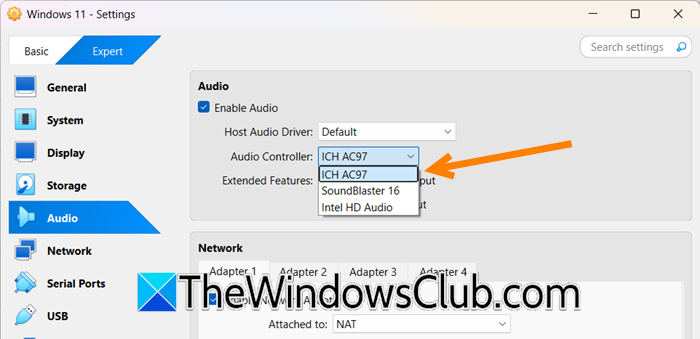
- Change the Audio Controller to ICH AC97
- For Linux Guests: Install ALSA Utilities and Unmute Channels
Let us talk about them in detail.
1] Enable Audio Input in VirtualBox VM Settings
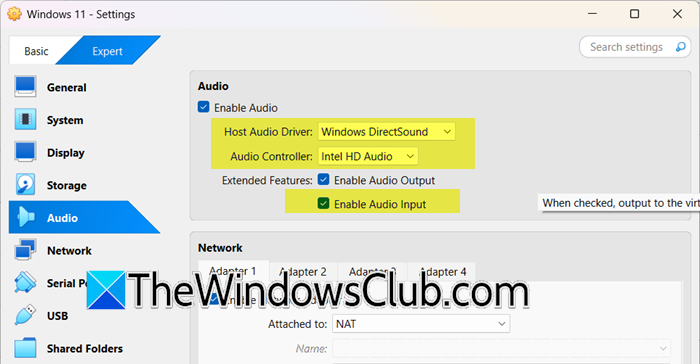
VirtualBox defaults to a NULL audio driver for input, effectively disconnecting the VM from your host’s microphone. Enabling the input and switching to the Intel HD Audio controller provides the guest OS with a modern, standardized virtual sound card that can properly relay audio signals from your physical hardware. To enable audio input in VirtualBox, follow the steps below.
- First, shut down your virtual machine completely; don’t put it in the Saved state.
- Then, select the VM, and click on Settings.
- Now, go to Audio on the left.
- Check the box for Enable Audio Input.
- Now, ensure that the Host Audio Driver is correct for your system (e.g., Windows Hosts typically use Windows DirectSound).
- Change the Audio Controller to Intel HD Audio. This is the most compatible modern controller.
- Click Ok.
Finally, check if the issue is resolved.
2] Install the Latest VirtualBox Extension Pack
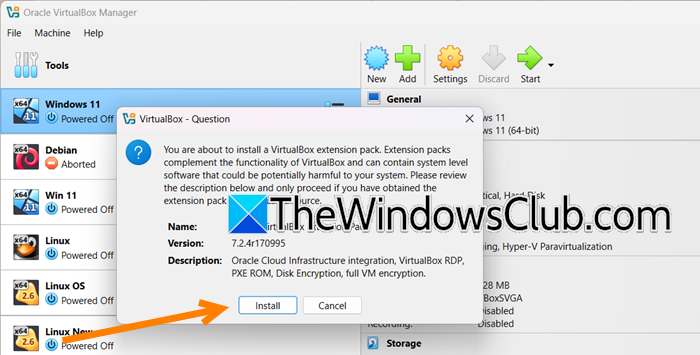
The VirtualBox application lacks proprietary codecs and drivers required for advanced USB and audio device pass-through. The Extension Pack installs additional components, including critical firmware for the virtual audio controller, enabling full-featured communication between your host microphone and the guest OS.
Foremost, go to virtualbox.com, which is the official VirtualBox Downloads page, and under VirtualBox Extension Pack, click on Accept and download. This will start downloading the .vbox-extpack file and follow the installation prompts. Restart VirtualBox and then your VM.