
This guide covers different workaround you can try if you come across the prompt, Unable to process this video in Google Drive. Google Drive is a popular cloud storage service available for almost all devices. It offers a minimalistic interface and is very easy to get used to its functionalities. The best part about Google Drive is that it provides 15 GB of free space, which is comparatively more than any other of its competitor. If you have been using Google Drive for a long time, you must have seen the “Unable to process this video” prompt at least once. This guide features all the effective solutions you can try to get rid of this prompt message. So, let’s begin.
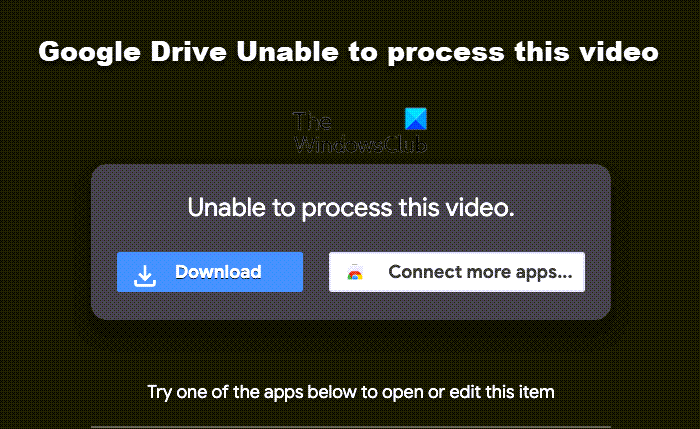
Why can’t Google Drive play video?
Like any other cloud storage service, Google Drive lets you play uploaded videos online. You can use this feature to play any video without the hassle of downloading it to your device. But in the rarest cases, Google Drive fails to play the video and displays the error message: “Unable to process this video.” There can be multiple reasons behind the problem. But among all, the major ones are listed below.
- Google Drive will fail to play the uploaded video if it exceeds the allowed size limit.
- An unsupported video format may be the cause of the problem mentioned.
- If you are connected to a weak internet connection, you will also face the issue.
- An outdated browser can also trigger the problem.
- If the browser cache is corrupted, Google Drive will fail to play the uploaded video.
How to fix Google Drive Unable to process this video
Here are different solutions you can try if Google Drive is unable to process the video.
- Check the video format
- Check the connection status
- Download the latest browser update
- Clear browser cache and data
- Turn off Hardware Acceleration
- Remove unnecessary extensions
Now, let’s check out all these solutions in detail.
1] Check the video format
Although Google Drive is a highly compatible platform, it supports almost all video formats and resolutions, but you must be aware of some of its limitations. First, the maximum video resolution that Google Drive supports for video playback is 1920 x 1080 pixels. Second, Google Drive is compatible with video formats like – WebM, MPEG4, 3GPP, MOV, AVI, WMV, FLV, MTS, and OGG.
If the video you’re trying to play doesn’t meet either of the above requirements, Google Drive will fail to play it. In such a case, you can’t do anything other than to convert the video format or change its resolution.
Related: Google Drive videos are not playing or showing a blank screen
2] Check the connection status
The next thing you should check is whether you have a strong internet connection. As it turns out, Google Drive requires you to be connected to a strong internet connection when you try to play an uploaded video. If this isn’t the case, you will encounter the problem mentioned.
3] Download the latest browser update
If you are accessing Google Drive via an outdated browser, it’s no surprise you are experiencing the issue mentioned. As a solution, download the latest browser update to fix the problem. Below are the steps you need to follow to update Google Chrome on the System.
- Open Google Chrome on your System.
- Click on the three dots present at the top right corner.
- Click on the Help option, and from the context menu, choose About Google Chrome.
- Now Google Chrome will check if there is any available update or not. If found, it will automatically start the downloading process.
Once you have downloaded the update, restart Google Chrome. Visit Google Drive and try to play the same video. Check if the problem is fixed or not.
Read: How to change location of Google Drive folder
4] Clear browser cache and data
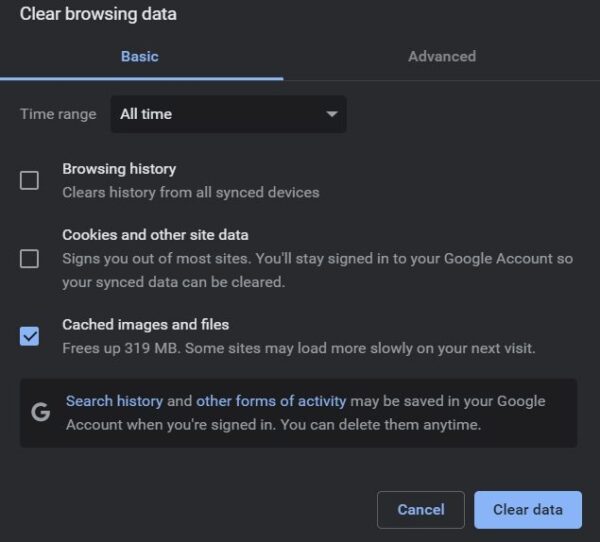
Cache data plays a vital role in the smooth functioning of the application. But at the same time, if these cache data get corrupted for some reason, they will throw different errors, including the one you are currently facing. You will need to clear the application cache to resolve the issue. Below are the steps you need to follow to clear Google Chrome cache data.
- Launch Google Chrome, and click on the three dots present at the top right corner.
- Hover over to the More tools, and from the context menu, choose Clear browsing data.
- Checkmark the Cached images and files option, and click on the Clear data option.
Now, restart your System, and check if the problem is fixed. If not, you can try clearing your browser data. But make sure you have backup everything before going to the process. Here is how it’s done.
Open Chrome > Three-dots > More tools > Clear browsing data > Checkmark Browsing history, and Cookies and other site data > Clear data.
Restart Chrome and check if the problem is fixed.
5] Turn off Hardware Acceleration
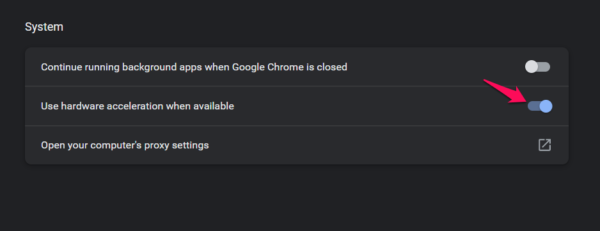
Most browsers, including Google Chrome, come with hardware acceleration. It allows the browser to access the installed GPU to render video. On the negative side, it can also be the culprit behind the mentioned issue. So, here’s how to turn off hardware acceleration on Chrome.
- Open Chrome, and click on the three-dots.
- Tap on Settings.
- Choose the Advanced present at the left panel of the screen.
- From the context menu, choose System.
- Turn off the toggle that says, “Use hardware acceleration when available.”
Open Google Drive, and try to play the video. Check if the problem is fixed or not.
Read: How to move Shared folder to another Drive with Permissions in Google Drive
6] Remove unnecessary extensions
Unnecessary extensions can be another significant reason causing the issue. To fix the problem, disable or remove all the unnecessary extensions, and here’s how to do it.
- Open Chrome, and choose the extension icon present before your profile Icon.
- Click on Manage extensions.
- Look for the unnecessary extensions and click on the Remove option below its name.
Once done, visit Google Drive, and check if the problem is fixed or not.
Why does Google Drive fail to upload?
There can be multiple reasons why Google Drive is struggling to upload files. But among all, the main reason can be insufficient storage space. Additionally, the problem can occur if you are connected to a weak internet connection.
