
Google Sheets is a popular spreadsheet tool that has changed how people collaborate today. This web-based spreadsheet tool is a free alternative to Microsoft Excel and allows you to create and edit spreadsheet data online. Excel has more features and built-in functions than this free online tool, but it is preferred because it is free and accessible from any device.
Google Sheets has now added these powerful features to automate monotonous tasks. Spreadsheet work often involves repetitive tasks that can be boring and tiresome. Macros are an effective way to boost productivity by automating boring, repetitive tasks. Spreadsheet users who work with multiple sheets with similar charts, functions, and data can benefit from macros. Macros are a great way to save time, letting you focus on important tasks instead of tedious, repetitive work.
What are Macros?
Macros are programs that let you automate recurring tasks without writing code. Macros record your actions and save them so you can reuse them with a single click. Macros come in handy when you want to automate tedious work in Sheets, like adding formatting, inserting rows or columns, formatting tables, creating charts, inserting tricky formulas, inserting functions, and more.
Macros, in simple terms, are a time-saving tool that is a trifecta of recording a repetitive task, saving the task, and running the task in the future whenever you want without writing any code.
Create Macros to automate tasks in Google Sheets
Launch Google Sheets by entering sheets.new in your browser URL, or simply open the Google Drive folder and press Shift + S to create a new Google Sheet in that folder.
Type some data in any cell of the sheet. Navigate to Tools and select Macros from the drop-down menu.
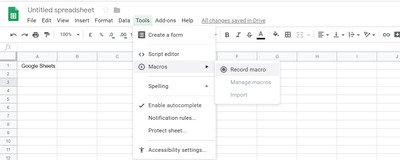
Click on the Record macro from the submenu. This will open a Recording New Macro box at the bottom of your sheet. You will be asked to choose between the two options. Choose either User absolute references or relative references.
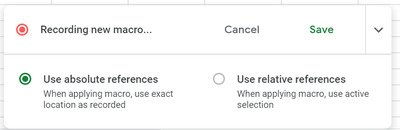
Select Absolute references when you want to apply formatting techniques to the exact location as recorded. Say you want to format a range of cells A2: C1. Select the data in that range of cells and make the font bold. The macros will apply to these cells only and will always make the data in that range appear bold, regardless of which cell you click. Select Relative references when you want to apply formatting to the different cells, irrespective of the exact location as recorded. It applies macros based on where your cursor is rather than the exact location where the macros were recorded.
This is useful when you want to insert charts, functions, or formulas on the cells you select and their nearby cells. For example, if you record bolding data in cell B1, you can later use the macro to bold cells in C1.
After you select one of the two options, Google Sheets will start recording. It records any formatting you want to automate in the cell, column, or row. Plan what you want to record well in advance.
Apply the formatting in any cell, such as changing the font style, color, etc. The Macro recorded watches each of your steps.
Once done, click the Save button and type the name for your Macro.
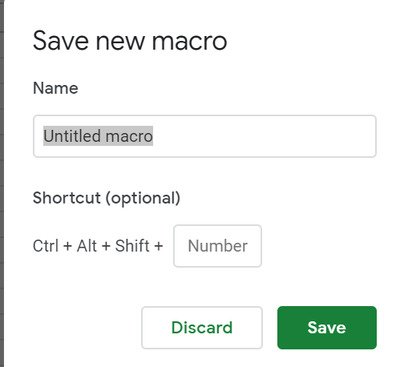
You can also set a custom Shortcut key for quick access to your Macro.
Click the Save button to create your macro.
To access the Macro, Navigate to Tools, and select Macros.
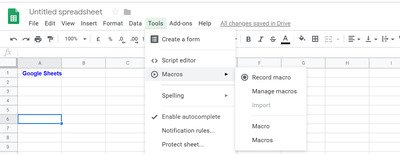
Click on the Macro folder you want to run from the submenu.
Edit your Macro
You can change the name of the Macros, edit the Macro scripts, remove macros or even add a keyboard shortcut after it’s created.
Navigate to Tools and click Macros from the drop-down menu.
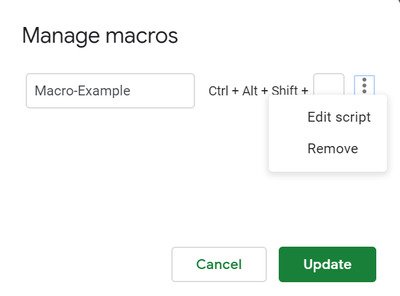
Select Manage Macros from the submenu to edit your macro.
To delete a macro or edit its scripts, go to More beside the options Macros and click Update.
Import other macros
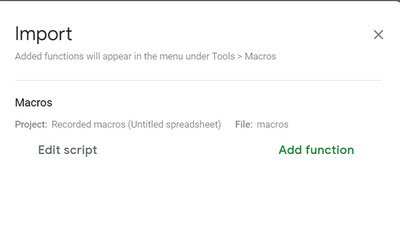 Google Sheets allows you to import any custom functions created using Google Apps script file to the Macro menu.
On your Google Sheet, navigate to Tools. Select the options Macros from the drop-down menu. Click the option Import from the submenu.
Click Add function button next to the function you want to import.
That’s all there is to it. I hope you find the post useful.
Read next: How to Create a Calendar in Google Sheets.
