
Gone are those days when you used to keep a diary to catalog planned events, list appointments, and schedule meetings. With the development of web-based digital calendars, tracking appointments has become much easier, and you don’t have to go through the pain of turning through pages to check to-do lists and appointments. Out of Plenty of calendars available today, Google Calendar is the most popular digital calendar and offers a completely new way to organize your life.
Google Calendar has made it much easier to track appointments, meetings, business tasks, holidays, and other important dates than ever before. It is a convenient way to track important dates and can be accessed from your smartphone or computer whenever needed.
Why Google Calendar notifications are important
Google Calendar is convenient and sends notifications to your device so you don’t miss important appointments. The calendar has useful features that help you stay on top of important dates. The calendar uses push and email notifications to keep you informed of all the events.
Anyone can receive event notifications in the Google Calendar through emails or notifications. These notifications pop up on your device so that you rarely miss an important deadline. These notification popups can either be dismissed or snoozed.
However, many a time, you may not want to see all the notifications, or you may want to add more than what’s displayed. In such instances, you can customize the push and email notification settings in Google Calendar. Google Calendar has many useful features that let you keep daily notifications and email notifications to meet crucial deadlines. In this article, we step you through how to customize event notifications on your Google Calendar.
Customize Notification Settings for Google Calendar on Desktop
By default, notifications pop up 10 minutes before the event. Follow the steps below to change the settings.
Launch Google Calendar on your desktop. Click the three dots that are displayed on the left side of the calendar.
Select Settings and sharing from the drop-down menu.
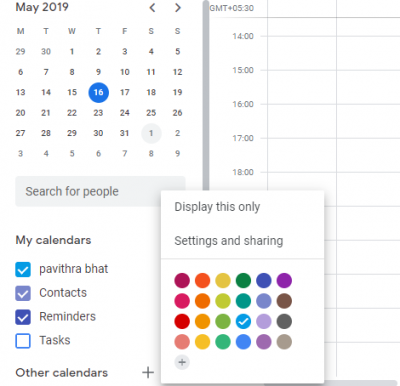
Choose the calendar to configure.
Scroll down to Event notifications and you will find many options to configure desktop notifications and email notifications.
From the drop-down menu, select the type of notifications you want to configure.
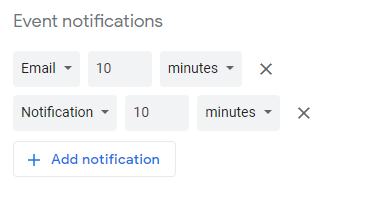
Configure the desktop notification and email notification in hours/minutes/days/weeks.
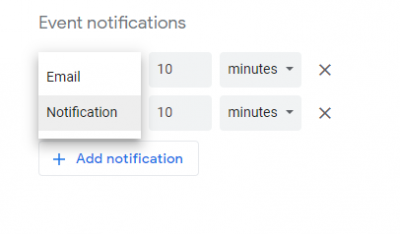
Click Add notification to include another notification. You can repeat the process and add notifications as you want to receive the pop-up notifications.
Now go back to settings window and select General notification from the drop-down menu to change the email notifications of group events.
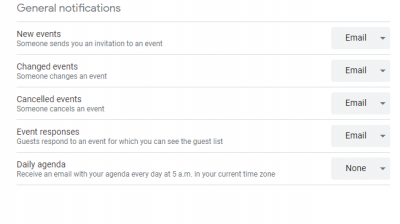
In the General settings, you can toggle the events for new events when someone sends you an event invite, changed events when someone changes event, canceled events when someone cancels events and event responses when guests respond to event for which you can see the guest list. Additionally, you can configure to receive Daily agenda via email every day at 5 a.m in your current time zone.
You can also add custom notifications to any event. Click on the event you want to configure and tap on the pencil icon.
Under the Event details, you can edit many options about the event as well as notification settings.
Disable Google Calendar notifications on a Desktop
To turn off the notifications altogether, follow the steps below.
Launch Google Calendar and click the gear icon at the top of the page.

Select Settings from the drop-down menu and scroll down to the Event Settings.
Click the drop-down menu for notification option and tap Off to disable the notifications altogether.
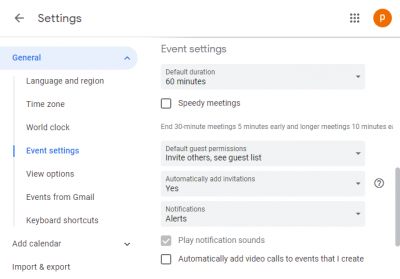
Once done, navigate back to your calendar.
That’s all.
