
If you uploaded a video to Google Drive, but it is not playing on your computer, here is what you can do. You may see a message – This video cannot be played. These solutions are for those who use a browser to access Google Drive, instead of the desktop application. You can apply these troubleshooting suggestions to any browser you use on your PC.
Google Drive is a great cloud storage solution that lets you upload almost any file, including videos. If you buy the Google One subscription, you can upload large videos, save and share them with others without any problem. However, sometimes your uploaded videos might not play as they should.
Google Drive videos are not playing
To fix Google Drive videos are not playing issue, follow these suggestions-
- Video is not ready to be played?
- Check the video format
- Check the video resolution
- Check the file size
- Don’t block third party cookies
- Sign out of secondary Google account
- Pirated content issue.
1] Video is not ready to be played
If you uploaded a video to Google Drive and tried to play it right away but it didn’t play in your browser, wait a couple of minutes. Although Google Drive shows video thumbnail almost immediately, users may need to wait for a few minutes before they can play and watch it like any other regular video. There is no specific waiting time; it depends on your video’s size. The larger the file, the longer you need to wait. In this case, you might get a message like – “We’re processing this video. Please check back later.” or This video is currently unavailable.
2] Check the video format
Although you can upload any video (with any extension) on Google Drive using some techniques, you cannot play them all in your browser. That happens because of the restriction. For your information, these are the supported video formats that you can watch in Google Drive – WebM, MPEG4, 3GPP, MOV, MPEG-PS, AVI, WMV, FLV, MTS, and OGG.
Also, Google Drive doesn’t guarantee that your mobile can play all those formats. If you are using a Windows PC with any standard browser like Google Chrome, Microsoft Edge, Mozilla Firefox, etc., you can play them all.
3] Check the video resolution
Apart from restricting video formats, Google Drive blocks users from playing videos with a resolution higher than 1080p. It means that you can upload and store a 4K or 8K video on Google Drive, but you cannot play it. Your video must have a resolution of 1920 x 1080 pixels or less.
4] Check the file size
The third limitation of Google Drive concerns file size. Although Google Drive offers only 15GB free storage, users can extend it with a Google One subscription. Even if you purchase some terabytes of storage, your video must be 5 TB or less. It is rare to have a video file larger than 5 TB, but it is always good to check the size.
5] Don’t block third-party cookies
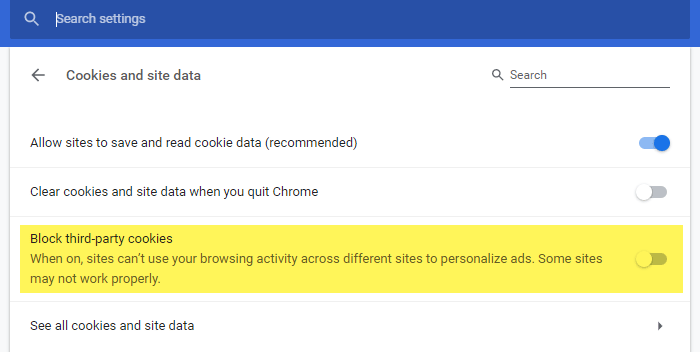
Blocking third-party cookies can cause this issue. In that case, you should check whether your third-party cookie setting is set to none or not. If not, you must revert the setting to the factory default. Different browsers have different ways to do it. If you are using Google Chrome, enter this in your address bar and hit the Enter button-
chrome://settings/content/cookies
Now make sure that the Block third-party cookies option is turned off.
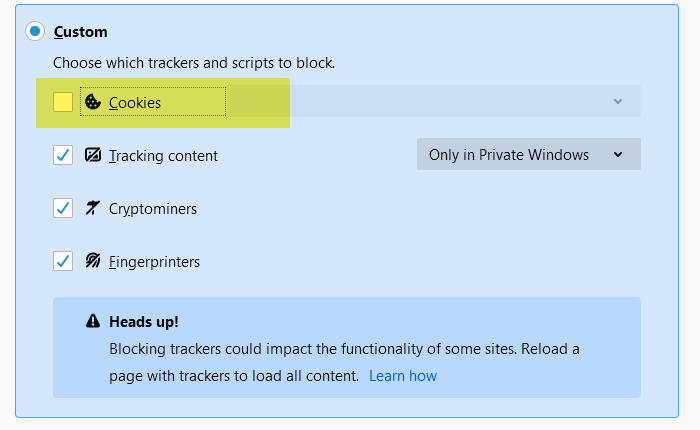
If you are using the latest version of Mozilla Firefox, you need to use the Standard tracking protection. However, you can set some custom rules as well. For that, choose Custom, remove the tick from Cookies checkbox, reload the Google Drive window, and try to play it.
Similarly, you can lift the third-party cookie prevention system from other browsers as well.
6] Sign out of secondary Google account
If you are using more than one Google account in your browser, it is recommended that you sign out of the secondary Google account. Although Google handles such things in a sophisticated way, some internal settings might cause conflicts.
7] Pirated content issue
Google uses hash-based matching to detect pirated content, so you cannot upload or share it via Google Drive. If you uploaded a pirated video, it is time to get rid of it since you cannot play it in any way.
Other solutions:
There are two more things you should check and change.
- Browser extension
- Internet connection
To play a video in your browser, you need a reliable internet connection. Otherwise, it won’t play for obvious reasons. Secondly, you can disable all browser extensions to see whether they are causing the issue.
If nothing is working and you need to watch the video immediately, you can use the manual method to get the job done. That implies you can download the video to your computer and watch it.
