
Google Chrome users face various errors while using it or updating the Chrome browser from time to time. One such problem is error code 4: 0X80010108. This error can occur if the Google Update services are disabled, the GoogleUpdater folder or updater.exe file is missing or corrupted, or some other setting is configured to stop updates. If you also face this issue and Google Chrome failed to update with error code 4: 0X80010108, this post is helpful. The entire error message goes like this:
An error occurred while checking for updates: Update check failed to start (error code 4: 0X80010108).
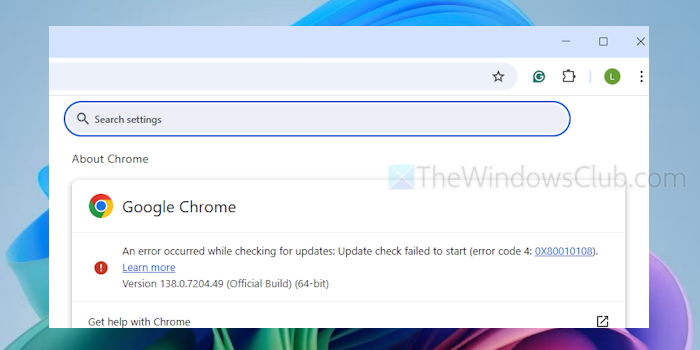
Google Chrome failed to update with Error code 4: 0X80010108
First, you should try some generic solutions, such as checking the internet connection, reviewing your firewall and antivirus settings, restarting the Chrome browser and your PC, etc. Still, if the Chrome browser fails to update and you receive error code 4: 0X80010108, use the following solutions to solve this issue:
- Check Google Update services
- Access the GoogleUpdater folder
- Check the Group Policy setting
- Reinstall Google Chrome.
Let’s check these solutions.
1] Check Google Update services
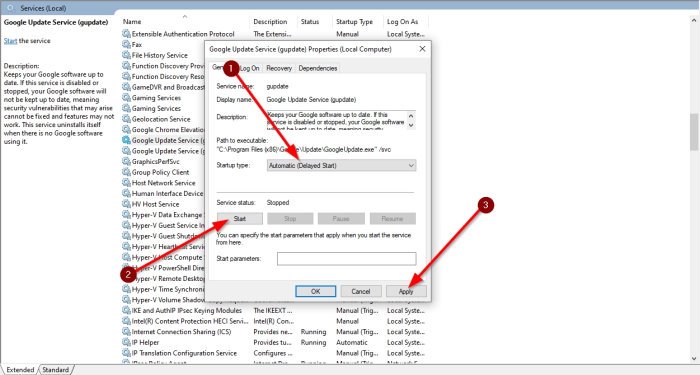
You should check if Google Update services (gupdate and gupdatem) are disabled. These services help to auto-update the Chrome browser. If their Service status is set to Stopped and the Startup type is Disabled, you may receive an error while trying to update the Chrome browser.
Open the Services window and look for these two services. Once found, double-click on a service to open its Properties box. Set the Startup type to Automatic or Manual and start the service. Do the same for another service.
There are other ways to turn off these services or disable auto update in Chrome, such as the System Configuration utility and Registry Editor. So, you should ensure that Google Update services are not disabled there.
2] Access the GoogleUpdater folder
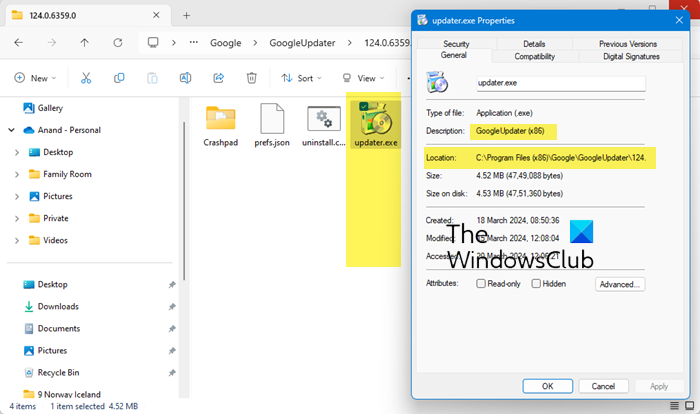
If the GoogleUpdater folder is missing, corrupted, or renamed, this is most likely the reason that the Chrome browser update fails to start, and error code 4: 0X80010108 appears instead. This folder contains the updater.exe file (previously known as GoogleUpdate.exe) for Google Chrome and other data. So, access the GoogleUpdater folder and see if everything is fine. Go to the following path:
C:\Users\USERNAME\AppData\Local\Google
Replace USERNAME with your actual PC username. Check if the GoogleUpdater folder is present. If the folder is present and renamed for some reason, rename it back to GoogleUpdater. Also, ensure that the updater.exe file is present under it.
Related: Google Chrome won’t update on Windows PC
3] Check the Group Policy setting
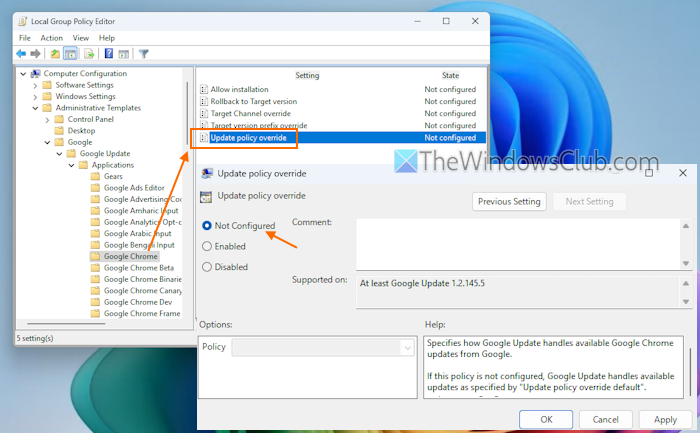
If the system administrator has configured a Group Policy setting via the Google Update policy template, this can disable automatic updates for Google Chrome. In that case, you need to change this setting. You must be signed in as an administrator.
Open the Group Policy Editor window. Access the following location:
Computer Configuration > Administrative Templates > Google > Google Update > Applications > Google Chrome
There, open the Update policy override setting, and set it to Not Configured. Restart the PC, and you should be able to update the Chrome browser.
4] Reinstall Google Chrome
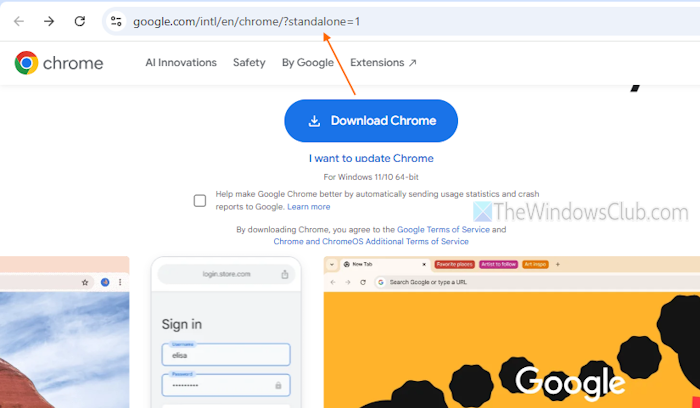
If the above solutions don’t help, you should reinstall Google Chrome. You can download a standalone installer for the Chrome browser or use the online installer.
That’s all.
How to fix 404 error on Google Chrome?
If you receive a 404 Page Not Found error on Google Chrome or another browser, that means the page doesn’t exist or has been removed from the server. In that case, you can’t do anything. Additionally, if you try to search for something and receive error 404, that could be because the URL is not correct for search results. In such a case, recheck the URL for errors (including typos), clear your cache and cookies, and add a new search engine using the Settings page.
How to fix error on Google Chrome user update sync?
If the Google Chrome sync is not working, make sure that Sync is turned on and set Sync everything under the Manage what you sync section. If that doesn’t work, clear browsing data, disable extensions, and try again. Additionally, you should check if On-device site data setting is set to Allow sites to save data on your device. This setting is helpful if sync turns off every time you close the browser. You may also need to reconnect your Google account to update or sync your user data on a device.
Read next: Chrome update failed with error codes 3, 4, 7, 10, 11, 12, etc.
