
At times, as a Chrome browser user, you may see the Google Chrome Critical error on your Windows 11/10 PC. In this guide, we explain what it is and how you can resolve this issue.
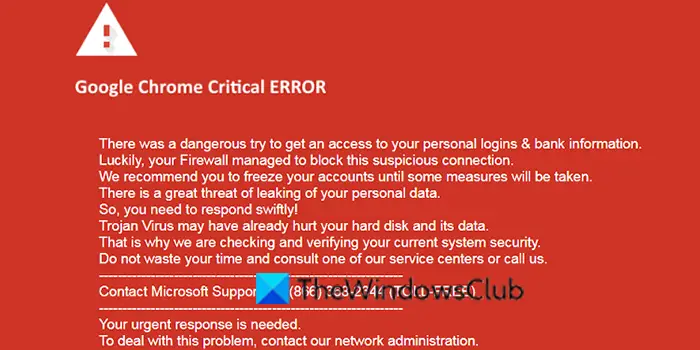
What is Critical Error in Chrome?
The critical error on Google Chrome is a fake error that is being sent in the name of Microsoft to scam you. It includes an email address or phone number to resolve it. The message makes you believe that your computer is crashed or is infected with a virus.
The primary purpose of the scam critical error in Chrome is to scare you and sell a fake subscription for a one-time fee to “secure” your PC and resolve the error. You need not call the number or contact the email id provided in the message as they try to steal your credit card information, etc.
Fix Google Chrome Critical Error on Windows PC
When you see a Critical error in Google Chrome on your Windows PC, you can fix it using the following methods.
- Uninstall the latest installed programs on your PC
- Uninstall the recently installed Chrome extensions
- Run your antivirus as well as AdwCleaner
- Reset Google Chrome to defaults.
Let’s get into the details of the fixes.
1] Uninstall the latest installed programs on your PC
You might have encountered a critical error in Chrome after installing a program on your PC. Uninstall the recent ‘suspicious’ program/s that you have installed recently and delete all the traces of it using third-party software like CCleaner. It might resolve the issue.
2] Uninstall the recently installed Chrome extensions
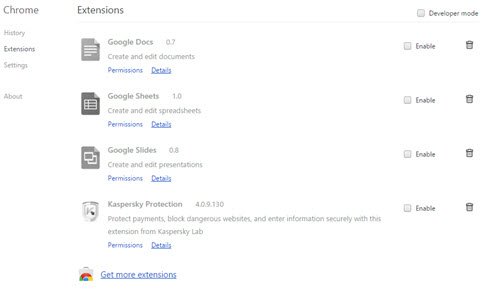
As with the programs, the error might also have been caused by recently installed Chrome extensions. Some extensions are not verified by Google Chrome and may be spreading spam.
To uninstall Chrome extensions, right-click on the extension in the toolbar and click on Uninstall this extension.
3] Run antivirus & AdwCleaner
Another way to resolve the issue is to run an antivirus scan. It detects the malicious software or content that triggered the fake critical error on Google Chrome and removes it.
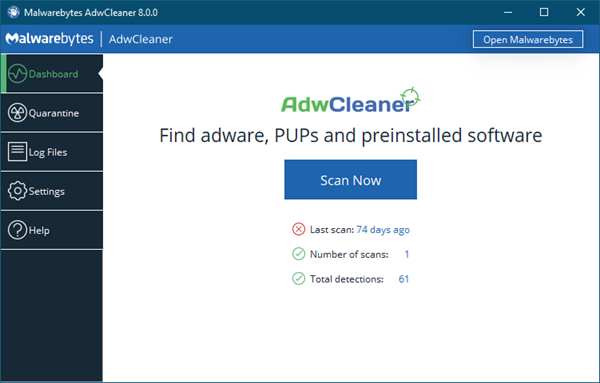
You should also consider running AdwCleaner. It will help remove adware, PUP, and malicious browser extensions. It is a very popular and efficient stand-alone freeware for Windows computers, that helps remove Adware, Potentially Unwanted Programs or PUPs, Toolbars, Browser Hijackers, Crapware, Junkware & other forms of malware.
4] Reset Google Chrome to defaults
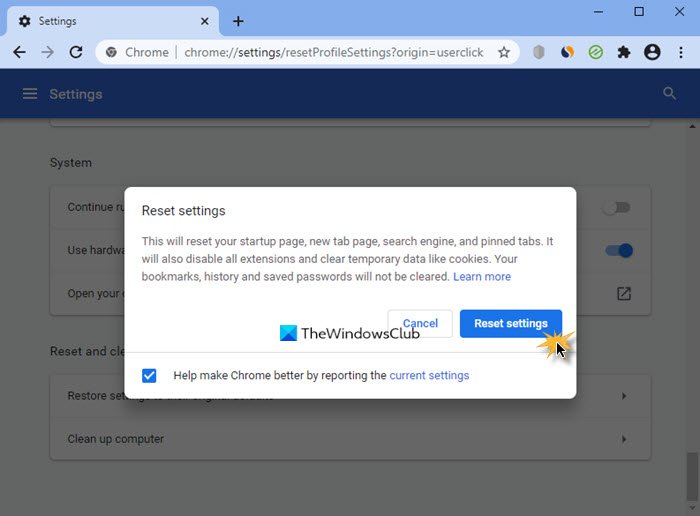
The final way to settle the critical error on Google Chrome is to reset Google Chrome to defaults. It will reset every setting in Google Chrome and make it look new. You have to reset Chrome to its defaults, even if the error is resolved using the methods above, to be on the safe side.
Here are the ways to fix the critical error in Google Chrome.
How do I fix a corrupted Chrome?
If you see Google Chrome corrupted on your PC, reset It to its defaults. If it does not fix the issue, uninstall Chrome and reinstall it after downloading it from Google.
