
This post features different solutions you can try if Genshin Impact keeps crashing or freezing on Windows PC. Genshin Impact is a popular role-playing game available for Windows PC. What makes it the best waifu game on the internet is its elegant animations. However, like any other game, Genshin Impact is also not free from problems. Many users have reported that Genshin Impact keeps crashing on Windows 11/10. If you are also struggling with the same problem, try the workarounds mentioned in this post to resolve it.
Genshin Impact keeps crashing or freezing on Windows PC
Here is a list of effective solutions you can try if Genshin Impact keeps crashing or freezing on Windows 11/10 PCs.
- Make sure the system matches the minimum requirement
- Run the game in administrator mode
- Download the latest Graphics Driver update
- Repair the Game files
- Download the latest DirectX and Visual C++ redistributable files
- Clear Temp files
- Whitelist the Game through Firewall settings
- Reinstall the Game
Now, let’s take a look at all the solutions in detail.
1] Make sure the system matches the requirement
Before getting into the technical solutions, ensure your system matches the requirements to run the game.
Recommended requirements
- Operating system: Windows 7 or above (64-bit) or later
- Processor: Intel Core i7 equivalent or higher
- Memory: 16 GB RAM
- Graphics: NVIDIA GeForce GTX 1060 6 GB and higher
- DirectX version: 11
- Storage: 30 GB
2] Run the Game in administrator mode
The next thing you can try is to run the game in administrator mode. Sometimes, not having administrative privileges can be the major reason causing the problem. So, grant administrative rights and check if it makes any difference. Here’s how it’s done.
- Right-click, click on the GenshinImpact.exe file and choose Properties.
- Click on the Compatibility tab.
- Checkmark Run this program as an administrator.
- Click on Apply > OK.
Launch the game, and check if the problem continues.
Related: Genshin Impact not launching on Windows 11
3] Download the latest Graphics Driver update
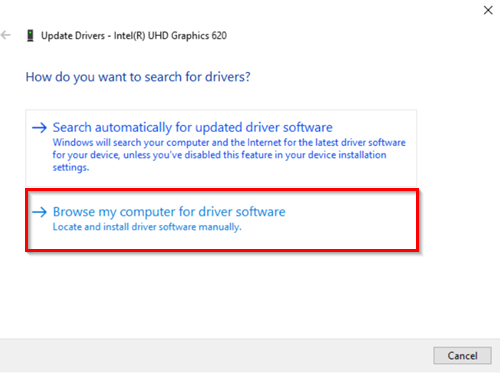
Downloading the latest graphics driver update is another solution you can try. If you haven’t updated the installed driver for a long time, it’s no surprise that you face the mentioned problem. Thus, download the update and check if the problem continues.
- Update your computer to let it download the latest version of your Graphics Drivers
- Use freeware to update your Graphics Drivers.
- Download the latest version of Graphics Driver from the manufacturer’s website.
After installing the update, restart your system. Now, launch the game and check if the crashing issue is fixed. If not, try the next solution.
4] Repair the Game files
Corrupted game files can be another major reason for the problem. In this case, the best thing you can do is try to repair the game files. To do so, follow the steps below.
- Launch Genshin Launcher on your system.
- Tap on the gear icon to open the settings menu.
- Navigate to Repair Game Files > Repair Now.
- Now, wait until the repairing process is complete.
Once done, restart your computer and check if the issue persists.
5] Download the latest DirectX and Visual C++ redistributable files
Genshin Impact will crash on your Windows PC if you don’t have the latest version of DirectX and Visual C++ redistributable. These services are essential to run a game without any problems. But if you don’t have the latest version installed on your system, you will encounter a compatibility issue that will automatically cause the problem you mentioned.
After downloading the updates, install them on your system, then restart. Launch the game and check if the problem continues. If yes, continue with the guide.
6] Clear Temp files
The crashing issue can also occur due to a large number of temporary files. To solve the problem, you will have to clear all the temporary files. Here’s how it is done.
- Use the Windows + R shortcut key to open the Run dialogue box.
- In the space provided, type %temp% and press Enter.
- It will open the temporary files folder.
- Select everything using Ctrl + A shortcut key.
- Right-click and choose the Delete option.
Now, restart the system and launch the game. Check if the problem is fixed.
Read: Fix Fortnite keeps crashing or freezing on Windows PC
7] Whitelist the Game through Firewall settings
If the game is blocked in the Firewall settings, you’re most likely to encounter the problem mentioned. You can do so by following the steps below.
- To begin with, open the Windows Defender Security Center. Select Firewall and Network Protection.
- Now click on “Allow an app through firewall.”
- Click on the “Change Settings” button. Make sure you have administrative privileges.
- From the menu, select Genshin Impact. You can also add the app manually by using the “Add an App” option.
- Allow te game to access both the networks.
-
- Private Network will allow the app to connect to the internet only at home or work
- Public Network will allow the app to connect to the internet anywhere, including Public WiFi hotspots.
Click on OK. Now, restart the game and check if the problem is solved.
9] Reinstall the Game
If nothing else helps, you can try reinstalling the game. As it turns out, an installation error may be causing the issue. In this case, reinstall the game to fix the problem.
Why is Genshin Impact crashing on my computer?
There can be multiple reasons why Genshin Impact is crashing on your system. If the system isn’t compatible with the game’s minimum requirements, you will face a crashing problem. The problem will also occur if your system doesn’t feature the latest Graphics Driver update or if the game files have been corrupted. It’s very easy to troubleshoot this problem.
How to fix Genshin Impact not launching on Windows 11?
Depending on the culprit, it’s very easy to fix Genshin Impact not launching on Windows 11 problem. From troubleshooting in Clean Boot, downloading the latest Graphics Driver update, running the game with administrative privileges, downloading and installing the latest DirectX and Visual C++ redistributable files, to repairing the game files, all these methods are useful in solving the Genshin Impact launch problem on Windows 11.
Read Next: New World keeps crashing or freezing on Windows PC.
