
File Explorer is a file management utility in the Windows operating system. You can use File Explorer for various purposes, such as viewing your files, renaming files, deleting files, and more. You can also make it display file name extensions. What if File Explorer stops displaying the names of files and folders? Some Windows users experienced this issue on their systems. If folder and file names are not showing on your Windows 11/10 computer, the solutions explained in this article will help you resolve the issue.
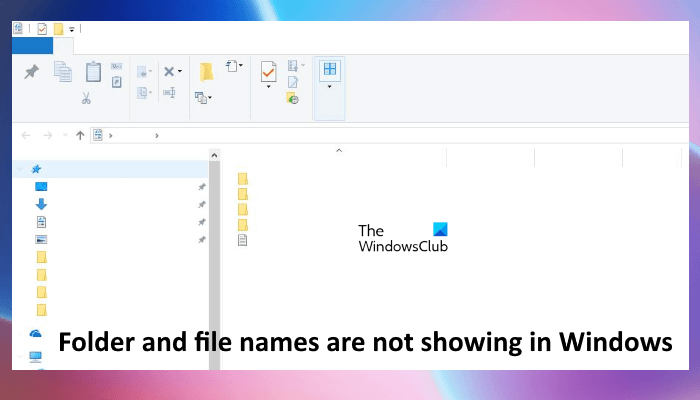
There are multiple reasons why your file names are not showing up, like corrupted system image files, conflicting third-party services or startup apps, etc. The problem may also be associated with your graphics card driver. In this case, updating or reinstalling the graphics card driver helps.
Folder and file names are not showing in Windows 11/10
If folder and file icon names are not showing, no text is displayed, or desktop icon names are missing on your Windows 11/10 PC, use the solutions provided in this article to fix the issue:
- Basic suggestions
- Repair your system files
- Restart your graphics card driver
- Uninstall and reinstall your default graphics card driver
- Troubleshoot in a Clean Boot state
- Perform Automatic Startup Repair
- Perform an In-place Upgrade.
Let’s see all these fixes in detail.
No text displayed; Desktop icons text missing
1] Basic suggestions
- Open the Task Manager and restart Windows Explorer.
- If restarting Windows Explorer does not help, restart your computer.
- Open Windows Settings and check for Windows Update manually.
2] Repair your system files

Corrupted system files are among the most common causes of this issue. We suggest you run the following scans and see if the issue gets fixed.
Run the scans mentioned above one by one. Do not interrupt the process. After the above two scans are completed, restart your computer and see if the problem persists.
3] Restart your graphics card driver
In Windows 11/10, the key combination Ctrl + Shift + Win + B restarts the graphics card driver. This key combination is useful to resolve the problems associated with the graphics card driver. Use this key combination and see if it helps.
Read: Folder icons or localized folder names not showing in Windows
4] Uninstall and reinstall your default graphics card driver
Windows is not displaying the names of files and folders. Hence, the issue might be associated with the graphics card. One of the causes of graphics card problems is a corrupted driver. We suggest you uninstall and reinstall your graphics card driver. Follow the steps written below:
- Open the Device Manager.
- Expand the Display adapters branch.
- Right-click on it and select Uninstall device.
- Restart your computer.
Windows will automatically install the missing drivers on system startup.
If this does not work, download the latest version of your graphics card driver from the manufacturer’s website and install it manually.
5] Troubleshoot in a Clean Boot state
In Clean Boot, Windows loads only the necessary services and drivers. Rest all third-party services, drivers, and startup apps remain disabled in this state. The issue might have been occurring due to a conflicting background application or third-party service. Perform a Clean Boot and see if the problem persists in the Clean Boot state or not.
If the problem persists in the Clean Boot state, you must identify the problematic startup app and third-party service. To do so, open the Task Manager, enable all startup apps, and restart your computer. If the problem reappears after restarting the computer, one of the startup apps is causing the problem. Now, do the following:
- Open the Task Manager.
- Disable one of the startup apps.
- Restart your computer.
- See if the problem persists.
Repeat the above steps until you find the problematic startup app. Follow the same steps to identify the problematic third-party service. But this time, you have to use MSConfig instead of the Task manager.
6] Perform Automatic Startup Repair
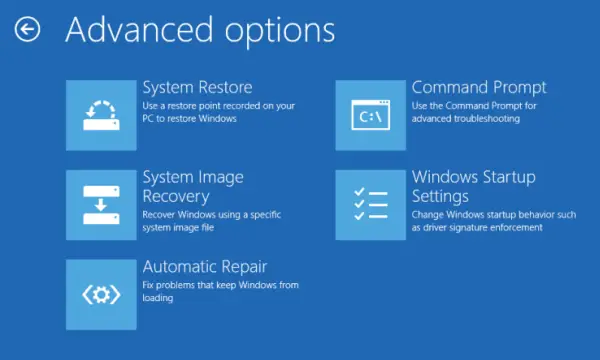
Startup Repair is a utility in the Microsoft Windows operating system that repairs corrupted files in Windows OS and fixes the problem. If the problem still persists, Startup Repair will help. To perform Automatic Startup repair, you have to boot into Windows Recovery Environment.
7] Perform an In-place Upgrade
In-place Upgrade installs the Windows operating system over the currently installed Windows OS without uninstalling it. The In-place Upgrade also repairs Windows OS. Hence, you can use this method if you are experiencing issues with your computer. This action does not delete data. However, from a safety point of view, it is always better to take a backup of data before proceeding.
I hope this helps.
File names in Explorer disappear and show up again
If you face this issue where the File names in Explorer disappear and reappear, then, in addition to the above suggestions, check for problematic Explorer add-ons. We recommend using ShellExView to view the details of the shell extensions installed on a Windows PC. The non-Microsoft shell extensions will be marked in pink color. Disable these extensions one at a time. Restart Explorer after disabling the extension and see if it behaves normally again. You may also clear the Icon & Thumbnail Cache, reset Folder View Settings and scan your PC at boot time with an antivirus software.
Why some folders are invisible?
In Windows 11/10, some folders are hidden by default. These folders contain files that you should not modify or delete. Modifying or deleting the files inside these folders may impact your system. That’s why some folders and files are hidden in Microsoft Windows operating system by default. But if you want, you can view these hidden files and folders.
Read next: Quick Access crashes File Explorer in Windows.
