
If when you try to perform System Restore on your Windows 11/10 device and encounter the System Restore error 0x81000204, then this post is intended to help you. In this post, we will provide the most suitable solutions you can try to successfully resolve this issue.
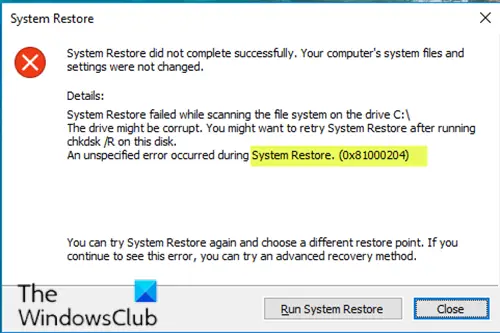
Fix System Restore error 0x81000204
If you’re faced with this issue, you can try the recommended solutions outlined below, in no particular order, and see if they help resolve the issue.
- Run CHKDSK
- Run SFC scan
- Perform DISM scan
- Reset System Restore settings
- Reset the Repository
- Run System Restore in Safe Mode or Clean Boot State
- Use a 3rd party Backup software
- Perform Reset This PC, Cloud Reset.
Let’s take a look at the descriptions of the processes involved for each of the listed solutions.
1] Run CHKDSK
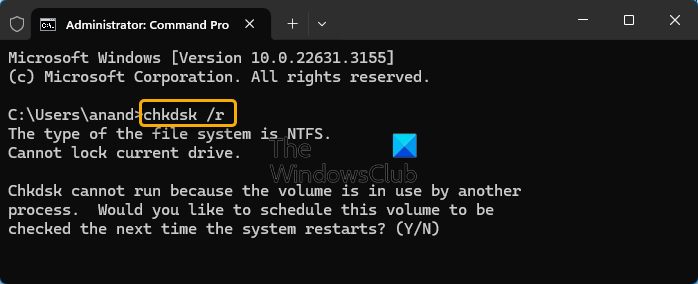
To run CHKDSK, do the following:
- Press Windows key + R to invoke the Run dialog.
- In the Run dialog box, type
cmdand then press CTRL + SHIFT + ENTER to open Command Prompt in admin/elevated mode. - In the command prompt window, type the command below and hit Enter.
chkdsk /x /f /r
You will receive the following message:
Chkdsk cannot run because the volume is in use by another process. Would you like to schedule this volume to be checked the next time the system restarts? (Y/N).
- Press the Y key on the keyboard and then reboot your computer to let CHKDSK to check and fix the errors on the computer hard drive.
After CHKDSK completes, check to see if the issue is resolved.
2] Run SFC scan
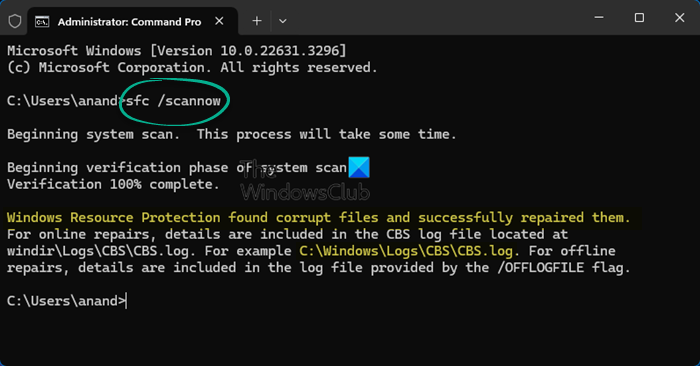
System File Checker is a utility in Microsoft Windows that allows users to scan for and restore corruption in Windows system files.
This solution requires you to run SFC scan and afterward, try running System Restore again and see if it completes successfully without the error 0x81000204.
If the issue remains unresolved, proceed to the next solution.
3] Perform DISM scan
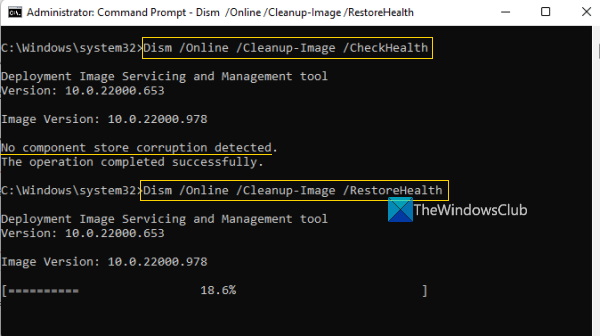
Deployment Image Servicing and Management (DISM.exe) comes built into Windows and is available through the command line or from Windows PowerShell – which can be used to service and prepare Windows images, including those used for Windows PE, Windows Recovery Environment (Windows RE) and Windows Setup. DISM can be used to service a Windows image (.wim) or a virtual hard disk (.vhd or .vhdx).
This solution requires you to perform DISM scan and then retry the system restore operation. If the procedure fails with the same error, proceed with the next solution.
4] Use Windows Command Prompt
Open the Command Prompt and execute the following commands in the given order:
reg delete “HKLM\\SOFTWARE\\Policies\\Microsoft\\Windows NT\\SystemRestore” /v “DisableSR” /f

reg delete “HKLM\\SOFTWARE\\Policies\\Microsoft\\Windows NT\\SystemRestore” /v “DisableConfig” /f

reg add “HKLM\\Software\\Microsoft\\Windows NT\\CurrentVersion\\SPP\\Clients” /v ” {09F7EDC5-294E-4180-AF6A-FB0E6A0E9513}” /t REG_MULTI_SZ /d “1” /f

schtasks /Change /TN “Microsoft\\Windows\\SystemRestore\\SR” /Enable

vssadmin Resize ShadowStorage /For=C: /On=C: /Maxsize=25GB

sc config wbengine start= demand

sc config swprv start= demand

sc config vds start= demand

sc config VSS start= demand
Restart the system and try now.
5] Reset the Repository
To do so, follow these steps:
- Boot into Safe Mode without networking, and then open a command prompt as an administrator.
- Now Type
net stop winmgmtand hit Enter. - This will stop the Windows Management Instrumentation Service
- Next go to C:\Windows\System32\wbem
- Rename the repository folder to repositoryold
- Restart.
Again open a command prompt as administrator, type the following and hit Enter:
net stop winmgmt
Next, type the following and hit Enter:
winmgmt /resetRepository
Restart and try creating a System Restore Point manually.
6] Run System Restore in Safe Mode or Clean Boot State
Boot into Safe Mode and see if you create a system restore point or restore to a prior restore point. Many times, non-Microsoft services or Drivers can interfere with the proper functioning of System Restore. Alternatively, you could also execute a Clean Boot and see if you are able to get system restore working.
7] Use a 3rd party Backup software
This solution simply entails you use any of the 3rd party Imaging, Backup and Recovery Software for Windows capable of doing the same thing as the System Restore utility.
8] Perform Reset This PC, Cloud Reset or Repair Windows
If the issue is still unresolved, it’s most likely due to some system corruption that cannot be resolved conventionally. In this case, the applicable solution here is that you can try Reset This PC, or Cloud Reset to reset every Windows component. You may also try to Repair Windows using Installation Media as a last resort.
We hope something here helps you fix your System Restore problems.
