
For many users, VR is an important part of their gaming setup, and when it fails, you will see how angry they get. As of late, many players of Phasmophobia VR have been experiencing issues with the game not launching or working, and if you are one of them, there is no need to worry; we’ve got your back. In this article, we will resolve this issue with some very simple solutions.
Fix Phasmophobia VR is not working or launching
If Phasmophobia VR Occulus is not working on your Windows 11/10 computer, then check the following solutions-
- Check your connections
- Re-download SteamVR
- Update your Graphics Driver
- Verify Integrity of Game Files
- Check Virtual Memory Settings
- Update your VR Software
Let us talk about them in detail.
1] Check your connections
First of all, you need to make sure that your connections are tight. If they are loose, then your computer will not detect the VR. So, you are unable to use the VR with Phasmophobia. Check your connections. You should also try unplugging and then replugging it. If that doesn’t work, then we should move to the next solution.
2] Re-download SteamVR
There might be corrupted SteamVR files causing trouble for you, or a glitch in the app that’s giving you trouble. So, we are going to remove it completely and then reinstall it to fix the problem.
First of all, close Steam. Make sure to check the Task Manager to see if any process related to Steam is still running. If it is running in the background, right-click it and select End Task. Then, we have to delete some files from your computer. Pull out File Explorer, go to the following locations and remove these files.
C:\Program Files (x86)\Steam\steamapps\common\SteamVR\resources\settings\default.vrsettings
C:\Program Files (x86)\Steam\config\steamvr.vrsettings
C:\Program Files (x86)\Steam\config\lighthouse\lighthousedb.json
When you are done with that, it’s time to uninstall SteamVR. You should follow the given steps to do the same.
- Open Steam.
- Go to LIBRARY.
- Right-click on SteamVR and either select Manage > Uninstall or Uninstall.
Finally, follow the on-screen instructions to uninstall the app. Once you are done with that, restart your computer, redownload and reinstall SteamVR and check if the issue persists. If the issue is because of corruption in the SteamVR app, it will work, but if there is something else that’s causing the trouble, then you need to try the next solution
3] Update your Graphics Driver
You should make sure that your Graphics Driver is up to date. There are various ways to do the same; just pick the one you like and update your Graphics Drivers.
- Update your Windows in order to update the driver.
- Use freeware to download and install the latest update.
- Update just your Graphics Driver.
- Download the latest driver from the manufacturer’s website.
Once, you have updated your driver, restart your computer and check if the issue persists.
4] Verify Integrity of Game Files
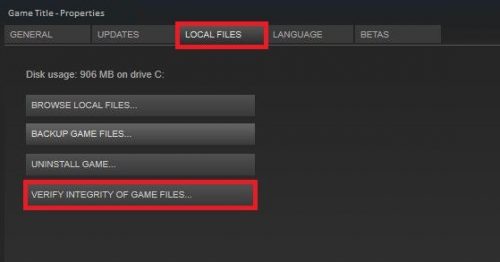
If VR isn’t working in Phasmophobia, it might be an issue with the game files. Hence, you should verify their integrity and resolve the issue. It’s quite simple, and you can do it by following these steps.
- Open Steam by searching it out of the Start Menu or by double-clicking the desktop shortcut.
- Go to LIBRARY.
- Right-click on Phasmophobia and select Properties.
- Then go to the LOCAL FILES tab and click VERIFY INTEGRITY OF GAME FILES.
It will take some time to scan your game and will fix it if it can. Then, you restart your computer, open Phasmophobia, and retry connecting VR. Hopefully, this time, it will work.
5] Check Virtual Memory Settings
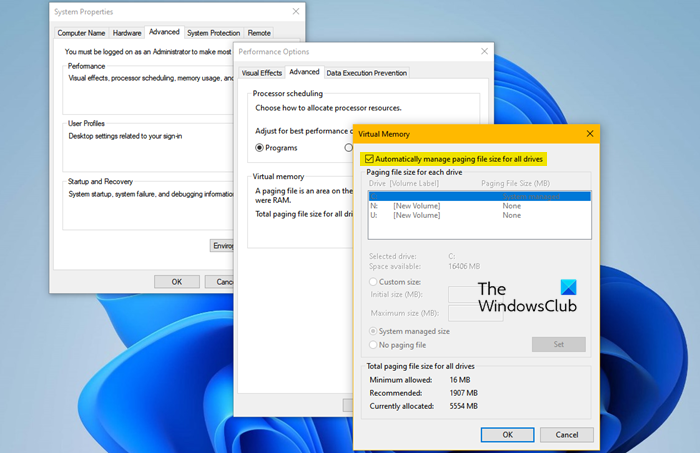
Next up, we should check if there is some issue with the Virtual Memory Settings of your Windows computer. Usually, the default setting is the best way to go, but sometimes, because of an interference, or you change it manually, your VR can fail to work. Therefore, we need to check its configuration and make sure that it is not causing the error in question. Follow the given steps to do the same.
- Hit Win + S and search out “Advanced System Settings”.
- Click Settings from Performance Options.
- Go to the Advanced tab.
- Click Change from Virtual Memory.
- Then tick Automatically manage paging file size for all drives.
Finally, restart your computer, try running the game and see if that works.
6] Update your VR Software
Maybe your issue is a bug that the manufacturer has already resolved. To know that, go to the website of your VR’s manufacturer and see if there is an update available for your software. If so, you should download and install it.
Hopefully, you can make VR work in Phasmophobia on your computer.
How do I enable VR settings in Phasmophobia?
To make VR work on Phasmophobia, you need to launch it from SteamVR. But before that, you should have SteamVR. So, go to store.steampowered.com and get SteamVR. Once you have installed the app, open it and launch Phasmophobia. If you want to configure it, after opening the game, go to Options > VR Settings.
Can my Laptop handle Phasmophobia?
If your Laptop meets the minimum system requirements, then it can run Phasmophobia. These requirements are.
- CPU: Intel Core i5-4590 or AMD FX 8350
- RAM: 8 GB
- OS: Windows 11/10 (64-bit)
- Graphics Card: NVIDIA GTX 970 or AMD Radeon R9 290
- Disk Space: 13 GB
- Video RAM: 4096 MB
If your system meets the requirements, then you should not face any difficulty while playing the game. However, we recommend closing all unnecessary apps before launching the game.
