
In this post, we will identify some potential known causes that can trigger the video streaming service Disney+ Error Codes 43, 73, 83, on your PC or any other streamig device, as well as provide the possible solutions you can try to help remediate the issue as it relates to the three aforementioned error codes.
Fix Disney+ Error Code 43

You might receive the following error message when you try to access Disney+ on Windows 11/10 or any other streaming device:
We’re sorry, but we cannot play the video you requested. Please try again. If the problem persists, visit the Disney+ Help Centre (Error Code 43).
If you’re facing the Disney+ error code 43, try our recommended solutions below, in no particular order, to see if they help resolve the issue.
- Reset your network settings
- Re-login into the DisneyPlus app
- Check your DisneyPlus service billing
Let’s take a look at the description of the process for each of the listed solutions.
Before proceeding to the major solutions listed below, you can try uninstalling the DisneyPlus application, reinstalling it on your device, and checking whether the error is resolved. Also, you can shut down the device on which you are using streaming, and after a couple of minutes, restart your device and check whether the error is resolved.
1] Reset your network settings
The Disney Plus error code 43 might occur due to a poor internet connection. So you can try changing the location of your modem/router if there is a limited signal connectivity issue. If changing the location doesn’t eliminate the problem then restart your router/modem and see if that helps. Otherwise, reset your Network settings.
2] Re-login into the DisneyPlus app
If you are running several apps at the same time, your Disney+ app may crash due to overload, and you may encounter error code 43. In this case, you can sign out of the app and then disconnect devices that use a lot of bandwidth, such as gaming consoles. After disconnecting all other devices, close all currently open apps, then sign back in to your Disney+ app and see if the issue is resolved.
3] Check your DisneyPlus service billing
Another reason that might be triggering the Disney Plus error code 43 is a service billing issue. Check your billing details, and maybe your Disney Plus subscription has expired. If so, contact your service provider to renew your subscription, then log in to the application again.
Fix Disney+ Error Code 73
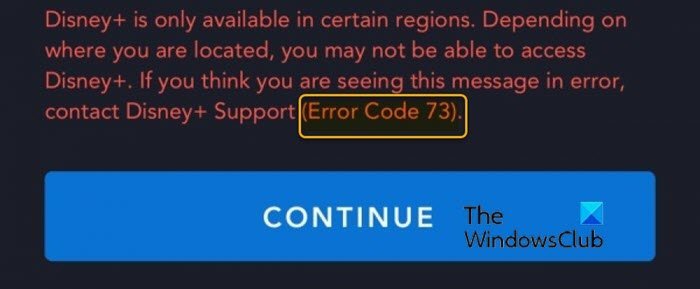
You might receive the following error message when trying to stream content on DisneyPlus on Windows 11/10 or any other streaming device:
Disney+ is only available in certain regions. Depending on where you are located, you may not be able to access Disney+. If you think you are seeing this message in error, contact Disney+ Support (Error Code 73).
The error is reporting location availability issues. However, it seems to be affecting some Disney+ users in countries where the service is already available.
If your country of residence isn’t yet supported by Disney+, that’s most likely why you’re encountering the error. However, you can use a VPN or Proxy to stream content on Disney+ even if your country is not yet supported. But keep in mind that not every VPN and Proxy server will work with Disney+. As many affected users have reported, Disney+ can detect certain VPN/Proxy solutions and prevent you from accessing the service until you do so without any anonymity solution.
Nevertheless, if you encounter the error, you can try our recommended solutions below and see if they help resolve the issue.
- Remove the VPN client or Proxy server (if applicable)
- Use a verified VPN client
Let’s take a look at the description of the process for each of the listed solutions.
1] Remove the VPN client or Proxy server (if applicable)
There are only a select number of VPN clients and proxy services that Disney+ is unable to detect.
There are numerous reports from users living in countries where the service has already launched that are still encountering the error. The reason here is that these affected users have previously installed a VPN client or they’re filtering their Internet connection through a proxy server. It’s noteworthy that Disney+ like Netflix will detect your VPN by looking at your configuration even if it’s not active.
So if you’re encountering the issue in a country that already supports Disney+, see if you have a VPN installed or if your internet connection goes through a proxy server. If so, you can try uninstalling your VPN software via the Programs and Features applet in Windows or remove any proxy server from your computer and see if that resolves the issue.
2] Use a verified VPN client
If you are not living in a country that supports Disney+, the only way to play it is to use a VPN to make it appear you’re accessing the streaming service from a supported location.
As of now, only a handful of VPN services work well with Disney+.
Here’s a list of user-verified VPN clients that can allow you to stream content on Disney+ without issues:
- Hide.me (All Platforms)
- HMA VPN (All Platforms)
- Surfshark (PC)
- Super Unlimited Proxy (iOS)
- Unlocator (All Platforms)
- Cloudflare (Android)
Keep in mind that this list is subject to change. Disney+ bans VPN clients all the time, and new VPN clients manage to bypass the streaming service’s VPN detection.
Follow our instructions in this blog post to set up a VPN in Windows.
Read: Fix Disney+ Hotstar error codes
Fix Disney+ Error Code 83
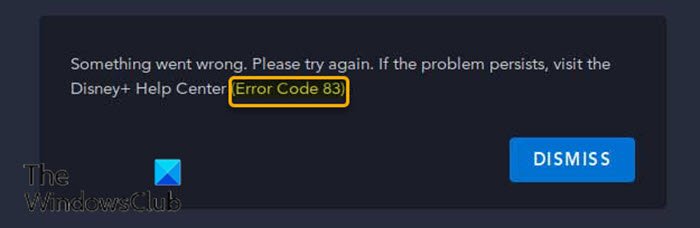
You might receive the following error message when trying to stream content on Disney+ on Windows 10 or any other streaming device:
Something went wrong. Please try again. If the problem persists, visit the Disney+ Help Center (Error Code 83).
This Disney+ error code 83 can occur due to a variety of reasons, including your browser settings/configurations, network connectivity, or at times an overloaded server.
If you’re facing the Disney+ error code 83, try our recommended solutions below in no particular order to see if they help resolve the issue.
- Try using a different web browser
- Switch network connection
- Reboot router/modem
- Use a VPN
Let’s take a look at the description of the process for each of the listed solutions.
1] Try using a different web browser
The DisneyPlus error code 83 can be triggered due to the web browser configuration you are using. Some users reported that the issue is resolved when the website is accessed in a different browser. So you should try accessing the website via a different web browser. If the error persists, it means the problem is not with your web browser but with your network connection.
If the issue disappears in another browser but is restricted to a specific one, it is probably due to your browser settings. This includes the various extensions you have installed on your browser and more. In this case, you can try disabling the add-ons/extensions you have installed in your browser and then pinpoint the culprit. Alternatively, you can also try accessing the website via the InPrivate or Incognito mode where all of the extensions are disabled by default if you haven’t changed the settings.
Once you have located the troublesome extension, remove it from your browser and then try accessing the website. In case you are using Microsoft Edge, you can also try resetting the browser.
If this solution does not work for you, continue with the next solution.
2] Switch network connection
If you are using a public network, it is very likely that the network is causing the issue. This can be due to a heavy load on the network, so you are not able to get sufficient speed and the connection is dropped. In this case, you can try switching from a public network to a private network and see if that helps.
If you are facing the problem on the DisneyPlus mobile app, try switching your network from cellular to WiFi and vice versa to see if that resolves the issue.
3] Reboot router/modem
If you are able to resolve the issue by switching to a different network, it means something is wrong with the previous network’s configuration.
In some cases, the issue can be due to your IP address being blocked by the web server. Rebooting your router will assign you a new IP address, and you will be able to test your connection to the web server again. You can try rebooting your router 2-3 times just to be on the safe side. Here’s how:
- Unplug the power to your internet device.
- Now, wait for at least 5 minutes.
- Plug in the modem/router and wait for the connectivity light to start blinking.
In the unlikely event that the issue persists, you will need to reset your router, which will restore all configuration to its default values.
Also, you can try forgetting the WiFi credentials for the problematic network, then entering them again.
Afterward, launch the DisneyPlus app and see if the error code 83 is resolved. If not, continue with the next solution.
4] Try using a VPN
Certain regions are blocked from accessing the Disney+ web server. In which case, you will have to try using a VPN client that isn’t blocked by DisneyPlus.
If none of the troubleshooting steps outlined in this post for Disney+ error codes 43, 73, or 83 help, you may need to contact your device manufacturer, ISP, or Disney+ Support for assistance.
