
Some users report that when they try to connect Bluetooth headphones, a mouse, or a keyboard to a Windows 11/10 computer, they see a Driver error message and the device doesn’t work as expected. It may result in bad audio quality or users are not able to switch on their Bluetooth adapter. This can happen due to corrupt or missing drivers or other issues. If you also have this problem, some solutions covered in this post might help.
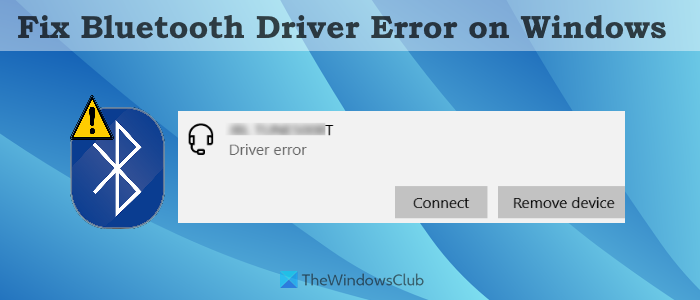
If you have already tried basic steps, such as reconnecting the Bluetooth adapter, turning Bluetooth and the Bluetooth device off and back on, etc., and the problem persists, check the solutions below.
Fix Bluetooth Driver Error on Windows 11/10
Here is a list of solutions that might be helpful to get rid of this Driver error problem for your Bluetooth device:
- Run Bluetooth Troubleshooter
- Update Bluetooth drivers
- Restart Bluetooth Support Service.
Let’s check all these solutions.
1] Run Bluetooth Troubleshooter
The built-in Bluetooth troubleshooter in Windows 11/10 can help you identify and resolve issues by checking Bluetooth functionality, enabling Bluetooth, and similar steps. This might work for this problem too. Run the Bluetooth troubleshooter to see if this resolves the issue. We have covered the steps to run the Bluetooth troubleshooter on Windows 11 and Windows 10 separately.
Windows 11
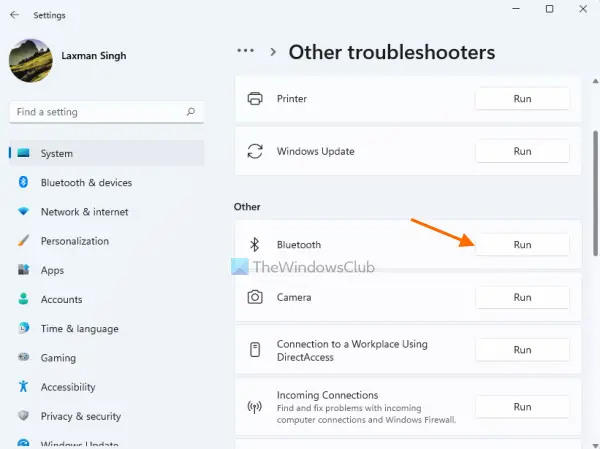
The steps are as follows:
- Use Win+I hotkey to open the Settings app
- Access the Troubleshoot page present on the bottom right section
- Access Other troubleshooters
- Press the Run button available for Bluetooth.
Windows 10
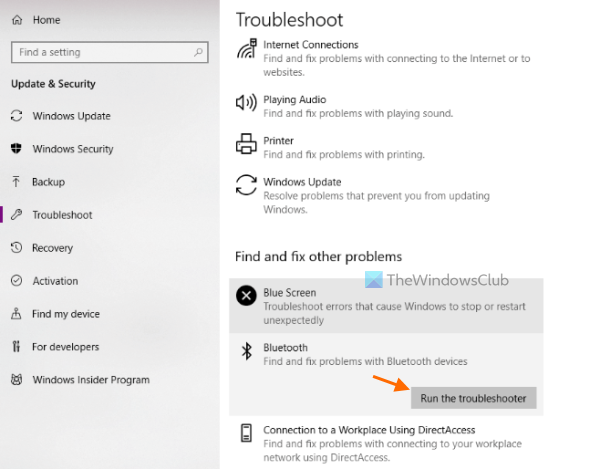
Here are the steps:
- Press Win+I hotkey. This will open the Settings app
- Access the Update & Security category
- Access the Troubleshoot page
- Click on the Bluetooth option
- Press the Run the troubleshooter button.
The troubleshooter will automatically fix the problem(s) it finds or it will provide the fixes you can apply.
2] Update Bluetooth Drivers
In many cases, outdated, corrupt, or incompatible drivers are the reason a device doesn’t function properly. If that is the case in this problem, then you should update Bluetooth drivers and check if it resolves the issue. There are multiple ways to update a Bluetooth driver:
- Using Device Manager: Use this option if you already have a compatible Bluetooth driver downloaded on your Windows 11/10 computer. You need to:
- Open Device Manager
- Expand the Bluetooth section
- Right-click on your Bluetooth device driver
- Click on the Update driver option. A separate box will open
- Click on the Browse my computer for drivers option in that box
- Press the Browse button
- Select the folder where you have stored your Bluetooth driver
- Press the OK button
- Press the Next button.
Once the Bluetooth driver is installed, restart your computer.
- Using Windows Update: Apart from providing the latest updates for Windows OS, Windows Update is also helpful to install drivers and Optional updates, including the Bluetooth drivers. So, access the Optional updates section in the Windows Update category and see if there is an update available for your Bluetooth driver. If yes, download and install it.
- Manually download and install Bluetooth driver: Using this option, you can download Bluetooth driver from the manufacturer’s website that is compatible with your device and install that driver. Just open the official support page for your device, enter the serial number of the device, and other required details, and then check for the driver and/or a network-related section. There you will find the download link for your Bluetooth driver. Download that driver and install it.
Related: Bluetooth devices not showing, pairing, or connecting
3] Restart Bluetooth Support Service
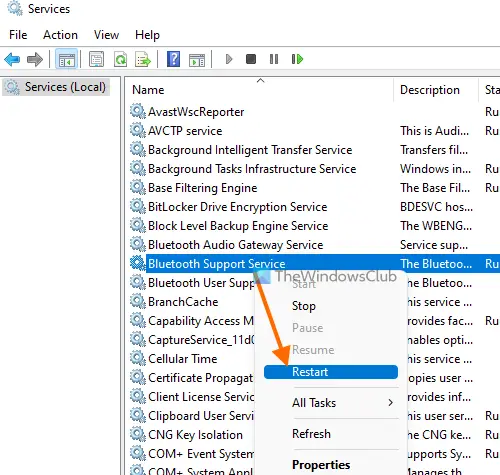
If Bluetooth Support Service is not running or stopped for some reason, then it may cause your Bluetooth device to not operate properly. This might be why you are getting this Driver error for your Bluetooth device. Therefore, you should try to restart the Bluetooth Support Service. Here are the steps:
- Type services in Windows 11/10 Search box
- Press the Enter key to open the Services window
- Right-click on the Bluetooth Support Service
- Click on the Restart button.
A Service Control box will open that will automatically restart this service. Once done, that box will be closed automatically.
After restarting Bluetooth Support Service, you should also set its Startup type to Automatic. For that, use these steps:
- Double-click on Bluetooth Support Service. A Properties box will open
- Access the General tab in that box
- Click on the drop-down menu available for the Startup type section
- Select the Automatic option in that menu
- Press the OK button.
If these solutions don’t work, then you should uninstall your Bluetooth device and restart your computer. You can uninstall a device driver using Device Manager (including the Bluetooth driver). Once you do that, Windows will automatically reinstall the Bluetooth driver after the restart and then it might fix the issue.
I hope this will help.
Read: Windows was unable to connect with your Bluetooth network device error
Why does it say Driver error for Bluetooth?
The Bluetooth Driver error may be caused by an incompatible or corrupt driver installed on your Windows 11/10 computer, or by another issue. In such a case, you should update your Bluetooth driver or install a compatible driver for your device. You can also try restarting the Bluetooth Support Service or using the Bluetooth troubleshooter to resolve the issue. All these solutions, along with the necessary steps, are covered in the post above.
Why Bluetooth is not working on Windows?
The reason why Bluetooth is not working in Windows could be anything. Maybe the Bluetooth driver is corrupt or outdated, the hardware and software combination is mismatched, multiple Bluetooth devices are conflicting with each other, etc. In such a case, you can try some fixes such as updating the Bluetooth driver, checking if your Bluetooth device is compatible with your computer, running the Windows 11/10 Bluetooth troubleshooter, etc.
Read next: Fix Bluetooth connection problems in Windows 11.
