
Are you encountering a Black screen when launching the World War 3 game? Here is a complete guide to fixing the issue. A lot of World War 3 gamers have recently reported experiencing a black screen whenever they try to start the game. Now, the issue can be caused by several reasons. If you are facing the same problem, you can refer to this guide for suitable fixes. So, without much ado, let us check out.

What causes Black Screen when launching World War 3?
Here are the potential causes of the black screen issue when launching World War 3:
- In some instances, you might experience the problem at hand if there is some ongoing server issue. Hence, make sure the World War 3 server status is up and running. Otherwise, you will have to wait for the server issue to be resolved from the developer’s side.
- Outdated graphics drivers on your system can cause a black screen when starting the game. If the scenario applies, update your graphics drivers to the latest version to fix the problem.
- The problem might also be caused by corrupted, broken or missing game files. Hence, verify and repair the game files on Steam to fix the issue.
- Another reason for the same issue could be corrupted files in the HTML folder for World War 3. In that case, clearing the HTML folder can fix the issue.
- It can also be caused by software conflicts. So, troubleshoot in a clean boot state to resolve the issue.
Based on the above scenario, you can resolve the issue using one of the following fixes.
Fix Black Screen when launching World War 3
Here are the methods you can try if you encounter a black screen when launching World War 3:
- Make sure there is no server issue.
- Update your graphics drivers.
- Verify the game files.
- Clear the HTML folder of World War 3.
- Launch the game in full screen on Steam.
- Troubleshoot in a clean boot state.
1] Make sure there is no server issue
If you are experiencing a black screen on starting the World War 3 game for a long time, it could be due to an ongoing server issue. You might be getting the issue if the servers are down at the moment. Hence, the first thing you should do is ensure the servers are up and running.
To check the server status of World War 3, you can use a free online tool. You can also contact the official World War 3 team on social networks to query the same. If you find that there are indeed server issues, there isn’t much you can do about them. You will have to wait for the issue to get resolved on the server side.
However, if the servers are up and running and you are still facing the problem, move down to the next potential fix.
2] Update your graphics drivers
Outdated graphics drivers on your system can cause a black screen issue in World War 3. Hence, make sure you have up-to-date graphics drivers on your PC. If not, update your graphics drivers to the latest version right away. Here are the methods that you can use to update graphics drivers on Windows 11/10:
- You can open the Settings app by pressing the Win+I hotkey and then you can go to the Windows Update tab > Optional Updates section. From here, you can find all the available driver updates that you can download and install.
- You can also visit the official website of the device manufacturer and download the most recent version of your graphics driver.
- Try updating graphics drivers via the Device Manager app using the below steps:
- Press the Win+X hotkey and then choose Device Manager.
- Go to the Display adapters category and expand the respective menu.
- Locate and right-click on your graphics card.
- Tap on the Update Driver option.
- Complete the process using the onscreen guide.
- There are many free driver update software using which you can automatically update your graphics and other drivers.
After updating your graphics drivers, try launching the game and see if the black screen issue is resolved. If not, try the next potential fix to resolve the issue.
3] Verify the game files
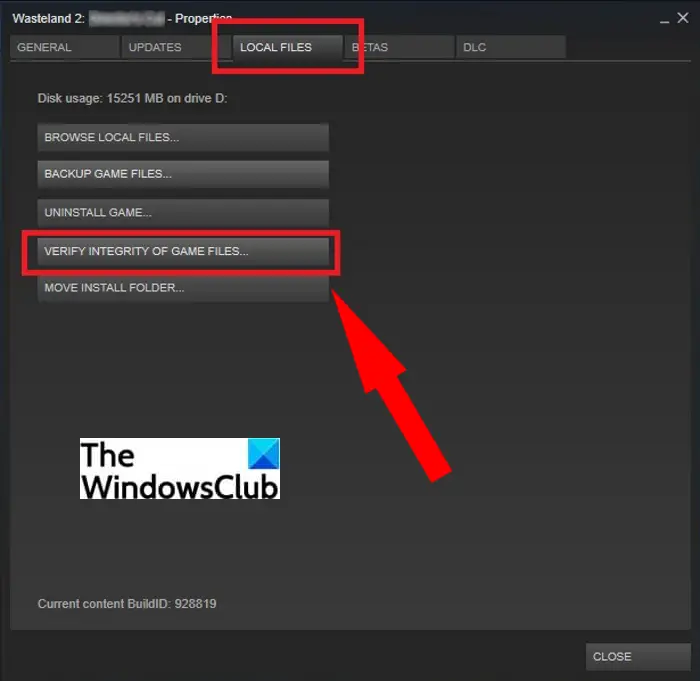
The problem might also occur due to corrupted game files of World War 3. If you are dealing with broken or missing game files, you are likely to encounter a black screen when trying to launch the game. Hence, try verifying the integrity of your game files on Steam using the dedicated option. It lets you verify and repair your game files. Here’s how to do that:
- Firstly, start the Steam client and go to LIBRARY.
- Now, locate the World 3 game and right-click on its game title.
- Then, select the Properties option from the appeared context menu.
- Next, go to the Local Files tab and then click n the Verify Integrity of Game Files button.
- When the game’s verification process is complete, restart the game and see if the black screen issue is resolved.
If you still encounter the same problem, there might be other underlying causes. So, try the next potential solution to fix the problem.
See: Fix Resident Evil crashing or showing Black Screen on Windows PC.
4] Clear the HTML folder of World War 3
You might be experiencing the black screen issue if corrupted data packets are stored in the HTML folder of the World War 3 game. Many affected users have confirmed that they fixed the issue by deleting the game’s HTML folder. If the scenario applies, you can try clearing the HTML folder to fix the issue. The folder contains no important data, and it is regenerated when you relaunch the game. However, you can back up the folder to another location just to be on the safe side.
Here is how to delete the HTML folder of World War 3:
- Firstly, make sure that Steam and the game + the game’s internal launcher are not running in the background. So, close the related processes from Task Manager.
- Now, open File Explorer using Win+E and go to the installation folder of the game. In case you installed World War 3 through Steam, you will find the game at the below location:
C:\Program Files\Steam\steamapps\WW3
- After that, locate the HTML folder in the installation directory and right-click on it.
- Next, select the Delete option to delete the folder.
- Finally, you can try relaunching the game and then see if the problem is fixed or not.
If the black screen issue still persists in the startup of World War 3, there are some more fixes you can try. So, move on to the next potential fix to resolve it.
Read: Fix Far Cry Black Screen issues on Windows PC.
5] Launch the game in full screen on Steam
You can try reconfiguring the game launch options for World War 3 on Steam to fix the issue. Try launching the game in full screen and then see if the problem is fixed. Some affected users were able to fix the problem using this workaround. So, it might just work for you as well. Here is how you can do that:
- Firstly, launch the Steam client and navigate to LIBRARY.
- Now, right-click on the World War 3 game title and select the Properties button from the context menu.
- Next, inside the Properties screen, move to the General tab.
- After that, click on the Set Launch Options button.
- Then, enter “-fullscreen” in the box and save changes.
- Finally, try relaunching the game and see if the problem is fixed.
6] Troubleshoot in a clean boot state
The problem may be due to software conflicts on your system. Hence, if the scenario is applicable, you should be able to fix it by performing a clean boot. Here are the steps to run Windows in a clean boot state:
- Firstly, hit the Windows + R hotkey to evoke the Run dialog box.
- Next, enter msconfig in the Open box to start the System Configuration window.
- Now, navigate to the Services tab and tick the Hide all Microsoft services checkbox.
- After that, tap on Disable all and then click on Apply to save changes.
- Then, go to the Startup tab and press the Open Task Manager button.
- In the Task Manager window, disable all the startup programs.
- Finally, restart your computer, and at the next startup, launch the game to check whether the issue is resolved.
What is the cause of World War 3 crashing after loading the map?
The cause of World War 3 crashing after loading the map can be the OpenSSL bug found in the Intel 10th-generation processors. It can cause the game to crash after loading the map. You should also troubleshoot in Clean Boot State to find the cause and take action.
Why is my screen black when I launch games?
Your computer screen may go black if the game’s hardware requirements are not met. In addition, if graphics drivers are outdated, the VGA cable or HDMI connection is loose, or the cable is damaged, an incompatible game, corrupt game files, etc., can also be the cause of it. So, you should check the cable connection, keep graphics drivers updated, run your games in compatibility mode, disable hardware acceleration, check the Power Supply Unit (PSU), etc., to solve this problem.
Now read:
