
Find-in-page in Google Chrome is one of the best features for easily finding something on a webpage with a simple search for a word. It would be a daunting experience to read thousands of words without the feature. Once we get used to it, it will be hard to go through endless quests of finding something. If you, too, are struggling with find in-page not working issue on Chrome, this guide is for you.
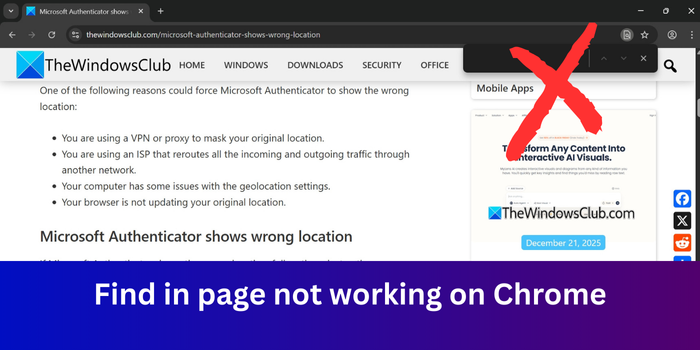
Find in Page not working on Chrome on PC
Google Chrome and other reliable browsers update themselves automatically. If, for some reason, Find in page is not working after an update, wait until the next update, typically in a few days, to fix the bug. If the feature is not working at random, use the methods below to fix it.
- Check if the website supports it
- Check if the page is not hardcoded
- Ensure browser extensions are not conflicting
- Enable or disable graphics acceleration
- Reset Chrome
Let’s get into the details of each method. Before proceeding, clear Google Chrome’s cache and cookies, restart your browser, and then try again using the Find in page feature.
1] Check if the website supports it
Some websites disable right-click, copy, and other features we normally use on Websites. We cannot even click on the text. If you visit such a website, the Find in page feature may not work. The website’s backend code interferes with normal functions and blocks them to protect the website’s content.
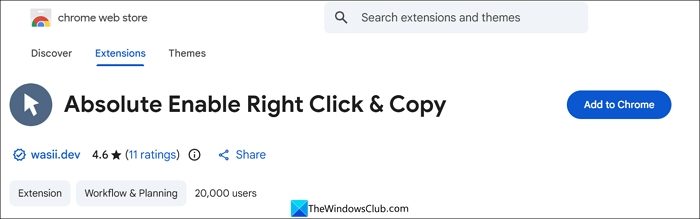
In such circumstances, you can install Absolute Enable Right Click & Copy or similar extensions that do not hinder the features and use Find in page and other interactive features on Chrome.
2] Check if the page is not hardcoded
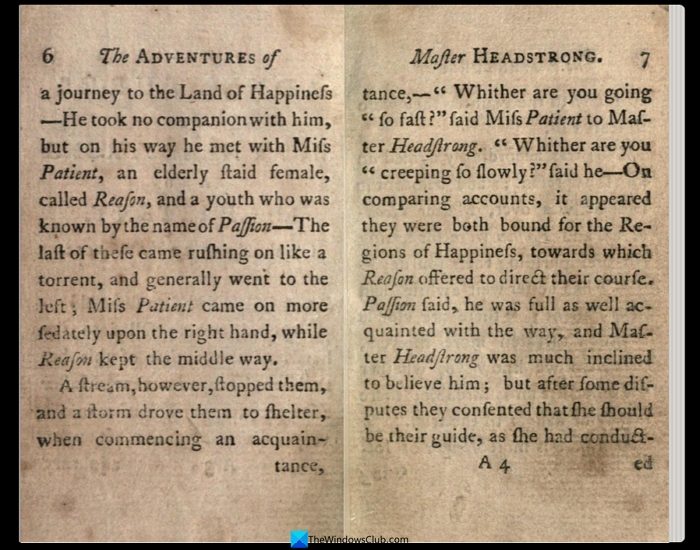
If you are viewing a hard-coded or non-OCR document, like a PDF, in Google Chrome and want to search it, you cannot. The characters are not formatted to be recognized by the browser. Find in page will not work in such cases. You need to convert the document or PDF to an OCR format and try using the Find in page feature.
Read: Free Online OCR sites and services to extract Text from images
3] Ensure browser extensions are not conflicting
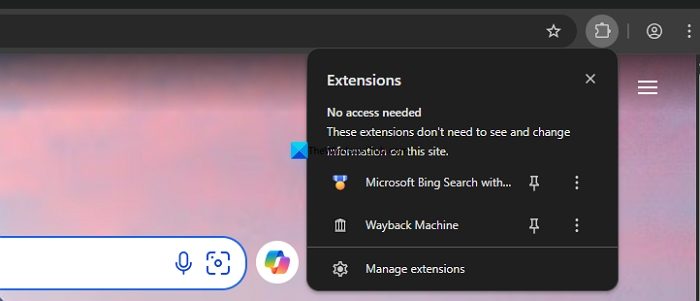
Extensions we install on Chrome for enhanced features or convenience might sometimes hinder functionality by conflicting with it. Open the website you are having a problem with to search using the Find in page feature in an Incognito window. Make sure no extensions are working on Chrome. Then, try using the Find in page feature. If it is working normally, the extensions are causing the conflict. Go back to normal mode, disable extensions one at a time, and identify which one is responsible. After finding it out, remove it from Chrome to use Find in page normally.
Read: Incognito Mode is missing in Chrome on Windows
4] Enable or disable graphics acceleration
The loading of visual elements depends on how the browser interacts with your PC’s graphics card. If they are not rendered properly, you might face this issue on Chrome. Open the Settings page on Chrome and click on the System tab.
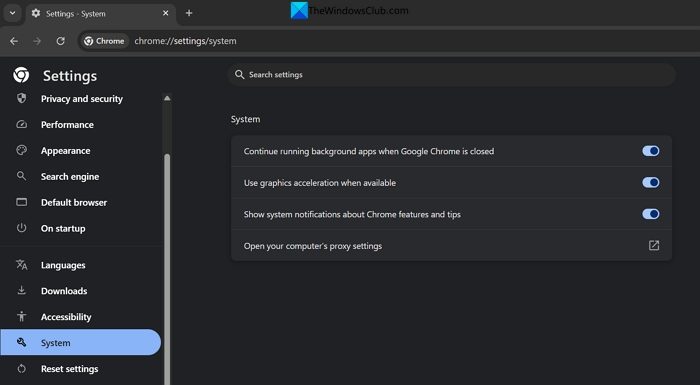
Then check whether graphics acceleration is enabled or disabled. Toggle the button beside Use graphics acceleration when available and relaunch your browser. Then check whether the Find in page is working.
5] Reset Chrome
The issue should have been fixed by now. If not, reset Google Chrome to its default settings. When you reset it, all settings revert to default, and the extensions will be disabled automatically. This can make Find in page work again, as it restores Chrome’s look to how it was when you installed it.
Open the Settings page on Chrome and click Reset settings. Then, click on Reset settings to their original defaults.
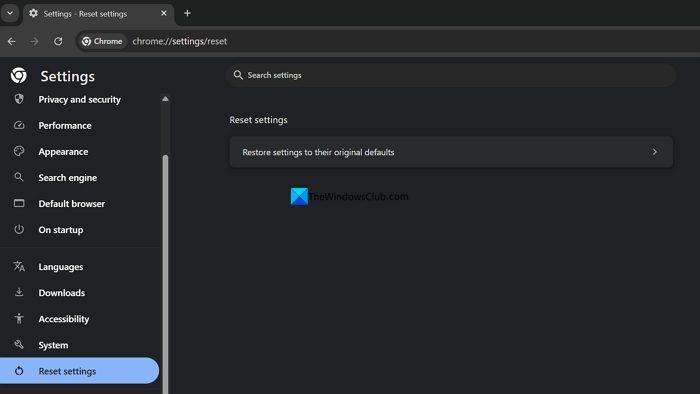
Click Reset settings on the pop-up that appears to complete the reset. It should fix the issue.
Related: Ctrl+F does not work or bring up Find On This Page
How to search within a page in Chrome?
To search within a page on Google Chrome, you can use the Ctrl + F keyboard shortcut and enter the text in the Find in page button that appears. It will scan the page in real-time and highlight all the mentions of the word you have searched.
Also read: How to use the new AI features in Chrome browser
Unable to find specific words in a page on Chrome
The Ctrl+F shortcut on Chrome helps you search for words in a page. If you are not finding them, your spelling might not be matching, there is no mention of the words, or the website restricts interactive features like search, copy, right-click, etc. on it. You need to see if it works in Incognito mode.
Related read: VPN not working on Google Chrome
