
VPNs have become common due to the geo-restrictions imposed by companies on their sites, as well as government restrictions worldwide. In addition to unlocking geo-restrictions and bypassing bans, VPNs ensure user security and privacy on the internet by hiding the IP address and tunneling traffic to conceal it from internet service providers. Some users are experiencing difficulties using the internet with a VPN on Google Chrome. Let’s see how we can fix it when the VPN is not working on Google Chrome.
VPN not working on Google Chrome
VPNs generally work on any browser or program when installed on a Windows PC as a standalone program. If, for some reason, it is not working on Google Chrome, you can follow the methods below to fix it permanently.
- Ensure VPN is connected
- Disable Split-tunneling on VPN
- Install the VPN extension
- Reset Chrome settings to default
- Reinstall VPN
Let’s delve into the details of each method and see how it helps resolve the issue.
1] Ensure VPN is connected
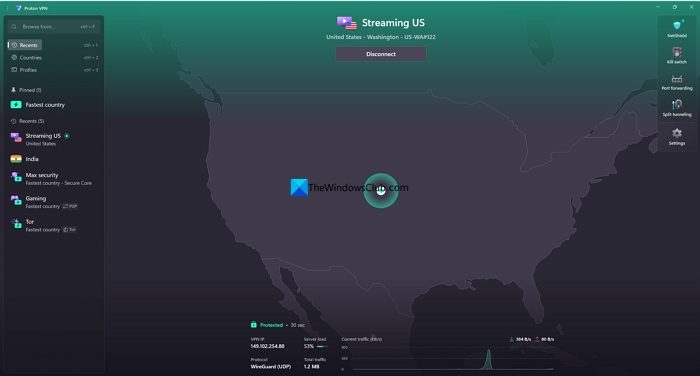
When you install and connect to a VPN, the IP address provided by your internet service provider is replaced with another IP address provided by the VPN. Open VPN and see if it is connected to any location or not. To make sure the VPN works on Chrome and does not leak your IP address, you must enable the kill switch feature provided by the VPN. It disconnects the internet on your Windows PC whenever your VPN is disconnected.
2] Disable Split tunneling on VPN
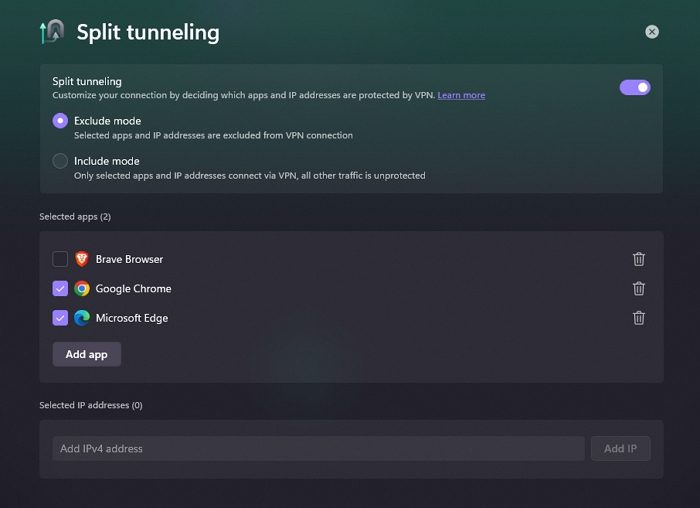
The Split tunneling feature on VPN allows us to selectively enable or disable programs to use the VPN. If you have accidentally excluded Google Chrome from using VPN through split tunneling settings, make sure you remove Google Chrome from the excluded apps list.
Open your VPN and go to Settings. Next, select split tunneling and remove Google Chrome from the list. Then, reconnect to the VPN to see if it is working on Google Chrome.
Read: Internet not working after disconnecting VPN on Windows PC
3] Install the VPN extension

All major VPNs have their VPN extensions available on the Chrome Web Store. If you still have issues with VPN on Chrome, try installing the extension of your VPN and using it.
Go to the Chrome Web Store on Google Chrome, search for the VPN you use, and click Add to Chrome button. After successful installation, click on the VPN icon on the toolbar and sign in with your VPN credentials to start using it.
4] Reset Chrome settings to default
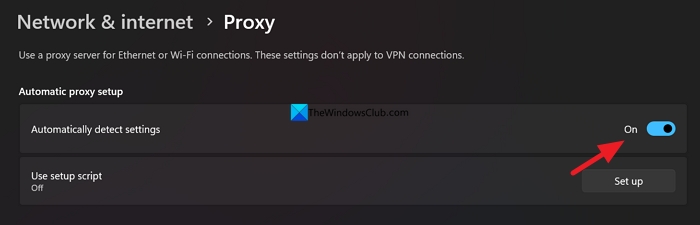
There is a possibility that the proxy settings or the DNS settings might be interfering with the VPN connection and might be making it hard to work on Google Chrome. If you have tweaked the proxy settings on your PC, change them to normal by setting them to Automatic. Open the Settings page on Google Chrome, and search for Proxy in the settings search bar. Then, click Open your computer’s proxy settings. It opens Proxy settings in the Settings app of Windows 11. Toggle the button beside Automatically detect settings to set it to On.
If you’re unsure about these settings or they don’t make any changes, you can reset the Google Chrome browser to its default settings. Open the Settings page on Chrome, click Reset settings on the left side menu. Then, click Restore settings to their original defaults. Confirm the reset by clicking on Reset settings on the pop-up window.
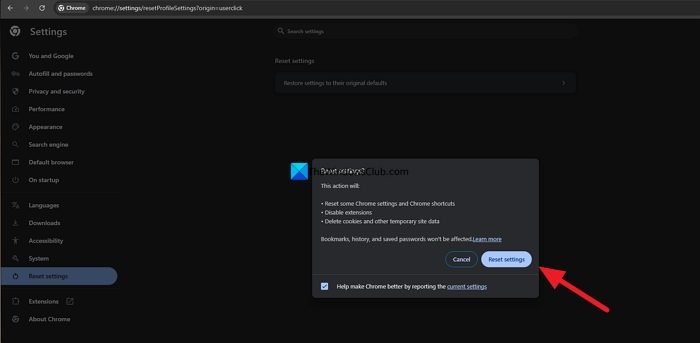
Wait for a few seconds for the settings to reset. Then, close the Chrome browser and reopen it to start using it with your VPN.
5] Reinstall VPN.
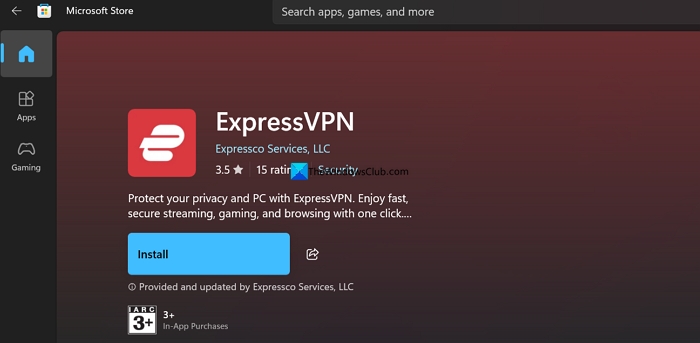
If nothing has worked in making VPN work with Chrome, it might be due to a bug or issue on the VPN. To reinstall the VPN, first uninstall the currently installed version on your Windows PC. Click the Start menu and go to all apps. Find the VPN, right-click on it, and select Uninstall. Proceed to uninstall the VPN. You can also use third-party program uninstallers to uninstall the VPN along with its temporary data.
Next, open the Microsoft Store, search for your VPN, and click Install. If you cannot find the app on the Store, you can download it from the official website using a web browser and then install it. Avoid downloading from third-party sources and installing on your PC.
How to check if a VPN is working on Chrome?
To check if a VPN is working on Chrome, simply check the IP address. Open an IP address finder website, such as WhatismyIPaddress.com, and check the IP address your Chrome browser is connected to. If it matches the IP address shown on the VPN program, your VPN is working fine. If it does not match and shows the IP address provided by your ISP, it means it is not working.
Why is my VPN by Google not working?
Google’s VPN service, previously known as Google One VPN, was officially shut down in June 2024 due to a lower number of subscribers. You might need to switch to another premium VPN provider, such as ExpressVPN or Proton VPN, to resume using a VPN.
Related read: Can’t connect to VPN when using mobile hotspot on PC.
