
Since its release, Final Fantasy XVI has had many updates. However, these updates are unable to resolve one of its most annoying issues: abrupt crashes. But not anymore, as in this article, we are going to see what you need to do if Final Fantasy XVI or XV keeps stuttering, crashing or freezing on your computer.
Why does Final Fantasy keep crashing?
Final Fantasy would crash on your computer if the system doesn’t match the system requirements. If the system requirements are not an issue, then another common cause is corrupted game files. If the game files are not corrupted, make sure the game is in the correct environment to run. To give Final Fantasy that environment, you need to update the Graphics Drivers, DirectX, and Visual C++. Check out the troubleshooting guide to know more about the solutions.
Final Fantasy XVI keeps stuttering, crashing or freezing on PC
If Final Fantasy XVI or XV keeps stuttering, crashing, lagging or freezing on a Windows 11/10 computer, then these suggestions are sure to help you fix the issue:
- Update your Graphics Drivers
- Verify Game Files
- Disable Overclocking apps
- Disable Hardware fullscreen mode
- Disable NVIDIA Turf Effect
- Update or Install DirectX and Visual C++ Redistributable
- Troubleshoot in Clean Boot
Let us talk about them in detail.
1] Update your Graphics Drivers
We will start troubleshooting by making sure that you are running the latest version of Graphics Drivers. If you run an outdated version of GPU Drivers, chances are that, because of compatibility issues, most of the graphically demanding games won’t run on your system. The following are methods for updating your Graphics Drivers.
- Download Driver and Optional Updates from Settings.
- Go to the manufacturer’s website and download your driver.
- Download free driver update software.
- Download the driver from the manufacturer’s website.
After updating the driver, move to the next solution.
2] Verify Game Files
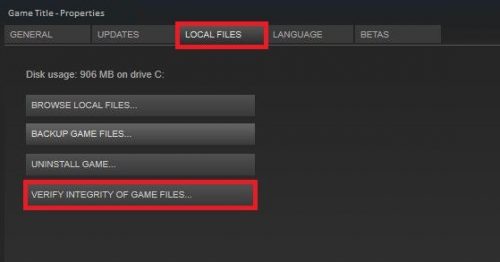
We are going to verify the integrity of Final Fantasy files and see if they are corrupted. If they are corrupted, they will be repaired. To do the same, we will be using Steam Launcher. Follow the prescribed steps to scan and verify your game files.
- Open Steam.
- Go to Library.
- Right-click on your game and select Properties.
- Go to Local Files and select Verify the Integrity of Game Files.
Let the process complete and once it is completed, check if the issue persists.
3] Disable Overclocking apps
As it turns out, Final Fantasy is compatible with any overclocking app. So, you have to disable it before playing the game. This may throttle your performance, but you have to deal with it.
4] Disable Hardware fullscreen mode
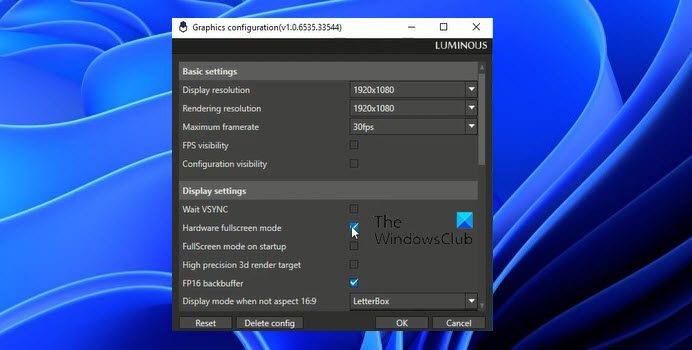
For many users, disabling Hardware fullscreen mode has worked. It basically enforces full-screen at the hardware level. To disable the feature, go to the location for you have stored the game files. It might look like the following.
C:\Program Files\Steam\My Games\FINAL FANTASY XV
Click on Tools and then open the GraphicsConfigurationTool file. Untick Hardware fullscreen mode, then click OK.
Finally, restart your computer to resolve the issue.
5] Disable NVIDIA Turf Effects
NVIDIA Turn Effect is a feature that enhances your game’s graphics. However, a lot of users have reported that the feature is not serving them well. It can make the game crash repeatedly. You should disable it and see if it works. Follow the given steps to do the same.
- Open Final Fantasy XV and go to its Settings.
- Navigate to Graphics > NVIDIA TurfEffects.
- Then turn it off.
You should also turn off some other features, as that will put a lot less pressure on your computer. After making adequate changes, restart the computer and reopen the game. Hopefully, this will do the job for you.
6] Update or Install DirectX and Visual C++ Redistributable
DirectX and Visual C++ Redistribulate are vital. You need to make sure that both these tools are updated. Since your game is not launching, install the latest version of DirectX and Visual C++ Redistributable. Hopefully, it will do the job for you.
7] Troubleshoot in Clean Boot
Not only Overclocking apps, but also other applications can interfere with your game. To know what’s causing the problem, perform Clean Boot. Once you know the culprit, just remove it.
That’s it!
Read: Ready or Not keeps crashing or freezing on PC
Does FFXVI run well on PC?
You should match the following system requirements to run Final Fantasy XVI smoothly:
Recommended Specs (for smooth gameplay at high settings)
- OS: Windows 11/10 (64-bit)
- CPU: AMD Ryzen 7 5700X / Intel Core i7‑10700
- RAM: 16 GB
- GPU: AMD Radeon RX 6700 XT / NVIDIA GeForce RTX 2080
- VRAM: 8 GB dedicated
- Storage: 170 GB available space
- DirectX: Version 12.
Is Final Fantasy 16 CPU intensive?
The answer is Yes. Final Fantasy 16 is CPU-intensive, especially if you are using a dual-core CPU; it won’t handle it. Even with a quad-core i3 CPU, you may experience stuttering and CPU usage may go beyond 80%. So, to play the game smoothly, an i5 processor with 8 threads is a good choice. It depends on many other factors, like RAM, GPU, etc., to have a good experience playing this game.
Also Read: Dread Hunger keeps crashing or freezing on Windows PC.
