
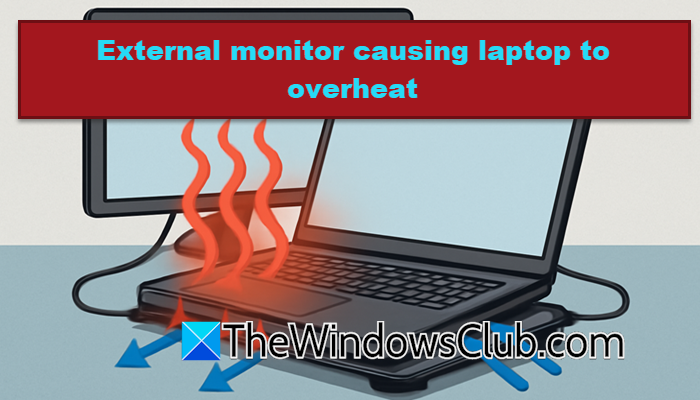
We noticed a lot of complaints saying that when an external monitor is connected, the laptop gets heated. Well, there is a merit to this argument as connecting an external display increases the workload on the laptop’s GPU, and in some cases, the CPU. This extra processing creates more heat, especially if the laptop is thin, has aging thermal paste, blocked vents, or is placed on a heat-retaining surface. In this post, we are going to talk about it and see what you can do if an external monitor is causing the Windows laptop to overheat.
Why does my laptop overheat when connected to a monitor?
Connecting an external monitor to a laptop can cause it to overheat. This happens because using extra displays puts more strain on the laptop’s GPU and sometimes the CPU. The extra work creates more heat, especially if the laptop is thin, has old thermal paste, blocked vents, or is on a heat-retaining surface. This added demand is especially high when running at high resolutions, high refresh rates, or using graphics-heavy applications at the same time.
External monitor causing laptop to overheat
If the external monitor is causing the Windows laptop to overheat, you need to follow the solutions mentioned below to resolve the issue.
- Adjust your screen resolution
- Ensure your Laptop stays cool and monitored
- Update your display drivers
- Use a Laptop Cooling Pad
Let us talk about them in detail.
1] Adjust your screen resolution
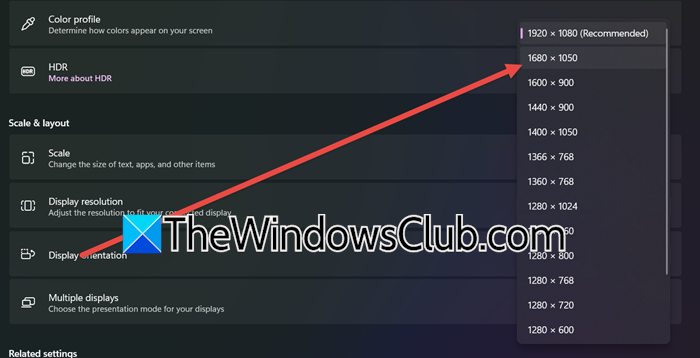
Let us start with a workaround that will lower the strain on the external display. We are going to lower the screen resolution slightly, so that it’s not very significant to the human eyes, but it will help in maintaining the sanctity of your monitor. To do so, you need to follow the steps mentioned below.
- Open Settings by Win + I.
- Go to System > Display.
- You need to change the Display resolution to the one below the Recommended option.
Now, reboot your computer and see if you can notice any difference in the heat generation of your computer.
2] Ensure your Laptop stays cool and monitored

To prevent your laptop from overheating when using an external monitor, it’s essential to optimize airflow and keep track of its internal temperature. Place your laptop on a hard, flat surface or use a stand to elevate it, allowing heat to escape freely from the vents. Avoid blocking these vents with items like books, papers, or clutter on your desk, and avoid placing your laptop on soft surfaces such as beds or couches, which can trap heat and lead to increased temperatures inside your device. A clear and clean workspace makes a big difference in maintaining proper ventilation.
Along with providing adequate breathing room, it’s wise to monitor your laptop’s internal temperature. Check out a free CPU Temperature Monitor and a GPU Temperature tool. You should also try a Laptop Cooling Software.
3] Update your display drivers
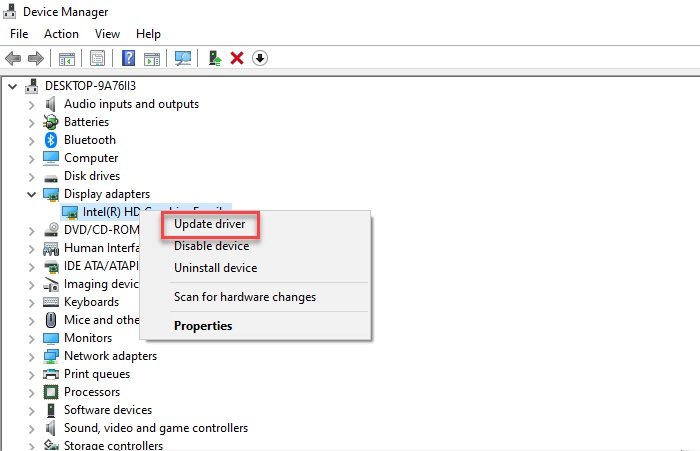
Outdated display drivers are problematic as they cause compatibility issues and can make your system overheat. To get rid of it, you need to go ahead and update your display drivers using one of the methods mentioned below.
- Download the latest version of drivers from the manufacturer’s website.
- Install the Driver and Optional Updates.
- Or use a free driver update tool.
Hopefully, this will do the job for you.
4] Use a Laptop Cooling Pad

A laptop cooling pad is an accessory designed to help manage your laptop’s temperature, especially during demanding tasks like using external monitors that increase your device’s workload. It typically consists of a flat platform with built-in fans that you place under your laptop.
When powered on, usually via USB, the fans actively direct cool air toward your laptop’s underside, improving airflow and helping to dissipate heat away from internal components. This extra cooling can prevent overheating, reduce thermal throttling, and help maintain overall performance during prolonged or resource-intensive use. Unlike simply elevating your laptop, a cooling pad provides active ventilation, making it particularly effective for laptops that tend to run hot under load.
That’s it!
Read: Fix Computer Overheating and Noisy Laptop Fan issues
Desktop computer heats up when connected to external monitor
When a desktop computer heats up after connecting an external monitor, it’s usually because running multiple displays puts extra load on the graphics card, making it work harder and generate more heat. This is especially noticeable if you’re running high resolutions or refresh rates, or if your PC case has poor airflow or dust buildup restricting cooling. Ensuring your computer has adequate ventilation and that its fans and vents are clean can help manage temperatures when using an external monitor. You also need to update your driver and lower the screen resolution.
Read: Windows Laptop overheats in Sleep Mode
Why does my laptop overheat when docked?
Docking a laptop typically routes power and data to multiple peripherals, external displays, drives, and network connections, which can spike system activity and power draw. This triggers additional heat generation, especially if high-resolution monitors or demanding tasks are involved.
Also Read: Windows Laptop is overheating when charging.
