
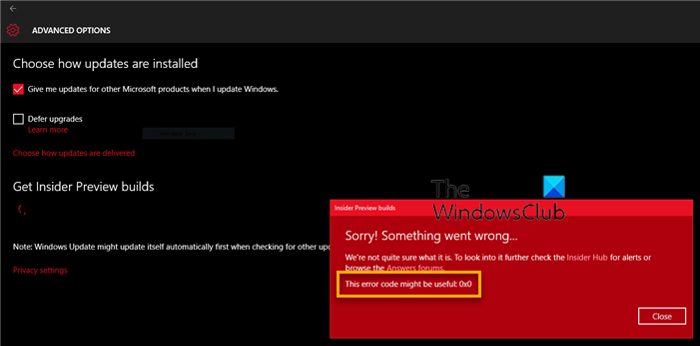
Many users have reported facing Error Code 0x0 for Windows Insider Builds during an upgrade. The problem is mainly caused due to the issues associated with the configuration settings of Windows PC. The exact error message says,
Sorry! Something went wrong…
We are not quite sure what it is. To look into it further, check the Insider Hub for alerts or browse the Answers forums.
This error code might be useful: 0x0
What causes Error Code 0x0 for Windows Insider Builds?
Insider Builds are Beta builds – so errors can be expected. The reason you are encountering Error Code 0x0 with Windows Insider Builds during an upgrade is due to issues with your system configuration. But along with this, the issue can also be triggered due to the following reasons too-
- Damaged Windows boot files
- Missing registry or system files
- Incompatible software
- Virus and malware infection
Now that you have a prior piece of knowledge about different reasons behind the problem let’s look at how to eliminate them.
Error Code 0x0 for Windows Insider Builds during upgrade
Below is a list of all the practical workarounds you can try to Error Code 0x0 for Windows Insider Builds during upgrade.
- Eliminate unnecessary background running applications
- Change Windows Registry
- Run the Disk Cleanup Utility
- Run the SFC and DISM scan
- Reset the PC
Now, let’s take a look at all these solutions in detail.
1] Eliminate unnecessary background running applications
The first thing that can trigger the problem is conflicting applications running in the background. As it turns out, two applications built for the same purpose but by different firms can compete in the background and cause the problem mentioned. In this situation, the best thing you can do is close all conflicting applications running in the background. You can do so by following the steps below.
- Open the Task Manager by pressing the Ctrl + Shift + Esc hotkeys simultaneously. Here you will find a list of all the applications running in the background.
- Right-click all unnecessary/conflicting applications and choose the End task option from the context menu.
Now, check if you are still facing the error message. If yes, try the next solution.
2] Tweak Windows Registry
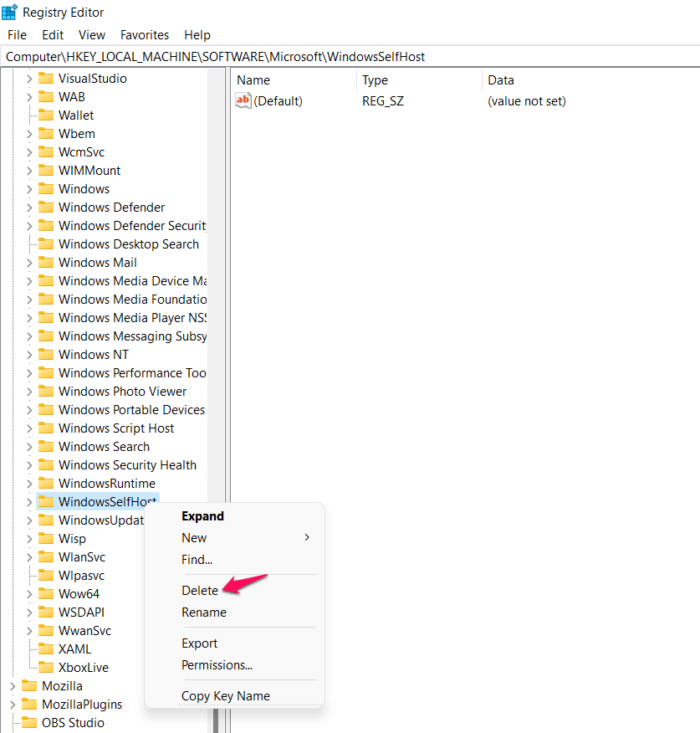
As mentioned, the problem is mainly due to issues with your PC’s configuration settings. In this position, changing the Windows registry can be an effective solution. Here are the changes you need to make in the Windows registry.
Note: Make sure you follow the below steps carefully, as serious problems can occur if you make any wrong move in the registry. We recommend backing up the registry before getting into the steps. This will ensure that you can restore the registry if anything goes wrong.
To begin with, open the Run dialogue box by pressing the Windows + R shortcut key.
In the space provided, type regedit and press the Enter key. It will open the Registry Editor.
Now, head towards the location mentioned below.
HKEY_LOCAL_MACHINE > SOFTWARE > Microsoft > WindowsSelfHost
Right-click on WindowsSelfHost, and from the context menu, choose the Delete option.
Now, exit the window and restart your system.
Check if you are still facing the problem.
See: How to fix Error 0xc1900107.
3] Run the Disk Cleanup Utility
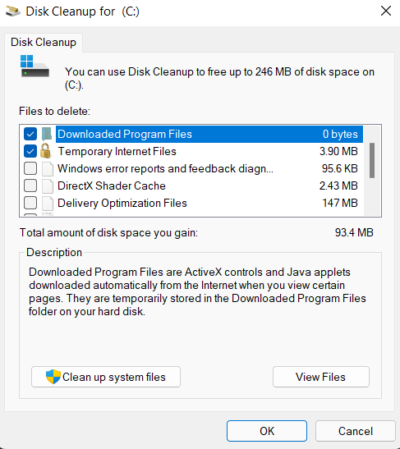
A large number of temporary files stored on your system can be another significant reason for the problem. These files don’t affect the system performance, but they can sometimes cause issues during a Windows upgrade. Thus, it’s vital to regularly clear these temporary files. You can do so using Disk Cleanup.
- Open the Run dialogue box, type cleanmgr, and press the Enter key.
- It will open the Disk Cleanup pop-up box.
- Click on OK to begin the process.
Once the cleanup is complete, check if the problem continues. If yes, try the next solution.
Similar: How to fix Error Code 0x0 0x0 on Windows computers
4] Run the SFC and DISM scan
Damaged or corrupted system files can be another primary reason for the Error Code 0x0 during Windows Insider Build upgrades. You can get rid of such files by running DISM and SFC scans using Command Prompt. Once the scanning process is complete, check for the problem. If it persists, continue with this troubleshooting guide.
5] Reset the PC
If none of the above steps were helpful, the last thing you can try is to reset your Windows PC. Resetting is the last but best way to eliminate any Windows error, and that too without losing any of your crucial files. So, here’s how to reset your system.
- Open the Settings by pressing Windows + I shortcut key.
- Click on the Recovery option.
- Choose the Reset PC option.
- Click on Keep my files if you want to remove only apps and settings but keep your personal files.
Now, follow the on-screen instructions to reset the PC.
Read: Your Microsoft account requires attention to get Insider Preview builds
What is error code 11 in PC?
Error code 11 appears on your Windows PC when you try to access a device with an internal issue. Whenever you come across this error message, your system will become unresponsive for a short period. You can solve the problem by unplugging the device in question.
Related: Get started button greyed out – Insider Builds.
Why do I keep getting error code 5?
Error code 5 on Windows 11/10 indicates you don’t have the required permissions to access a file or folder. The problem is mainly caused by account permissions. You can change the UAC settings, switch to the admin profile, and run the problematic installer in administrator mode to solve the issue.
