
If you want to switch from Insider Experimental Channel to Beta Channel or vice versa on Windows 11, here is how you can do that. Although this option was not available in the very initial release of Windows 11, now you can find an option to switch Insider Channels on Windows 11. The best thing is that you can make the change from Windows Settings.
What Insider Channels are available on Windows 11?
Windows 11 currently offers three main Insider Channels: Experimental, Beta and the Release Preview Channel.
- The Experimental channel is for early, in‑development features that may change or never ship. It is recommended to opt for this channel only if you know what you are doing. Your computer might not be as smooth as other channels, but you can test all the latest features and updates as soon as Microsoft releases them. It replaces the old Dev and Canary channels.
- The Beta channel previews features that are closer to release and provides a more stable experience. This version is more stable than the Experimental Channel, and you can run almost any everyday software on this version.
- The Release Preview Channel provides the most stable Insider experience. It is meant for users who want early access to upcoming Windows features, fixes, and updates but with minimal risk.
Earlier, there was a Dev Channel. When Microsoft rolled out the first build of Windows 11, they did it via the Dev Channel.
There are also some Advanced options available:
- Windows Core Versions: Insiders can choose builds aligned to specific versions (e.g., 25H2, 26H1) depending on hardware compatibility.
- Future Platforms Track: For those who want to preview experimental builds beyond current retail versions.
How to switch Insider Channel on Windows 11
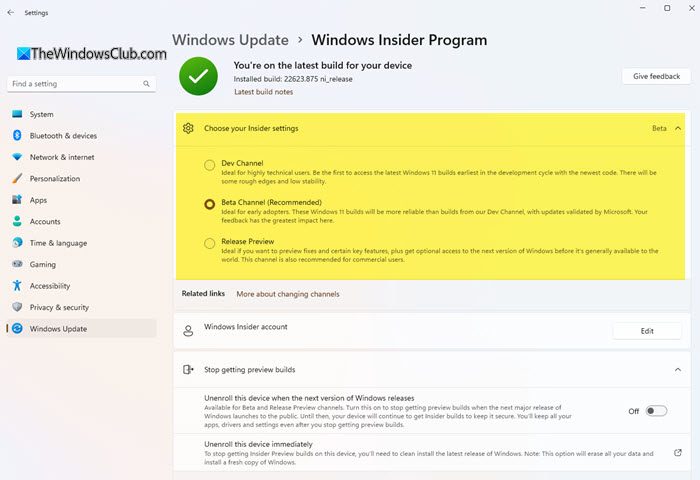
You have to join the Windows Insiders Program first, to be able to make these changes. To change the Insider Channel on Windows 11 from, say, Experimental to Beta, follow these steps:
- Press Win+I to open Windows Settings.
- Go to the Windows Update section.
- Click on the Windows Insider Program menu.
- Click the Choose your Insider settings option.
- Select the Beta Channel option.
- Restart your computer.
Let’s check out these steps in detail.
First, open the Windows Settings panel. For that, press Win+I to open Windows Settings in the Taskbar search box and click on the respective search result.
After that, switch to the Windows Update tab. Here you can find a menu called Windows Insider Program that you need to click on.
Following that, click the Choose your Insider settings and select the Beta Channel option.
Now, close the Windows Settings panel and restart your computer. You can come back to the page to confirm the change.
That’s all! Hope this tutorial helped you switch the Insider Channel on Windows 11.
This post will help you if you can’t switch Windows Insider Channel.
How do I change the Insider Channel in Windows 11?
To change the Insider Channel in Windows 11/10, you need to go to the Windows Update section, open the Windows Insider Program settings, expand the menu, and select the Beta Channel option. In Windows 10, you can opt for the Release Preview Channel, but Windows 11 users cannot do that as of now.
How do I leave Windows Insider Dev channel?
You can leave the Windows Insider Dev Channel and opt for either the Beta Channel or the Release Preview Channel. To do that, open the Windows Insider Program in the Windows Settings panel and choose the option accordingly.
Related: How to Switch from Insider Preview to Stable Build of Windows 11.
Which channel is best for Windows Insider program?
Different channels are suitable for different sets of people. Having said that, if you want to test all the new features and options in Windows 11, Experimental Channel is for you. On the other hand, if you need stability alongside a bit of delayed updates, you can opt for the Beta Channel.
Are Windows Insider builds stable?
More or less, they are quite stable. However, Windows Insider builds are not meant for a regular user, and rather they are for those who want to test their software, games, etc., and make them compatible with upcoming changes. So it is best to not install them on your work PCs.
