
You may encounter Error 0x800705b4 when enrolling a Windows device in a mobile management service, such as Intune, with the message “Preparing device for mobile management failed.” In Autopilot, if you get Error 0x800705b4, Preparing device for mobile management failed, follow the solutions mentioned here.

What is Autopilot error 0x800705b4?
Error code 0x800705b4 indicates that a process has timed out. This occurs when a task in Windows takes too long to finish and the system cancels it. While people often see this error when updating Windows, it can also occur during other tasks, such as device setup. Common causes include conflicts with other software, such as third-party antivirus programs, corrupted system files, issues with certain services, or problems with system components.
Fix Error 0x800705b4, Preparing device for mobile management failed in Autopilot
If you encounter error 0x800705b4 in Autopilot that says Preparing device for mobile management failed, follow the solutions mentioned below.
- Restart BITS and Windows Update Services
- Run the Windows Update Troubleshooter
- Troubleshoot in Clean Boot
- Deploy TPM-Related Fix
- Check Network & Connectivity
Let us talk about them in detail.
1] Restart BITS and Windows Update Services
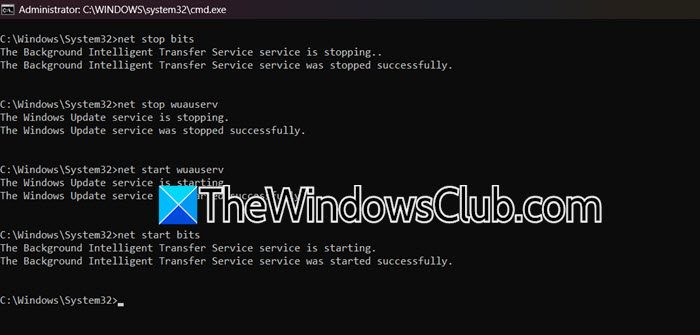
As mentioned earlier, this error is a timeout, often caused when a critical background service becomes unresponsive or stuck. Restarting the Background Intelligent Transfer Service (BITS) and Windows Update service clears their current state, terminates any hung processes, and allows them to start fresh with a clean slate, which can resolve the blockage. You can open Command Prompt as an administrator and then run the following commands one by one.
net stop bits

net stop wuauserv

net start wuauserv

net start bits
Finally, check if the issue is resolved.
2] Run the Windows Update Troubleshooter
The Windows Update Troubleshooter is a tool that helps fix common update issues. Since mobile device management uses the same components as Windows Update, this troubleshooter can repair issues such as corrupted service states, reset failed permissions, and fix broken registry entries that might be causing timeouts.
Follow the steps below to do the same.
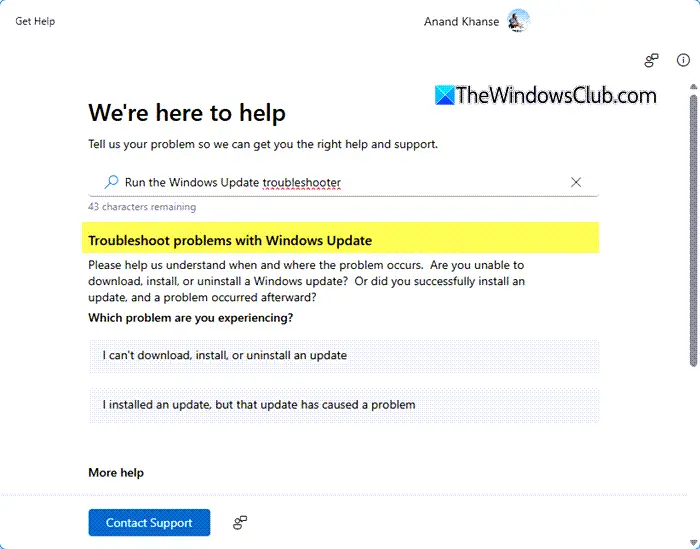
- Hit Win + S, type Get Help, and press Enter to open the Get Help app.
- In the search bar, type “Windows Update troubleshooter” and select the Windows Update Troubleshooter from the results.
- Click Run Troubleshooter and follow the on-screen instructions. The tool will automatically apply fixes or suggest steps you can take.
Reboot your computer.
3] Troubleshoot in Clean Boot
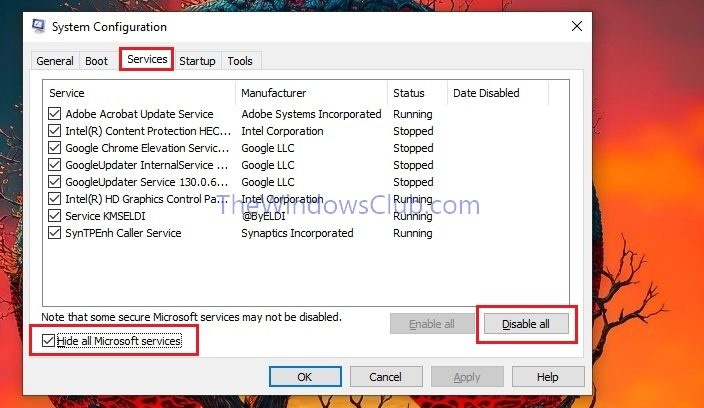
A Clean Boot starts Windows using only the essential Microsoft services, temporarily disabling all third-party applications. This helps us pinpoint the issue by assessing whether background software, such as antivirus programs, cloud storage services, or various utilities, is causing interference or blocking the mobile management enrollment process, which can help eliminate the timeout error. You can perform a Clean Boot, reproduce the issue, and then check whether it is resolved. If the issue is resolved, figure out the culprit, then disable or uninstall it.
4] Deploy TPM-Related Fixes
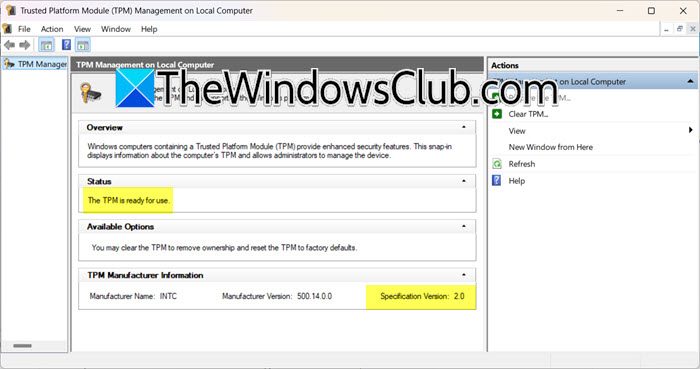
The Autopilot process uses the Trusted Platform Module (TPM) to securely identify your device. If the TPM is an older version (less than 2.0) or is locked or damaged, it can’t complete the secure connection. This will cause the process to stall and eventually stop with error 0x800705b4. Clearing the TPM resets it, allowing it to work properly again.
First of all, open Win + R, type tpm.msc, and press Enter. In the TPM Management console, check the Status and Specification Version to confirm the TPM is present and is version 2.0.
Now, we need to clear the TPM via BIOS/UEFI. To do so, restart your computer and enter the BIOS/UEFI firmware settings (typically by pressing F2, Delete, or F12 during boot). Navigate to the Security section, find the TPM management option (often called TPM, Security Device, or fTPM), and select the option to Clear or Clear TPM.
Save the BIOS settings and exit. Windows will boot up. You may need to rejoin your Azure AD domain. After this, attempt the Autopilot enrollment again.
Do keep in mind that clearing the TPM will erase its keys. If your device uses BitLocker drive encryption, you will need your BitLocker recovery key to unlock the drive after the reset.
Read: Can’t turn on Windows Defender in Windows 11
5] Check Network & Connectivity
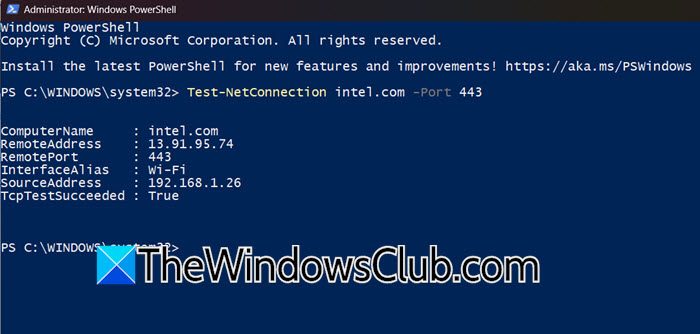
During Autopilot, the device must contact the TPM manufacturer’s servers for hardware security validation. If a firewall or proxy blocks these URLs, the request times out, and the “Preparing device for mobile management” step fails with error 0x800705b4.
On an unrestricted network, temporarily connect the device to a different, open network (like a mobile hotspot) and retry the Autopilot enrollment. If it succeeds, the issue is with your primary network’s configuration.
On the problematic network, open an administrative PowerShell window and run the following command to test connectivity to common TPM attestation endpoints.
Test-NetConnection intel.com -Port 443

Test-NetConnection amd.com -Port 443

Test-NetConnection nuvoton.com -Port 443
If the tests fail, collaborate with your network administrator to ensure outbound HTTPS (TCP port 443) access is granted to the TPM vendor domains as well as the complete set of Windows Autopilot and Intune endpoints.
That’s it!
Read: Windows Defender Error Code 0x80508020 or 0x800705b4
How to solve error code 0x800705b4?
To fix error code 0x800705b4, which is a timeout error, restart the core Windows services by opening an admin command prompt and running net stop bits then net stop wuauserv, followed by net start wuauserv and net start bits. Additionally, ensure stable internet connectivity and temporarily disable any third-party antivirus software, as network issues or software conflicts often cause the necessary processes to hang and fail to complete in time.
Also Read: Fix 0x8024a21e Windows Update Error.
