
While all email servers now use a secure connection, if you want to encrypt emails in the Microsoft Outlook desktop client and Outlook on the Web, then you can do so. The process is different, however. Here we are talking about email encyption and not the connection. You can think of it as an extra layer of protection.
How to Password-protect Emails in Outlook
While it is easy to use, keep the end-user in mind, and the client he is using. Unless both the sender and receiver support the encryption format, it will be challenging to send such emails.
There are two types of Encryption supported by Outlook—
- S/MIME encryption, and
- Office 365 Message Encryption.
The latter works only when a business uses the Office 365 Enterprise E3 license. The former, however, is widely used and works with most of the email applications other than Outlook.
Outlook Web offers in-house Encryption, which you can choose to enable for individual emails. Here is the list of things we will discuss in this topic
- How to encrypt Office Outlook Emails
- How to Encrypt Outlook Web Emails
- How to read Encrypted email outside Office Clients
Note: There is no way to password-protect individual or emails in Outlook. You can password protect the PST files, so all your emails are not accessible by anyone, but it’s different from Encryption.
How to encrypt emails in Outlook on Windows 11
Before we start, if you use the S/MIME encryption, the sender and recipient must have a mail application that supports the S/MIME standard. Outlook supports the S/MIME standard. You can either choose to encrypt all the emails or encrypt individual emails. The choice depends on the IT department’s policy enforcement. Also, you should have an S/MIME certificate installed. Make sure to connect with the right person to do so. Once installed, you will have the option available in the digital certificate dropdown in Outlook.
Encrypt Individual Email
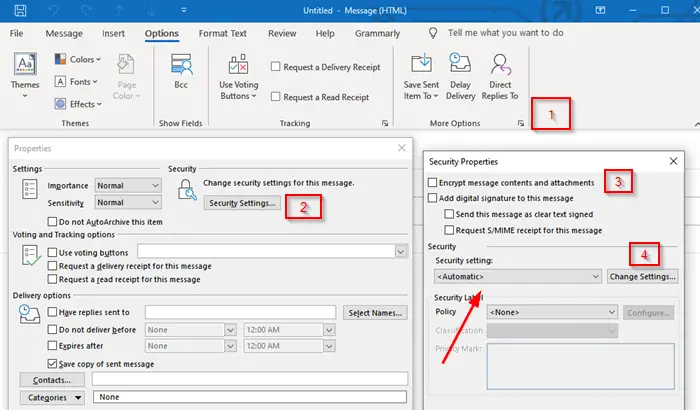
- When in the New Email composer, switch to the Options tab
- Then expand the More options section by clicking on the arrow at the bottom right.
- It will open the properties section. Click on the Security Settings button.
- First, check the box which says “Encrypt message contents and attachments.”
- Next, under Security, click on the dropdown under security settings, and select the S/MIME certificate.
- Lastly, choose the security label if applicable.
- When you send the email, it will be encrypted using this standard.
Note: If you do not have an S/MIME certificate, Outlook client will prompt you to add one. If you cannot, it will not allow you to send an encrypted email.
Encrypt all the Emails
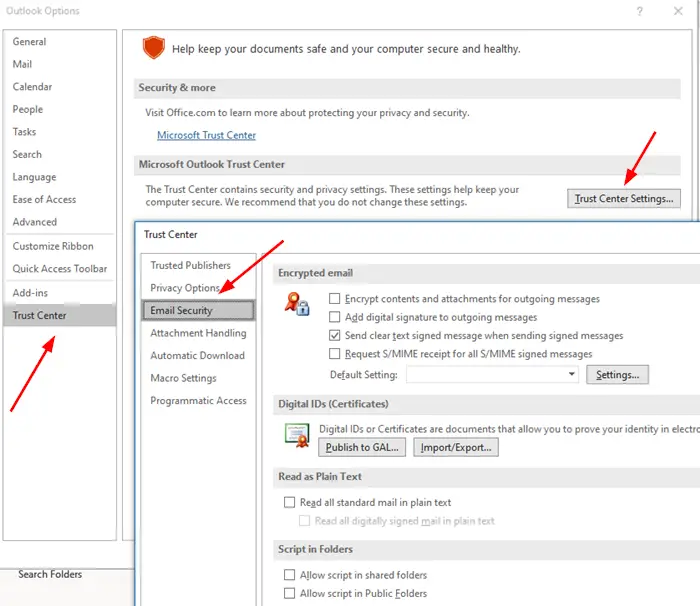
- Open Outlook and click the File menu
- Then again click on Options, and navigate to Trust Center > Trust Center Settings > Email Security
- Check the box which says “Encrypt message contents and attachments.”
- Under Encrypted email, Click on Settings > Certificates and Algorithms > select the S/MIME certificate.
- Choose OK
When you enable this, all your emails will be encrypted. You will have to make sure the receiver also has a client that supports the S/MIME certificate to read the email.
Read: Free Email Encryption Add-ins for Outlook.
How to encrypt emails in Outlook on the Web
This feature is available only for Office 365 Home or Office 365 Personal subscription. It is useful when you don’t trust the recipient’s email provider to be secure. However, you should clearly understand how these features work; otherwise, the receiver will not be able to read the email or access any content.
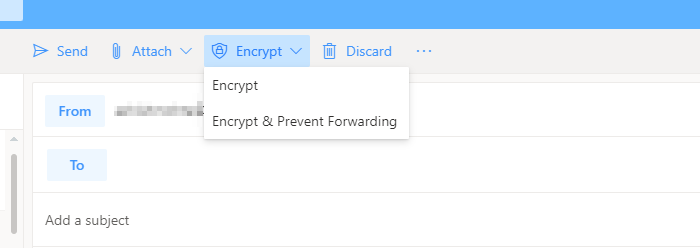
Log in to the Outlook account, and then click on the new message button. Right next to Attach, there is an Encrypt link, click on it. You will have two options:
-
Encrypt:
-
The message stays encrypted and doesn’t leave Office 365.
-
Recipients with Outlook.com and Office 365 accounts can download attachments without Encryption
-
They can do so when using Outlook.com, the Outlook mobile app, or the Mail app in Windows 10.
-
However, if they are using any other email client, they will have to use a temporary passcode to download the attachments from the Office 365 Message Encryption portal.
- Encrypt and Prevent Forwarding:
- Your message stays encrypted within Office 365
- It cannot be copied or forwarded.
- Office documents such as Word or Excel remain encrypted even after download.
- Other attachments, such as PDF files or image files, can be downloaded without Encryption.
How to read encrypted email outside Office clients
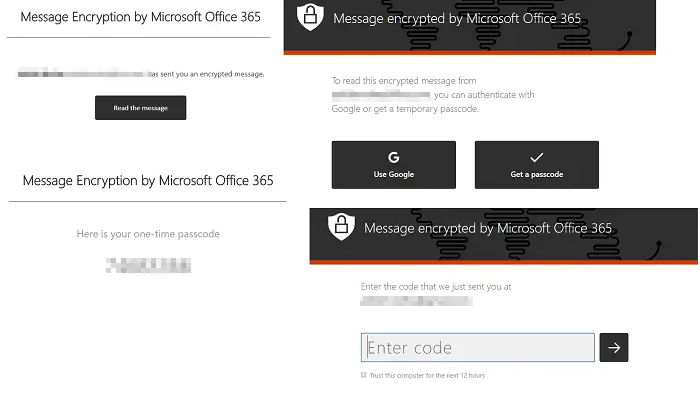
If you need to send an encrypted email and want others using apps like Gmail to read it, then you need to share the method discussed below. This method will ask for a password to access the email. However, it’s a Microsoft-issued passcode used to verify the recipient’s authenticity.
- Compose and send an email using Encryption
- The receiver will receive an email containing information about the person and their email ID.
- Then to read the message, click on Read the Message button
- It will take you to the Microsoft 365 Center, where you can verify using either a one-time passcode or by signing in to Google.
- Once verification is complete, the email will be revealed.
Note: An OTP is sent to the receiver’s email.
As you can notice, the email never leaves Microsoft 365 servers. The email is hosted there and allowed to be read after verification. If you are using an Outlook client, you will not have to go through the process.
I hope the post was easy to follow, and you were able to understand the details of Email Encryption.
