
At times, you may have noticed that after sending an email, you get an error message saying that the Delivery Status Notification (Failure), Email is undeliverable. However, the email address seems to be correct. If the address is correct, then why is the Email undeliverable? In this post, we will answer this question and explore how to resolve it in Outlook.

Why is Outlook saying my emails are undeliverable?
Outlook may report emails as undeliverable even with a correct address due to transient or configuration-related issues. A common cause is temporary problems on the recipient’s email server, such as downtime, maintenance, or an overloaded mailbox, which often resolve automatically if you retry sending after 30–60 minutes.
Alternatively, your email may be blocked by the recipient’s security filters (e.g., if your IP address is blacklisted or the content triggers spam rules), or your attachments could exceed the size limits enforced by either server (typically 10–50 MB). Corrupted entries in Outlook’s auto-complete cache may also redirect messages to outdated addresses despite displaying the correct name.
Email undeliverable but address is correct in Outlook
Emails in Outlook may be marked as “undeliverable” despite the address being correct due to issues like DNS errors (where the recipient’s domain doesn’t exist or has misconfigured records), the recipient’s server refusing connections (often because of downtime, security blocks, or IP blacklisting), or your own email being flagged as spam by the recipient’s filters.
If the Email is undeliverable but the address is correct in Outlook, you can follow the solutions mentioned below to resolve the issue.
- Wait and reply later
- Clear Auto-Complete Cache Outlook
- Check Recipient Server Status
- Reduce Email Size or contact Microsoft
Let’s discuss them in detail.
1] Wait and reply later
First of all, let us wait and send the mail later. The recipient’s email server might be offline for maintenance, overwhelmed by high traffic, or experiencing a brief outage. There may be some temporary routing issues or connectivity problems with your email provider. Or, the recipient’s mailbox might be temporarily full, preventing new messages until space is freed. Email systems automatically retry delivery for hours (usually 15-30 minute intervals) before reporting failure. Therefore, we recommend waiting 1-2 hours before sending a new email.
2] Clear Auto-Complete Cache Outlook
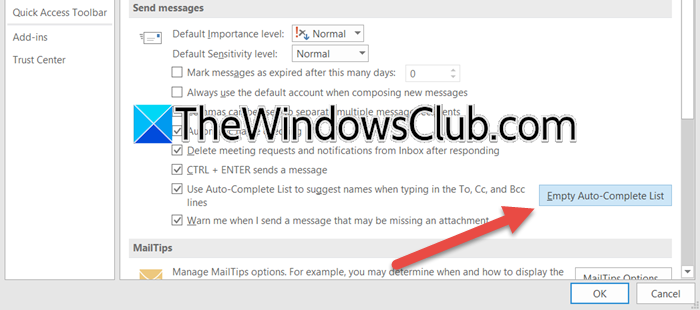
Outlook stores previously used email addresses in its auto-complete cache (the dropdown list when typing). If this cache becomes corrupted or associates an old/invalid address with a contact’s name, it may send emails to a defunct address even if you see the correct name displayed. Clearing it forces Outlook to use the live address book. To clear the Auto-Complete list, follow the steps below.
MS Outlook
- Open Outlook.
- Go to File > Options.
- Now, click on the Mails tab, scroll down to Send messages, and then click on Empty Auto-Complete List.
- Click on Yes to confirm.
- Manually retype the recipient’s full address (don’t select from history).
Outlook New or Web
Since Outlook New or web doesn’t have the option to clear the cache of the Auto-Complete list, we are left with no choice but to clear the cache of Outlook. Therefore, you need to clear the Outlook cache.
If clearing the MS Outlook Auto-Complete cache doesn’t work for you, you can also try clearing its cache and see if that helps.
Read: Outlook Email stuck in Outbox until you manually send it
3] Check Recipient Server Status
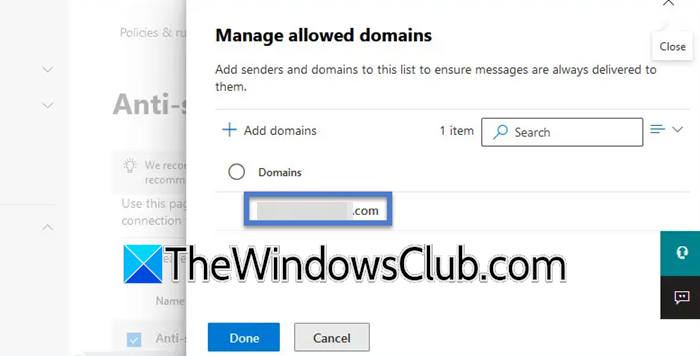
A “connection refused” error (like Socket error 10061) means your email never reached the recipient’s server because their email system actively blocked the connection. This isn’t about an invalid address; it’s a server-side firewall, security rule, or misconfiguration rejecting your message.
You need to check the full bounce message for phrases like Connection refused, 10061, 421/4.7.0, or SMTP error 550. We recommend you ask the recipient to alert their IT team or email administrator and provide the error message, timestamp, and email domain. They can whitelist your email server’s IP, check their firewall/SMTP settings for blocking, ensure that the Mail server is online, or remove the IP from their Internal blacklist.
Read: Forward email or disable unauthorized forwarding in Outlook.com
4] Reduce Email Size or contact Microsoft

You can ensure that both the email and the attachment combined are less than the Email server admin’s enforced size limit. If you exceed the enforced size limit, your outgoing server may reject the message during transmission, or the recipient’s server may block delivery mid-transfer. Even if sent, large emails often trigger spam filters. So, if you are sending an email, just make sure to compress the extensions and send the mail. If you follow all the aforementioned solutions correctly, your issue should be resolved.
If the issue still persists, you can contact Microsoft Support. You can either go to MS Outlook > Help > Contact Support or go to support.microsoft.com/contactus.
Hopefully, with the help of these solutions, you will be able to resolve the issue.
Read: Outlook.com is not receiving or sending emails
Outlook MessageDeliveryFailedException when sending emails
The Outlook MessageDeliveryFailedException typically occurs when sending emails due to configuration issues or software glitches, and can be resolved by first verifying your SMTP settings. You need to ensure the server is smtp.office365.com, port 587, with STARTTLS encryption, and update your credentials if they have changed recently. If the issue persists, update Outlook to the latest version or temporarily switch to Classic Outlook.
If these steps fail, contact Microsoft Support via Outlook.com’s Help icon or the Microsoft 365 Admin Center for business accounts, providing the full error code to expedite server-side fixes.
Also Read: Outlook not sending emails with or without attachments.
