
Some users of the popular online email service Outlook.com have been complaining recently about a problem where Outlook.com is no longer receiving or sending emails for an unknown reason. Individuals experiencing issues with receiving or sending emails report that everything else functions properly; therefore, this matter seems unusual.
Outlook.com is not sending emails
Bear in mind that fixing this issue requires your undivided attention. We expect at least one of the fixes outlined below to work, so try them all until the problem is rectified.
1] Outlook.com fails to send emails.
OK, so the problem with the inability to send emails is a major problem for some, so we suggest checking your internet connection for abnormalities. This is one of the main problems if you’re having problems sending emails via Outlook.com, so please keep that in mind.
2] Are you sending to the correct email address?
Perhaps you’ve sent your emails to the wrong address; please double-check. Furthermore, there is the chance the email address you’re sending emails to, is no longer in operation, so that is something you should get to the bottom of.
3] Undo Send
Outlook.com comes with an undo feature, but it is not turned on by default. Perhaps you have activated this, but by mistake, canceled the email sending before the allocated time.
To turn off the undo feature, click on the Settings button, then select View all Outlook settings. From there, click on Mail, then choose Compose and Reply. Finally, scroll down to Undo Send, then use the mouse to bring the slider down to zero.
Read: Emails stuck in Outbox of new Outlook app.
Outlook.com is not receiving emails
1] Check the junk folder
The first step is to check your Junk email box to see if that’s where emails are ending up. Go to the Outlook.com folder list, select Junk Email, and then look for the missing email.
If the emails are right there, then we suggest right-clicking on each email and then clicking on Mark as not junk. Doing this should move the selected emails directly out of the Junk box to the regular section.
2] Check your filters
Are you using filters? This can be one of the main reasons why you’re not seeing any emails or the ones you want to see. Additionally, it could also be the reason why folks are unable to send emails to certain parties.
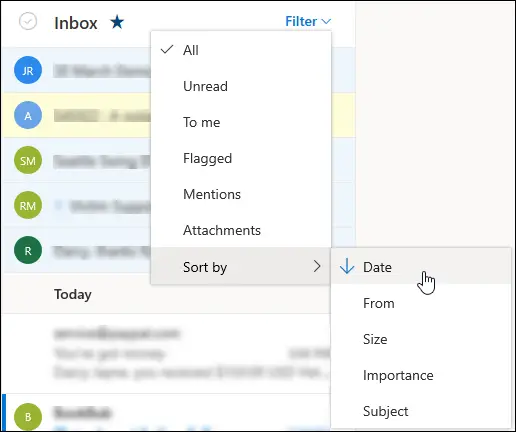
To make changes, click on Filter, then from the dropdown menu, select the messages you want to see. To sort, click Filter, then Sort by, and choose what you want to sort by.
If you want to see recent messages, we suggest clicking on Date to view them. For a specific person, click on From and that’s it.
Read: Error 0x8004010F, Outlook data file cannot be accessed
3] Check the Other tab
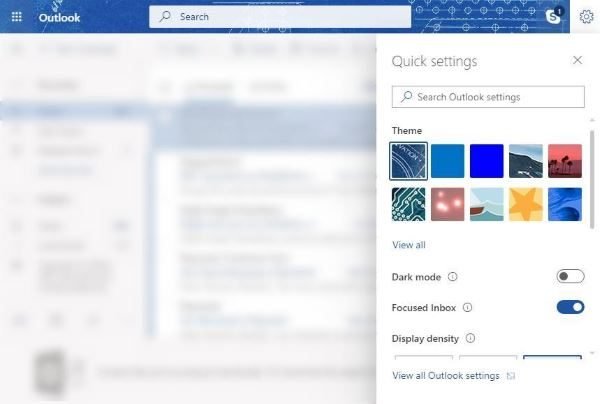
A lot of your emails will go to the Other inbox instead if Focused inbox is enabled, so with this in mind, we’d like to suggest checking this inbox for any missing emails. You can right-click on an email in the Other tab to transfer it to the Focus inbox.
Read: Emails not automatically Sent or Received at startup in Outlook.
4] Check your email rules
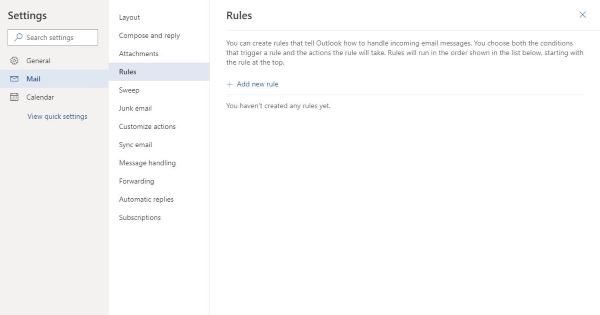
To check your email rules, users must click the Settings icon, which is the little Gear icon at the top-right corner. After that, scroll below and click on View all Outlook settings.
The next step, then, is to select Mail and click on Rules. From there, we suggest editing or deleting any available rules.
Read:
5] Are you forwarding emails to another account?
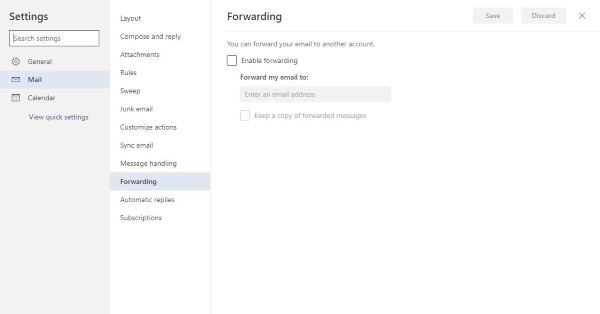
Follow the above steps and navigate back to the Mail section, then click on Forwarding. Next, verify that your emails are not being forwarded to another email account.
Read: Outlook disconnected from server; How to reconnect?
Let us know if this post helped.
