
Sometimes, we notice that an email we sent a few hours ago still exists in the outbox. It wasn’t sent at all. When this happens, try the following tricks to fix the messages that unknowingly get stuck in the Outlook outbox. The first thing you should try is to close and then restart the Microsoft Outlook client and see if the email goes away. If not, then some of these tips will help you.
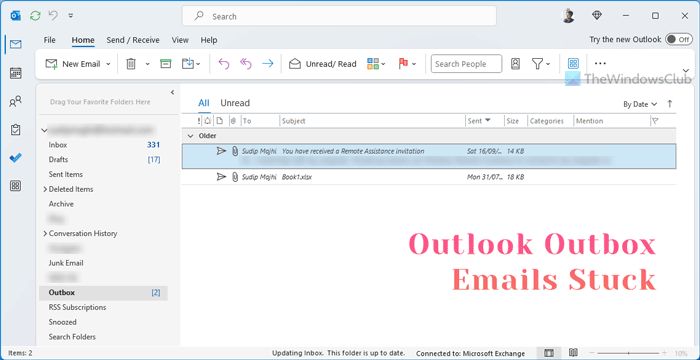
Outlook Email stuck in Outbox
If you want to send emails that are stuck in Outlook Outbox, follow these solutions:
- Email was never ready for sending
- Check attachment size
- Registry fix.
How to send emails that are stuck in the Outbox of Outlook
Before proceeding, close MS Outlook, restart it after a minute, and check if the email has been sent.
1] Email was never ready for sending
Emails you send might get stuck in the Outlook outbox for several reasons. For example, you might have opened and closed the email while it was in your outbox instead of opening and then sending it.
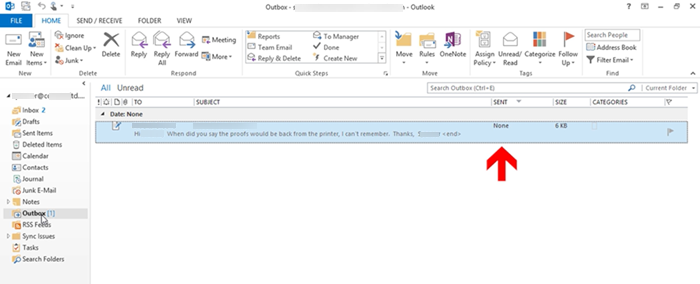
This action can change the status of the email and therefore, restrict it from sending across. Also, the email properties such as ‘To’ and ‘subject’ change from a configured font to a regular font and the sent status is changed to ‘None’.
To send the email, double-click it, and hit the ‘Send’ button.
2] Check attachment size
An email can get stuck in the Outlook outbox if, it has a large attachment added. Outlook allows 20MB. Under such circumstances, the email provider may block the email with an attachment larger than the size they specify.
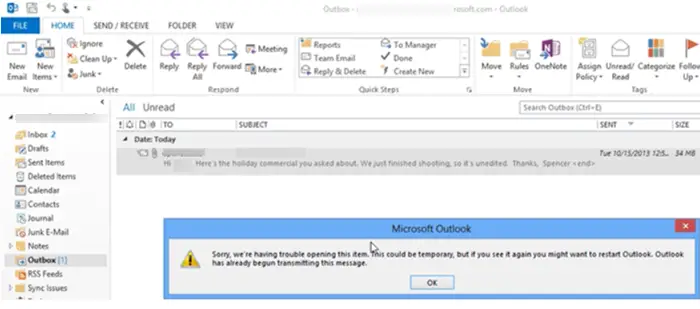
For general email performance, it is not recommended that you do not send an email larger than the 2MB size. So, when you try to send the email and double-click it, you get an error message saying-
Sorry, we are having trouble opening this item, this could be temporary but if you see it again, you might want to restart Outlook. Outlook has already begun transmitting this message’.
This happens when Outlook tries to send the email to the Outbox. So, when you double-click the email, you can’t open or delete it. To fix this, you’ll need to disconnect your Outlook from the email server. This will stop it from trying to send your email and thus, showing the error. So, to do this:
- Go to Outlook Preferences
- Drag the email to Drafts
- Save the attachment to a network location
Go to Outlook Preferences

Go to the ‘Send/Receive’ tab and choose the ‘Work Offline’ button from the ‘Preferences’ section.
Now, when you double-click the email and still get an error message, do the following.
Read: Email is stuck in the Outbox of Gmail.
Drag the email to Drafts
Close Outlook, Sign out of Windows, Sign back into Windows and start Outlook.
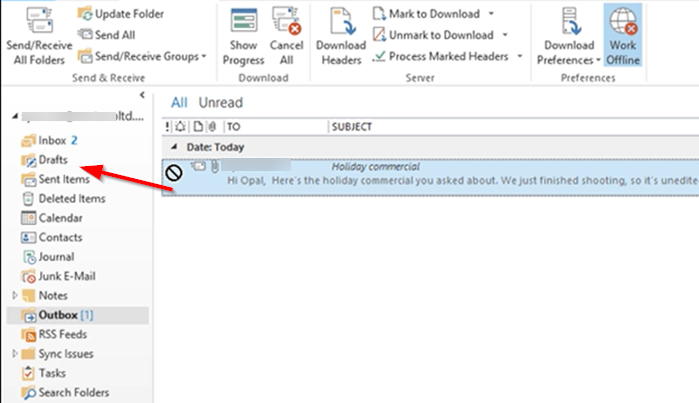
Now, click and hold the email, and drag it to ‘Drafts’.
Go back to the ‘Send/Receive’ tab and click the ‘Work Offline’ button.
Read: Emails stuck in Outbox of new Outlook app
Save the attachment to a network location
Click the ‘Drafts’ folder and double-click the email you saved earlier.
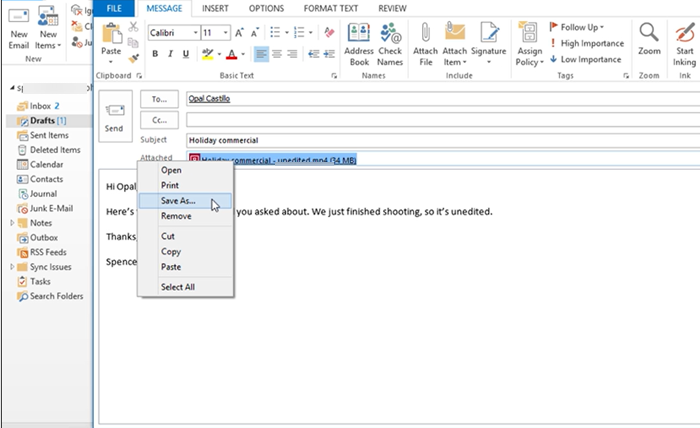
Right-click the attachment and choose the ‘Save As’ option.
Save the attachment to a network location and copy the path of the file in the network location.
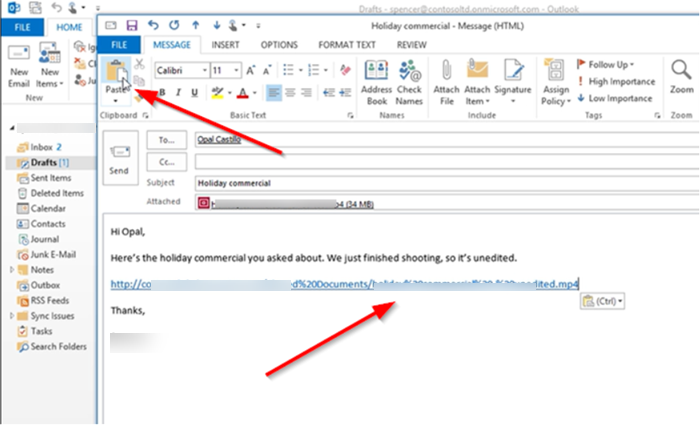
Go back to the email and select the ‘Paste’ tab. This will paste the path of the file in the email message body.
Here, right-click the attachment again and choose the ‘Remove’ option to delete it from the email.
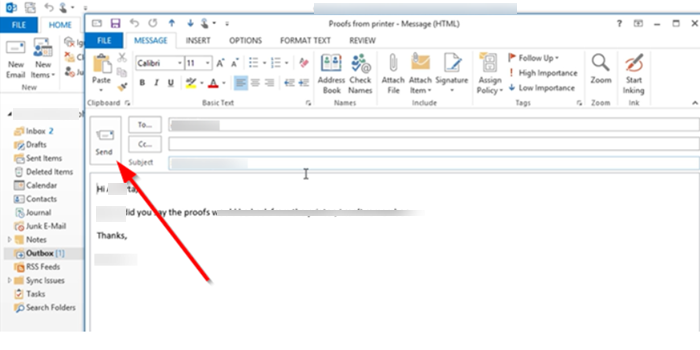
When done, hit ‘Send’.
This way, you can resolve messages stuck in the Outbox and send them across.
3] Registry fix if Outlook Email stuck in Outbox
When an email is sent in Microsoft Outlook, the associated email service first copies that email to the Outbox folder. This is done in order to check if the email can be sent and if the sending and receiving servers can accept emails. In case there is a network error or if the email is being sent to an address that doesn’t exist, the sending message remains in the Outbox folder, with an error message encountered. While in other cases, if everything is okay, the email is copied to the Sent items folder.
The Outlook application in Office follows the same procedure while sending emails. But sometimes you may observe some peculiar behavior while sending emails with this component, such that:
- You send a mail from the shared mailbox and it remains in the Outbox folder
- When you manually open the Send/Receive operation window, an email is sent automatically
In some cases, you may first see errors when you open Send/Receive dialog:
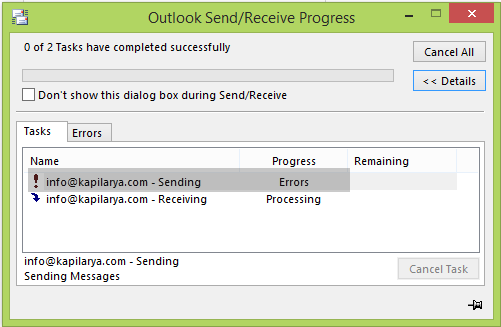
In a few moments that paused email is sent:
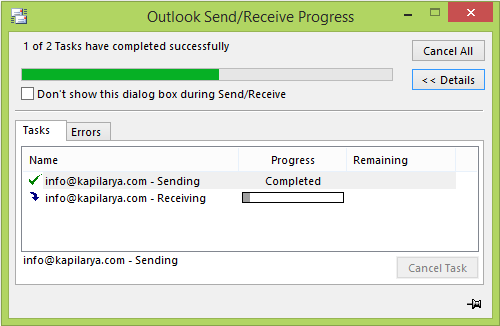
The problem here is that until you open Send/Receive dialog manually, the email is not sent and remains in Outbox, indefinitely. Here is how you can get rid of this problem:
Further steps will involve registry manipulation. Making mistakes while manipulating the registry could affect your system adversely. So be careful while editing registry entries and create a System Restore point first.
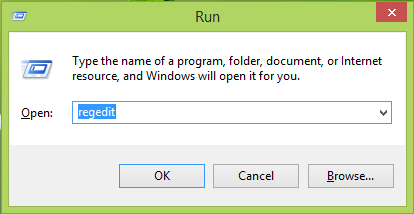
1. Press Windows Key + R combination, type put regedit in Run dialog box and hit Enter to open the Registry Editor.
2. Navigate here:
HKEY_CURRENT_USER\Software\Microsoft\Office\x.0\Outlook\Preferences
Substitute the placeholder x.0 with 16.0 for Outlook 2024/21, 15.0 for Outlook 2013, 14.0 for Outlook 2010, 12.0 for Outlook 2007, and 11.0 for Outlook 2003, and so on.
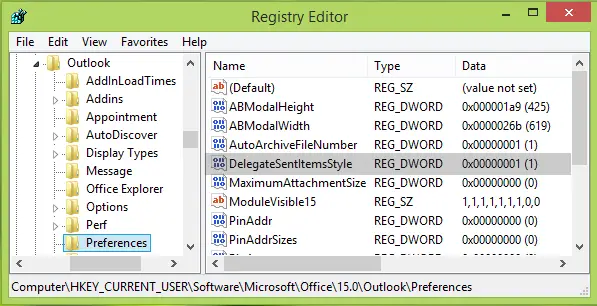
3. In the right pane of the above-shown window, look for the registry DWORD (REG_DWORD) named DelegateSentItemsStyle, it might be having its Data set to 1.
Double click on the same DWORD to modify and get this:
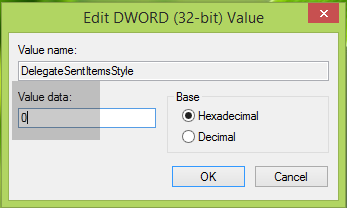
4. Finally, in the above-shown box, set the Value data to 0 and click OK.
Close the Registry Editor and reboot the machine to resolve this issue.
Hope this helps you. Good luck!
Why are my Outlook emails not being sent?
Outlook emails are not being sent because of three main reasons. If you edited the email even after putting it in the Outbox, it won’t be sent automatically. Secondly, if you have attached a big file as an attachment, it cannot be sent or might take some time to upload the file. Thirdly, if you have network-related issues, you may not be able to send emails.
Related posts:
