
While using Windows 11 or Windows 10 PC’s File Explorer or any other program/app/game, if you see an error message saying DWMAPI.DLL is either not designed or not found, here is how you can fix the issue. As it may be caused by various reasons, we have gathered all possible solutions to eliminate this problem.
What is DWMAPI.DLL?
The DWMAPI.DLL file is responsible for showing or applying various graphical effects on your computer. Having said that, it helps you see the transparency effects, the Aero Glass effect, live thumbnails on the Taskbar, and many more.
In general, you can find this DLL file here: C:\Windows\System32. However, if you are getting the problem above, there is a high chance that the file has been deleted by you or removed by some adware, malware, trojan, etc.
Possible reasons
Some of the possible reasons for this problem are:
- Adware attack
- Windows is very outdated
- Malware attack
- Corrupt System32 folder
- Outdated driver
Note: We DO NOT recommend you download any DLL file from any third-party resource.
DWMAPI.DLL is either not designed or Not found
To fix the DWMAPI.DLL is either not designed or not found error in Windows 11/10, follow these solutions:
- Check System32 folder permissions
- Check for update and update Windows
- Use adware removal tool
- Scan PC for virus or malware
- Check DLL dependencies
- Run System File Checker
To learn more about these solutions, continue reading.
1] Check System32 folder permissions
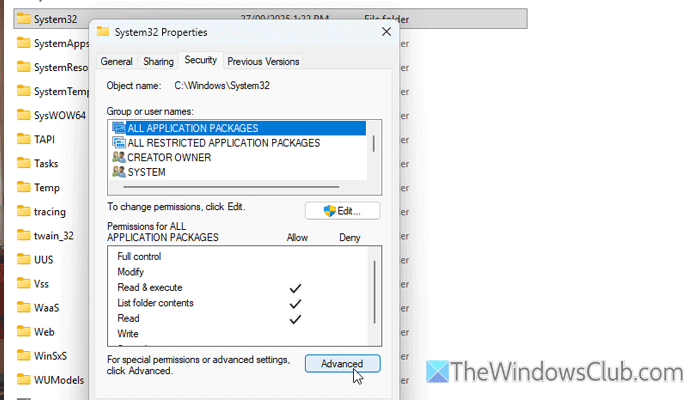
It is the first thing you need to check, as this problem may arise when the desired program lacks permission to access your System32 folder. At times, you may encounter this permission-related issue, resulting in the error mentioned above.
Read: How to reset all User Permissions to default in Windows
2] Check for update and update Windows
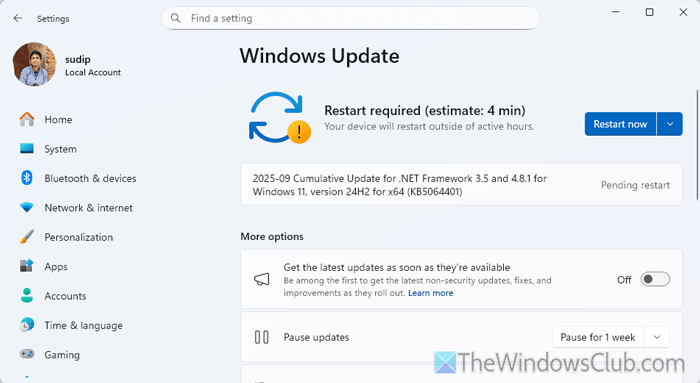
In some cases, many users have encountered this problem because they haven’t updated their Windows for a long time. That is why we suggest checking for an update and updating your computer if one is available.
For that, open the Windows Settings panel and go to the Windows Update section. Then, find the update and install it accordingly.
Read: How to install Driver and Optional Updates in Windows 11
3] Use adware removal tool
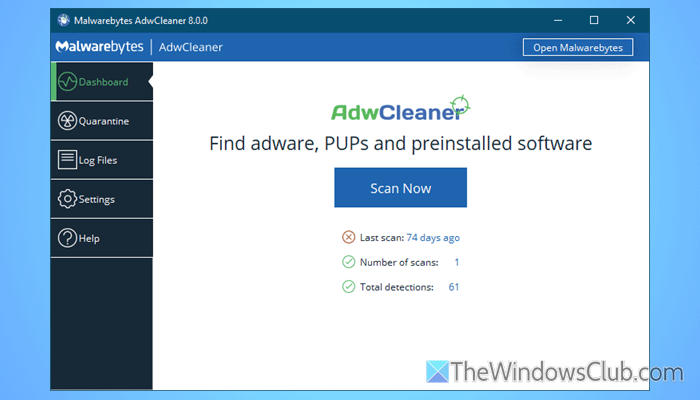
It is highly recommended to scan your computer with an adware removal tool. Although there are many similar tools available in the market, you can give AdwCleaner a try.
As adware often removes DLL files to make desired and unnecessary changes to the system, AdwCleaner can prevent this from happening.
Read: Best free Adware Removal Tool for Windows PC
4] Scan PC for virus or malware
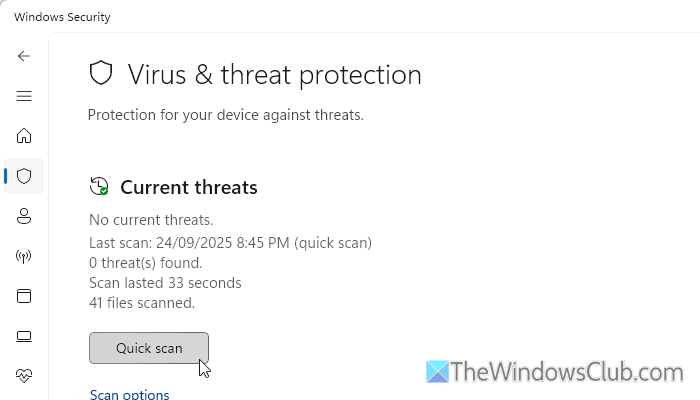
If your computer was recently attacked by malware or a virus, there is a high chance of encountering this DLL missing error. That is why we recommend scanning your PC for viruses and malware.
There are many free antivirus available for Windows, and you can use any of them. If you do not want to use Windows Security, you can opt for Kaspersky, Avira, Avast, etc.
Read: Best free Cloud Antivirus for Windows computers
5] Check DLL dependencies
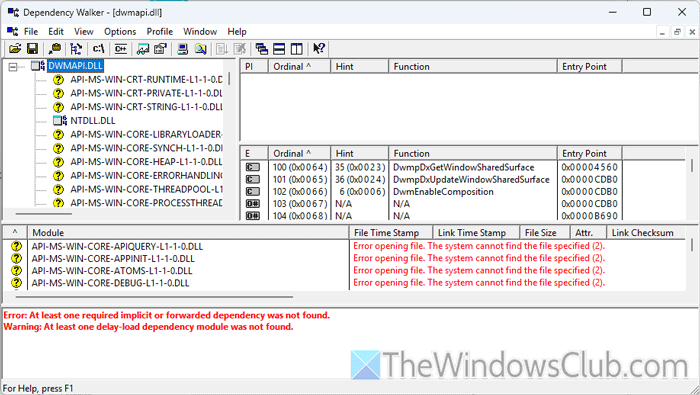
In most cases, one DLL file depends on one or two other DLL files – like Services. It is quite challenging to locate those dependencies manually. That is why you can use Dependency Walker, which is a free tool that allows you to check the dependent DLL files when entering the desired one.
Once you obtain the dependent DLL files, you can verify if they are intact or not.
6] Run System File Checker
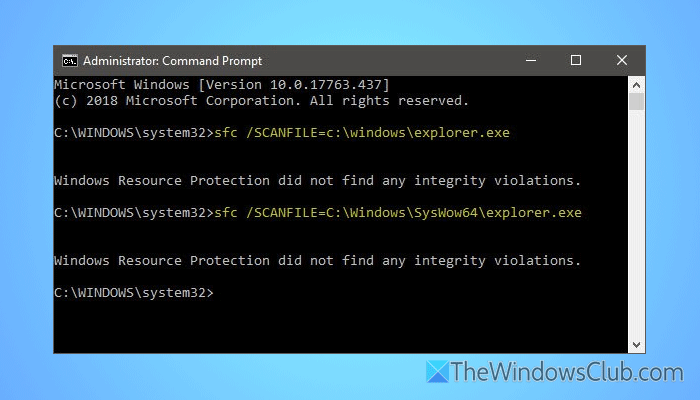
It is probably the last thing you can do to fix this issue. You can get back the missing DLL file with the help of the System File Checker.
If it doesn’t work, you can use the DISM tool as well. However, you should be aware that these tools require a significant amount of time, as they check every single file on your system.
Read: How to fix Missing DLL files errors on Windows 11 PC
How to fix DLL not found or missing errors?
The most common way to resolve the missing DLL error is to run the System File Checker on your computer. However, if it doesn’t work, you need to use the DISM tool.
How to fix error 0xc0000020?
In order to fix the DLL missing error 0xc0000020 in Windows 11/10, you need to run the System File Checker. However, you can also try to re-register the D3D11.dll file. Apart from that, you can reinstall the DirectX 11 as well.
Read: Bad Image, D3D11.dll is not designed to run on Windows, Error 0xc0000020
