
If you want to disable the “It’s almost time to restart your device” alert on your Windows 11 PC, read this post. Several users have reported that this notification appears repeatedly on their systems, interrupting their work. According to some, it appears even after they restart their PC or postpone updates. If you’re also tired of seeing this notification over and over, this guide will help you disable it.
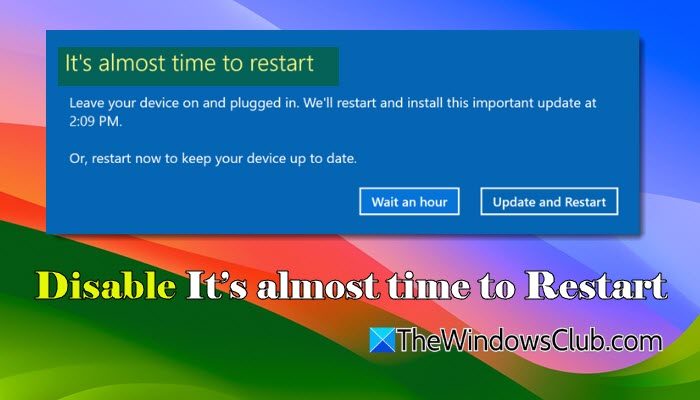
The “It’s almost time to restart your device” alert is a Windows Update notification that appears when your PC needs a restart to complete installing updates.
Depending on your Windows 11 build, update type, or how the restart was scheduled, this alert can show up in several forms, such as “It’s almost time to restart your device“, “Automatic restart scheduled“, “Your device will restart to update outside active hours“, etc. It’s not an error; just a reminder triggered by pending updates or scheduled restarts.
Disable It’s almost time to restart in Windows 11
To disable the “It’s almost time to restart your device” alert, use these fixes:
- Turn off “Get me up to date”
- Change or extend Active Hours
- Disable Automatic Restarts (GPO or Registry)
- Restart your PC
- Clear the Pending Restart state
- Disable the Update Orchestrator’s “Reboot” task
Let us see this in detail.
1] Turn off “Get me up to date”
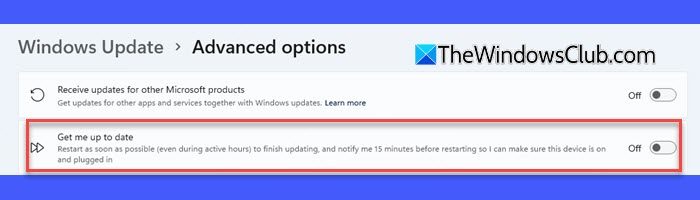
“Get me up to date” is a Windows Update feature that automatically restarts your PC as soon as updates are ready (even during your active hours). Its purpose is to ensure updates finish quickly, but it also becomes one of the main reasons you see the “It’s almost time to restart your device” alert repeatedly.
When this feature is enabled, Windows schedules a restart and notifies you 15 minutes beforehand, so you can ensure your device is on and plugged in. Turning this feature off prevents Windows from auto-scheduling restarts, which significantly reduces these alerts.
Press Win + I to open Settings. Go to Windows Updates > Advanced options. Turn off the toggle next to Get me up to date.
2] Change or extend Active Hours
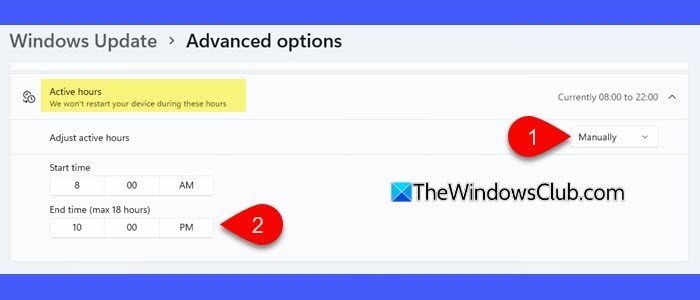
Active Hours tell Windows when you actively use your device, so it avoids installing updates during that time. If your Active Hours window is too short, Windows may assume you’re inactive outside that period and schedule a reboot, often triggering the alert.
By extending Active Hours to match your actual working schedule, you prevent Windows from scheduling a restart during that period.
Open Settings. Go to Windows Update > Advanced options. Select Active hours.
Select Manually from the dropdown and set a wider range to prevent unexpected restarts and alerts.
3] Disable Automatic Restarts (GPO or Registry)
Windows Update restarts your PC automatically after installing certain updates. It’s built into the system. Even if you don’t reboot manually, Windows may schedule one in the background to finish installing updates.
If you want Windows to never force a restart while you’re logged in, you can disable this behavior using a simple registry hack.
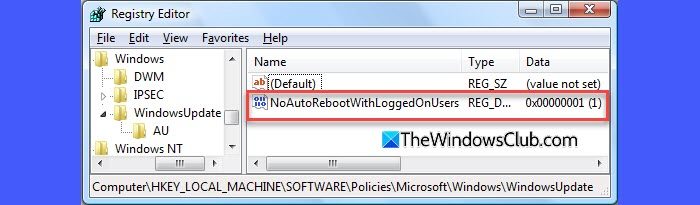
Press Win + R, type regedit, and press Enter. Click Yes in the User Account Control prompt. In the Registry Editor, navigate to:
HKEY_LOCAL_MACHINE\SOFTWARE\Policies\Microsoft\Windows\WindowsUpdate\AU
If the WindowsUpdate or AU keys don’t exist, right-click the parent folder, select New > Key, and create them manually.
Then right-click within the empty area, select New > DWORD (32-bit) Value.
Name it NoAutoRebootWithLoggedOnUsers. Double-click it and set the Value data to 1.
Reboot your PC for the changes to take effect.
Note: Incorrectly modifying the registry can cause system issues. Always take a backup or create a restore point before making changes.
If you have Windows 11 Pro/Enterprise/Education edition, you can easily disable Automatic Restart using Group Policy.

Press Win + R, type gpedit.msc, and press Enter. Navigate to:
Computer Configuration > Administrative Templates > Windows Update > Manage end user experience
Double-click No auto-restart with logged on users for scheduled automatic updates installations.
Select Enabled. Click Apply > OK.
4] Restart your PC
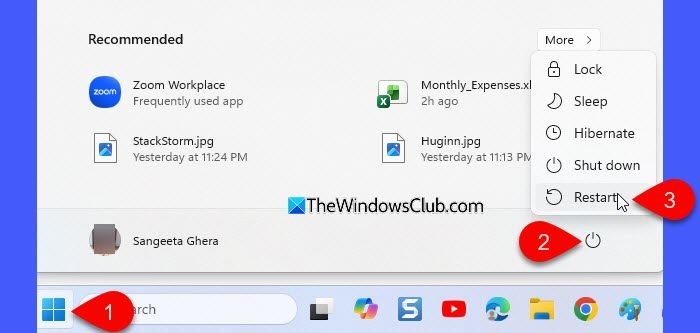
Before you use this fix, make sure you’ve applied the previous solutions to stop Windows from scheduling automatic restarts. Once that’s done, restarting your PC can help Windows complete any legitimate pending update and clear the alert.
Click Start, then click the Power icon in the bottom-right corner. Select Restart from the menu.
After the reboot, Windows will finish applying pending updates and the notification should stop appearing.
5] Clear the Pending Restart state
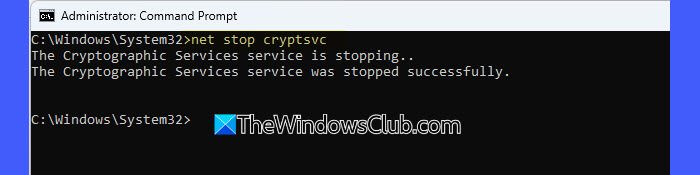
If the alert keeps showing even after multiple restarts, your system may be stuck in a pending update or pending reboot state. This usually happens when Windows Update components become corrupted. Resetting these components forces Windows to drop the stuck update and rebuild the update database.
To reset Windows Update components, follow these steps:
Open Command Prompt as Administrator. Run these commands one by one:
net stop wuauserv
net stop bits
net stop cryptsvc

ren C:\Windows\SoftwareDistribution SoftwareDistribution.old
ren C:\Windows\System32\catroot2 catroot2.old

net start wuauserv
net start bits
net start cryptsvc
Once done, restart your PC. If a stuck update caused the alert, it should disappear.
6] Disable the Update Orchestrator’s “Reboot” task
This is an advanced fix, but very effective when nothing else works.
Windows uses a built-in component called Update Orchestrator to manage all aspects of updates. This includes downloading upates, installing them, and scheduling restarts when required.
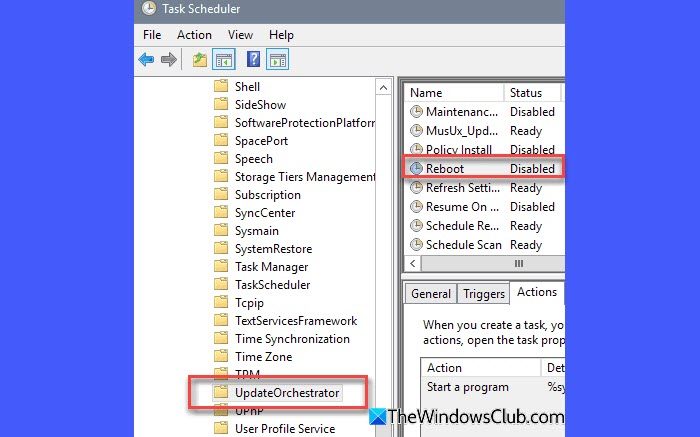
To schedule automatic restarts, Update Orchestrator uses a task called Reboot. This task can trigger the “It’s almost time to restart your device” alert. If it keeps triggering the alert, you can disable it in Task Scheduler.
Type ‘task’ in the Windows Search bar and select Task Scheduler (under Apps) from the search results.
In the left panel, navigate to:
Task Scheduler Library > Microsoft > Windows > UpdateOrchestrator
In the middle pane, locate the task named Reboot. Right-click it and select Disable.
I hope this helps.
Read: Make Windows 11 notify you before downloading or installing Windows Updates.
What does “your device will restart outside of active hours” mean?
The “your device will restart outside of active hours” message means that Windows has installed updates that require a reboot, and it will automatically restart your PC when you’re not actively using it. Active Hours define your normal working time, and Windows avoids rebooting during that period. Outside those hours, it assumes the device is idle and schedules the restart automatically.
Can you cancel a computer restart?
Yes, you can cancel a scheduled restart if Windows hasn’t begun the shutdown process yet. You can do this by typing shutdown /a in the Run dialog or Command Prompt to abort the restart. You can also prevent future automatic restarts by adjusting Active Hours, disabling auto-restart settings, or using Group Policy/Registry tweaks.
Read Next: Block Unsupported Hardware popup in Windows Update.
