
Here is a complete guide on how to fix Dev Error 6066 in Call of Duty Modern Warfare and Warzone. A lot of Modern Warfare and Warzone users have complained being encountering the dev error 6066 when trying to launch the game. When triggered, you will get the following error message:
DEV ERROR 6066
DirectX encountered an unrecoverable error
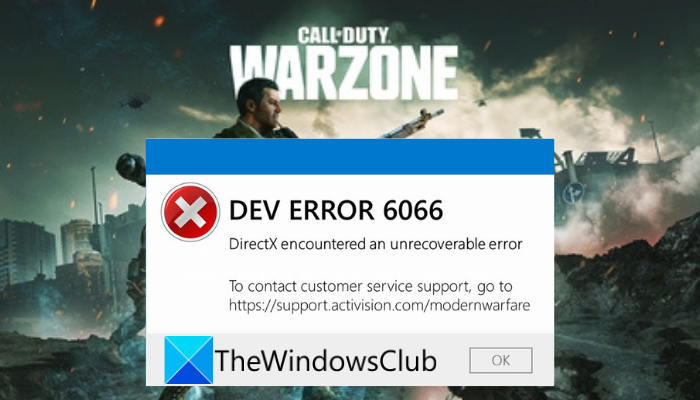
Now, if you are also getting the same error in Warzone or Modern Warfare, we’ve got you covered. In this post, we will discuss several fixes that have helped users resolve this error. So, you can also try these fixes and resolve the error.
What is Dev error 6066 Warzone?
Dev Error 6066 in COD Modern Warzone game is a launch error that occurs when you try to open the game. This error could be the result of many factors. It can be caused by an outdated OS, outdated graphics drivers, insufficient VRAM, conflicts with background applications, PC overclocking, etc. Broken game files or corrupt installation files could also be the reason for this error.
What is Dev error 6065 COD Warzone?
Like Dev Error 6165, 6071, 6066, etc., Dev Error 6065 in Call of Duty Modern Warzone game is related to DirectX APIs which may occur when you are playing the main campaign. With such an error, players are kicked out of the game. It might happen if game files are corrupt, Activision servers are down, etc. To fix the issue, first, check if Activision servers or Online Services for COD Warzone are down or working fine. You should also run the game with admin privileges, set its priority process to high, turn off the Crossplay feature, etc.
Fix Dev Error 6066 in Call of Duty Modern Warfare and Warzone
Here are the fixes that you can try to get rid of DEV ERROR 6066, DirectX encountered an unrecoverable error in Modern Warfare and Warzone:
- Update Windows as well as graphics drivers.
- Increase VRAM.
- Update DirectX.
- Close unnecessary background apps.
- Disable overclocking.
- Turn off in-game overlays.
- Verify the integrity of game files.
- Reinstall the game.
1] Update Windows as well as graphics drivers
This error could be caused by an incompatibility between your OS and the game. Hence, the first thing you should do is make sure you have installed all the latest Windows updates and that your system is up to date. If not, update your Windows to the latest build to fix the error. To update your Windows system, simply go to Settings > Windows Update and press the Check for updates button to download and install the latest updates.
Additionally, ensure you have installed the latest graphics drivers on your system. Faulty and outdated graphics drivers are known to cause errors like this. So, you need to update graphics drivers to fix the error. To update your GPU card drivers, here are the methods you can use:
- Use the Optional Updates feature available inside the Settings > Windows Update section. Here, you can find all the optimal updates including driver updates. So, download and install them to update graphics drivers.
- You can also download the latest version of your graphics driver from the official website of the device manufacturer.
See if updating Windows and graphics drivers helps you fix the error. If you are already using the latest version of Windows and drivers, there might be another underlying cause of the issue. So, you can try the next potential fix to resolve the error.
2] Increase VRAM
Increasing VRAM may help you get rid of the error at hand as per developers and affected users. A minimum of 8 GB of RAM is required to run Warzone without any problem. So, if your PC is running out of memory during gaming, enhance virtual memory to fix the error. It is done by converting hard drive sectors into virtual memory. Here is how you can do that:
- Firstly, press the taskbar search option and in the search box, type advanced system settings.
- Now, from the appeared results, choose View advanced system settings to launch the System Properties window.
- Next, in the Advanced tab, tap on the Settings button present under the Performance section.
- After that, go to the Advanced tab in the new dialog window and tap on the Change button.
- Then, disable the checkbox called Automatically manage paging file size for all drives and select the drive where your game is installed.
- Now, choose Custom size and type a value greater than 2GB for both Initial size and Maximum size.
- Next, click the Apply > OK button to apply the changes above.
- Finally, restart your PC and see if the error is fixed.
If you still encounter the same error, try the next potential fix.
Read: Fix Error Code 664640 in Call of Duty Modern Warfare or Warzone
3] Update DirectX
As the error might be caused due to outdated DirectX version, update DirectX to fix the error. Simply download the latest version of DirectX from Microsoft.com and install it. See if this fixes the error for you.
4] Close unnecessary background apps
You might be receiving this error if you have too many apps running in the background. There is a chance that the apps interfere with Warzone or Modern Warfare. Hence, it is recommended that you disable all the background applications to fix the error. You can open Task Manager and from the Processes tab, choose the application you want to close. After that, press the End Task button to close it. Do it for all other applications, then see if the error is fixed.
Read: Fix Dev Error 6034 in Call of Duty, Modern Warfare and WarZone.
5] Disable overclocking
Overclocking is a handy feature that speeds up your PC. However, it also causes stability issues for some users with applications and games. So, if you have enabled overclocking, try disabling it by entering the BIOS of your motherboard. See if this fixes the error for you. If you are not overclocking and are still getting the error, try the next potential fix.
Read: COD Modern Warfare DEV ERROR 6068, 6065, 6165, 6071.
6] Turn off in-game overlays
This error could also be a result of in-game overlays. Hence, if the scenario is applicable, disable the in-game overlays and then check if the error is fixed or not. You can disable the FPS Counter of Modern Warfare using the below steps:
- First, go to the game’s Options menu and navigate to the General tab.
- Now, turn off the Frames Per Second (FPS) toggle present under Telemetry.
- Next, try restarting the game and see if the error is fixed.
If you have a GeForce graphics card, you can disable the GeForce Experience Share In-game Overlay using the below steps:
- First, open GeForce Experience and go to its Settings.
- Now, turn off the Share toggle by going to the General tab
- Next, relaunch the game and check if the Dev error 6066 is fixed or not.
You can also try disabling the in-game overlay options in apps like Steam and Discord to see if that works for you. If not, you can try the next potential fix to get rid of the error.
Read: Fix Modern Warfare Warzone’s High CPU Usage on PC.
7] Verify the integrity of game files
Another potential cause of this error could be missing or corrupted game files of Call of Duty: Modern Warfare or Warzone. In that case, you can try verifying the integrity of the game files to fix the error. There is a dedicated option in Battle.net, the game launcher, that lets you scan and fix broken game files. Here are the steps to use this feature:
- Firstly, launch the Battle.net launcher and click on the problematic game i.e., Call of Duty: Modern Warfare or Warzone.
- Now, a gear/settings icon will appear next to the Play button; tap it.
- Next, from the available options, click on the Scan and Repair option and let it verify and repair your game files.
- Once done, try relaunching the game and check if the error is stopped now.
If you still get the same error, there is one more fix that you can try.
See: Fix CoD Warzone DEV ERROR 5476 or 6635.
8] Reinstall the game
If none of the above fixes helped, the last option is to reinstall the game. There is a chance you might be dealing with corrupted installation files for the game. To fix the error, uninstall the game and reinstall it. You can follow the steps below to do that:
- Firstly, open the Battle.net game launcher and select the problematic game.
- Now, tap on the Gear icon present next to the Play button.
- Next, select the Uninstall option and then confirm game uninstallation.
- Once the process is done, restart your PC.
- Finally, open Battle.net and then reinstall the game to check if the error is fixed.
Hopefully, this helps!
Now read:
