
If copy and paste is not working in Microsoft Word on your Windows 11 computer, this article will help you. Some of the possible causes of this issue include corrupt system image files, conflicting add-ins and antivirus software, corrupt Office files, etc.

Copy and Paste not working in Word
Use these suggestions if copy and paste is not working in Microsoft Word:
- Repair your system image files
- Clear the clipboard in Word
- Check the issue in other applications
- Disable Add-ins
- Configure your antivirus
- Repair or reinstall Office
- Roll Back Office or Restore your system
All these fixes are explained below in detail.
1] Repair your system image files

One possible cause of this issue is the corrupt system image files. Therefore, we suggest you repair your system files using the built-in System File Checker. You can also run the DISM tool after the SFC scan.
2] Clear the clipboard in Word
You can also try to clear your clipboard in Word. The steps to do this are as follows:
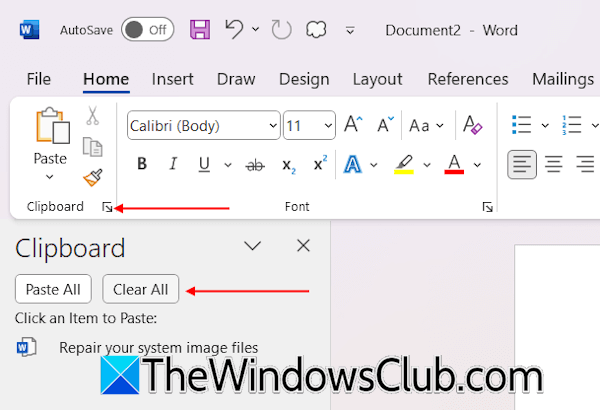
- Open your Word document.
- Click the Home tab.
- Now, click on the little arrow in the Clipboard group.
- Click Clear All.
Now, check if the issue persists.
3] Check the issue in other applications
Check if the issue occurs in other applications. Open any text editor software, like Notepad, and check if copy and paste is working. If this issue occurs in Notepad, too, this means that copy and paste is not working on your Windows computer. In such a case, first, check if the problem is with your keyboard. Connect another keyboard and see if you can copy and paste the text.
4] Disable Add-ins
Sometimes, add-ins conflict with Microsoft Office applications and cause issues. This can be the case with you. Check this by disabling all add-ins installed in Word. Follow these steps:
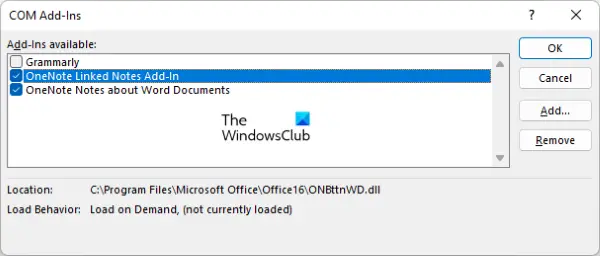
- Open Word.
- Select File > Options.
- Now, select Add-ins on the left side.
- Select COM Add-ins in the drop-down and click Go.
- Now, uncheck all the checkboxes and then click OK. This will disable all the add-ins.
- Restart Word.
Now, check if the issue persists. If the problem disappears after performing the above steps, one of the add-ins is causing this issue. Now, enable the add-ins one by one and see when the issue reappears. This will help you find the problematic add-in.
5] Configure your antivirus
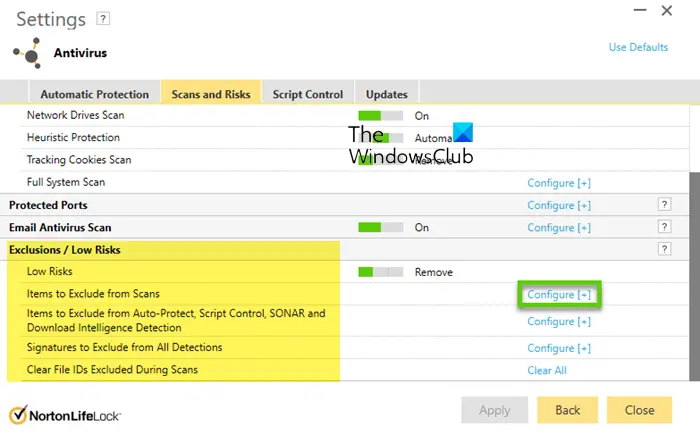
Your antivirus might be conflicting with Microsoft Word and causing this issue. To check this, disable your antivirus temporarily. Now, check if you can copy and paste content in Word. If this fixes the issue, you need to add Word as an exception to your antivirus.
To do so, you have to locate the exe file of Word. The exe file of Word is located at the following location:
C:\Program Files\Microsoft Office\root\Office16
5] Repair or reinstall Office

If none of these fixes worked, the last resort is to repair or reinstall Office. First, run an online repair. If this does not work, uninstall and reinstall Office. Before proceeding, make sure that you have its activation key, as it will be required to reactivate your Office license.
7] Roll Back Office or restore your system
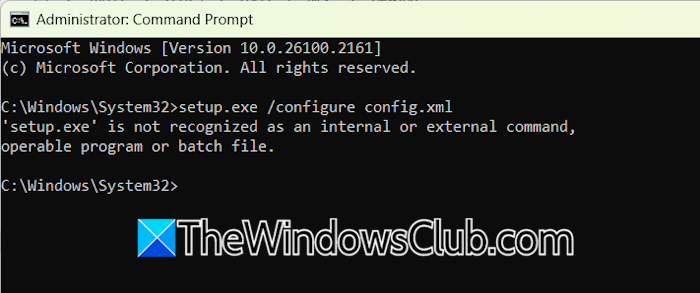
You can also try rolling back Office to the previous version. This might help if the latest version of Office has some bugs. If this works, you can later update Office when Microsoft releases its new version.
Alternatively, you can also try restoring your system to the previous working state using System Restore.
That’s it. I hope this helps.
Why is the paste option not working in Word?
There can be multiple reasons why the paste option is not working in Microsoft Word, including clipboard issues, conflicting add-ins installed in Word, conflicting software, etc. You can try some fixes, like disabling all add-ins, troubleshooting in a Clean Boot state, etc.
How to unlock a Word document to copy and paste?
If you cannot edit a Word document, it may be locked. To confirm this, open the affected Word file and go to the Review tab. Now, click Restrict Editing under the Protect group. The Word file is locked from unintentional editing if you see the “Your document is protected” message. To unlock it, click Stop Protection and enter the required password.
Read next: Word typing in all caps when caps lock is off.
