
Some users noticed that Microsoft Word keeps typing in all caps even when the Caps Lock is off. In this article, I will guide you through the steps to resolve this issue. Some possible causes of this issue include incorrect formatting and font selection.

Word typing in all caps when the Caps Lock is off
Use the following fixes if Microsoft Word is typing in all caps even when the Caps Lock is off:
- Check the text formatting settings
- Check the font
- Use the keyboard shortcuts
- Does this issue occur only in Word?
All these fixes are explained below in detail.
1] Check the text formatting settings
First, check the text formatting settings. Follow these steps:
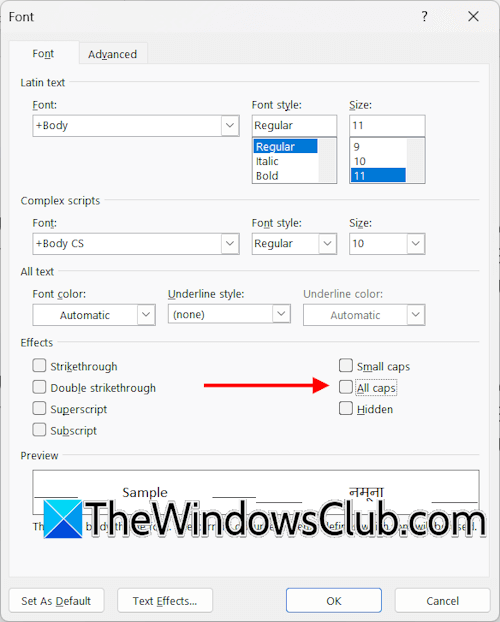
- Select all the text in your Word document.
- Right-click on the selected text and click Font.
- Under the Font tab, uncheck the All caps checkbox.
- Click OK to save changes.
2] Check the font
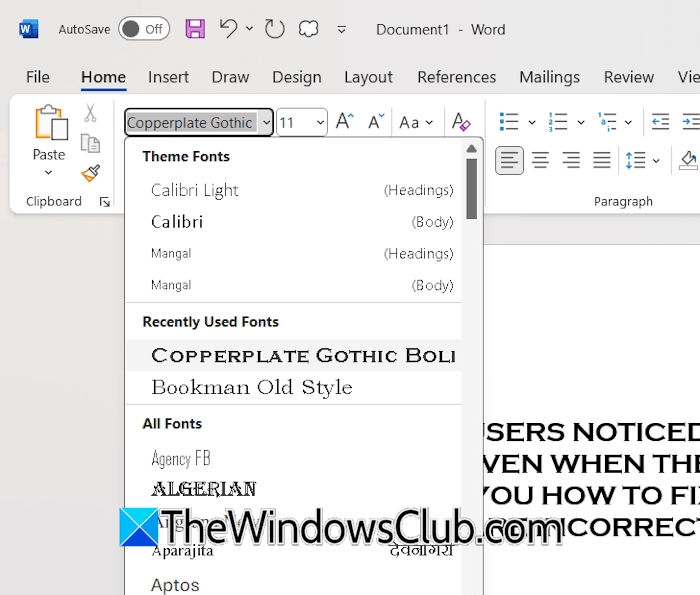
Some fonts in Microsoft Office are designed to display all letters in uppercase, regardless of whether the Caps Lock is on or off. Copperplate Gothic is one such font. Check this and change the Font. Select the entire text, click on the drop-down that displays fonts under the Home tab, and select another font.
3] Use the keyboard shortcuts
You can use appropriate keyboard shortcuts to change the letter case. Select the entire text in the Word document, then press and hold the Shift key. Now, press the F3 function key. This will change the letter case. Keep pressing the F3 key along with the Shift key until you get the desired result.
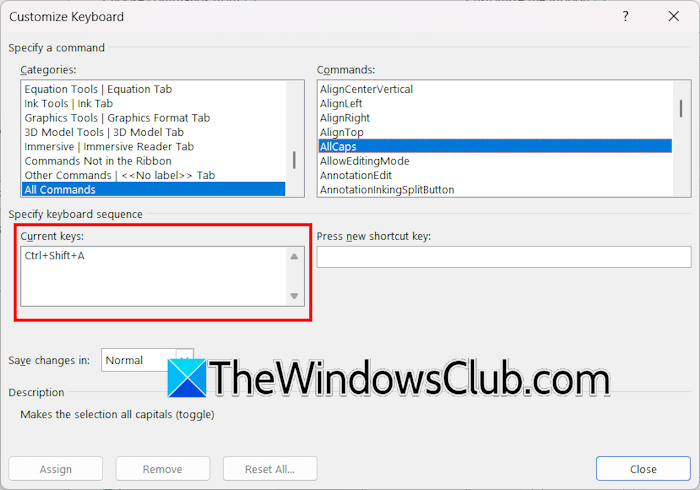
The Ctrl + Shift + A key combination locks the uppercase in a Word document. Select the entire text and press this keyboard shortcut. This will unlock the uppercase. If this shortcut does not work, check which shortcut is assigned to this function in Word. Follow these steps:
- In your Word document, click File > Options.
- Select Customize Ribbon.
- Click the Customize button next to the Keyboard shortcuts. This option is available just below the left commands box.
- The Customize Keyboard pop-up window will appear. Select All commands in the Categories box and select AllCaps in the Commands box.
- You will see the assigned shortcut in the Current keys box.
Now, use that shortcut to unlock the uppercase in your Word document.
4] Does this issue occur only in Word?
Does this issue occur only in Word? Open Notepad and check this. If the issue occurs in Notepad as well, try changing your keyboard. The issue is likely associated with your keyboard or the Caps Lock key on that keyboard. You can also try resetting the keyboard.
That’s it. I hope this helps.
Caps lock stuck in Word
First, check the issue in other software, such as Notepad. If the issue occurs only in Word, it may be due to incorrect text formatting settings. If the issue occurs with multiple programs, your keyboard may be faulty, or the issue may be with the Caps Lock key. Test with another keyboard.
How do I fix my keyboard typing all in caps?
If your keyboard is typing all letters in uppercase, check if the Caps Lock key is stuck. Use another keyboard and check if the issue persists. If you have a laptop, disconnect the keyboard and use the On-screen keyboard. If you do not use an external keyboard, disable the built-in keyboard.
Read next: How to fix Caps Lock reversed in Windows.
