
You’re using your Windows 11/10 computer, and something strange happens. For some reason, when you right-click, the context menu freezes or opens slowly. This shouldn’t be happening because while the right-click isn’t used as much as the left-click, – but it’s still a common problem.
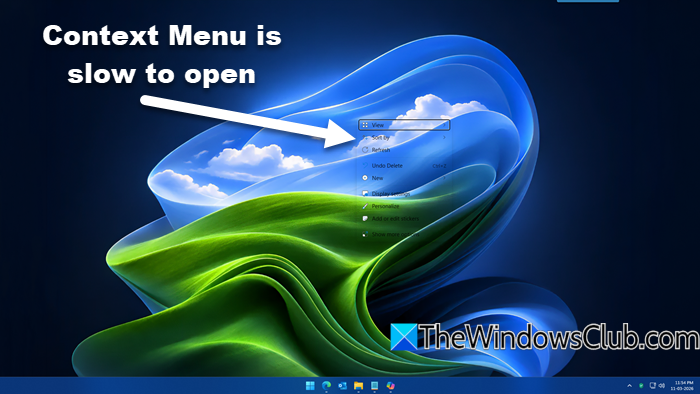
This mainly happens because when you install programs, they continue to add their entries to the context menu, and if one is programmed badly, you could end up with an unresponsive context menu.
Context Menu slow to open or freezes in Windows 11
If when you right-click on the Desktop or File Explorer, the Context Menu freezes or is slow to open on your Windows computer, here are a few things you need to take a look at to fix the issue.
1] Restart Explorer
You should restart the Explorer process and see if it makes the problem go away.
2] Check in Clean Boot State
Perform a clean boot of your Windows computer. In Clean Boot State, if the problem disappears, enable one program at a time and see if you can identify the one causing the issue.
Related: Right-click menu stuck on screen in Windows
3] Remove unwanted items from the context menu
If this does not help, you must boot normally and remove some items from the context menu. Here are some posts that may help you:
- Remove items from New Context
- Remove CRC-SHA entry from Context Menu
- Remove ‘Give access to’ Context Menu item
- Remove Share item from right-click context menu.
You can also use a free Context Menu Editor like ShellExView to remove unwanted context menu items. In this post, I am talking about Easy Context Menu Editor. If you have CCleaner on your system, you can definitely use that, but it doesn’t have a lot of Context Menu related options to play around with.
After downloading the software, there’s no need to install anything since it’s a portable application; just click the executable file, whether 32-bit or 64-bit, as long as it’s the right one for your Windows computer.
Now, the user interface is easy to understand. You can easily add or remove several options with just a click of a button.
You should look at the items added by 3rd-party software and disable the ones you do not need.
After you’re done, click “Apply Changes” and move on.
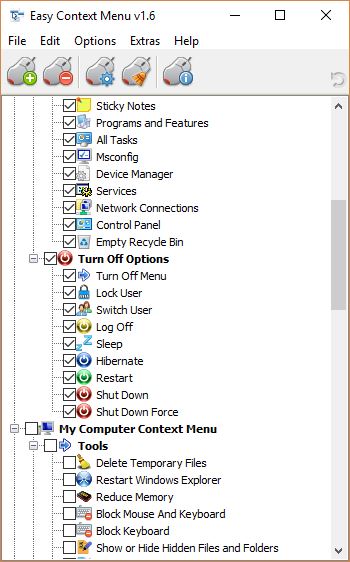
One should be careful with their options because they can determine what is added to or removed from the Context Menu.
Be sure what you’re removing or adding is the right choice before going forward with your plan.
4] Run System File Checker
Run System File Checker and see if that helps.
5] Update Display Drivers
Update Display Drivers and check if that helps resolve the issue.
Another issue you might encounter is Explorer crashing when you right-click the mouse button. In such a situation, read that guide to get things sorted out.
Read: Right click crashes File Explorer in Windows 11
Right click on desktop freezes Windows 11
If right-clicking on the desktop freezes Windows 11, first restart Windows Explorer from Task Manager to refresh the interface. Next, disable unnecessary context menu extensions using a tool like ShellExView, since faulty add-ons often cause freezes. Update your graphics drivers and Windows itself to ensure compatibility. You should also run System File Checker (sfc /scannow) to repair corrupted files.
Read next: Right-click context menu keeps popping up in Windows.
