
Windows File Explorer is one of the most important elements of any Windows version as it helps users access different folders and files. Its right-click context menu offers several useful items that let you perform several useful operations. But at times, you may find that your Windows File Explorer crashes when you right-click to open its context menu. If you are facing this problem, here is what you need to do to troubleshoot the issue.
Before proceeding, it is essential to note that this issue primarily occurs when your programs add numerous items to the right-click context menu. Poorly coded items that get added by third-party software or service may cause this problem.
Explorer crashes when I right-click to open Context Menu or create new folder in Windows 11/10
What you need to do first is to perform a Clean Boot. In Clean Boot State, it is easier to diagnose the problem.
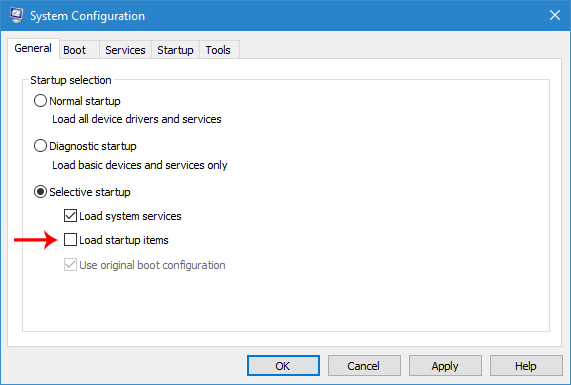
Press Win + R, type msconfig and hit the Enter button. On the General tab, make sure the “Selective startup” option is chosen. Then, uncheck the “Load startup items” option.
After that, go to “Services” tab and check the option that says “Hide all Microsoft services.”
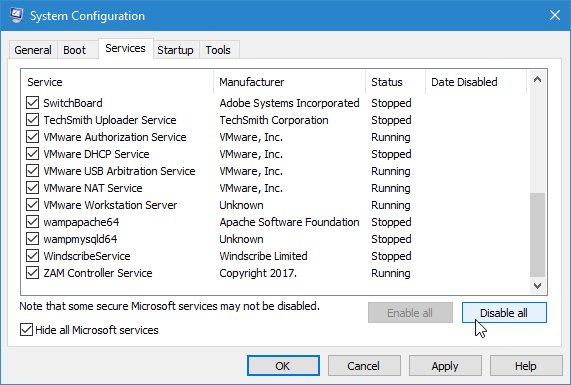
After that, select all the services and click on “Disable all.”Click Apply and then OK.
Your system will ask for a restart. Go ahead, and upon restart, you will find that your PC has booted into a Clean Boot State.
Now open File Explorer and right-click and see. Does Explorer crash or not? If yes, then it is some system item that is causing the problem. If not then it is some non-Microsoft item that is the offender.
Now, you need to identify it, and the only way to do this is by disabling one item at a time.
Reboot in normal mode and remember to undo the changes you made in msconfig.
Now download and open ShellExView, which is third-party software that allows users to scan for all the shell extensions that have been added to your right-click menu by third-party software.
You will see all the extensions, their current status (disabled or enabled), type, description, product name (which added the item), company, and more.
Shell extensions that are added by Microsoft generally do not create any problem. So you should hide them from the list. To do so, go to Options > Hide All Microsoft Extensions. Now you will see only the extensions added by third-party software.
Now, to select all and click the red button. Right-click on the items and opt for “Disable Selected Items.”
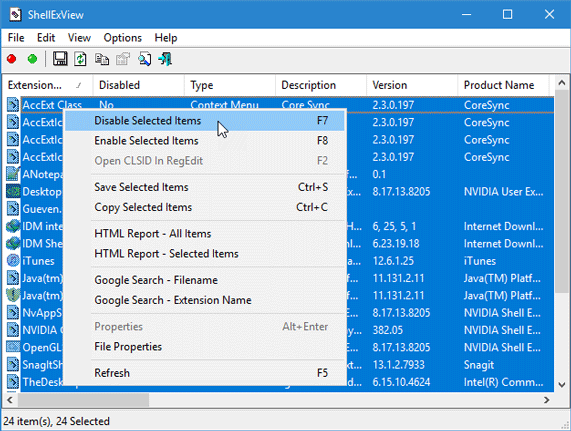
It will disable all the extensions at once. Now, you need to enable each one after the other and determine which one creates the problem.
Once you identify the culprit, you need to keep it disabled or remove the item.
After this, restart your computer to check if it is working properly.
See this post if Windows File Explorer crashes or freezes and this one if the Context Menu freezes or is slow to open.
Why does File Explorer keep crashing in Windows 11?
File Explorer may keep crashing in Windows 11 due to problematic addons or software conflicts. To fix this, check installed Add-ons, update Video drivers, run Windows Memory Diagnostics Tool or troubleshoot in Clean Boot State.
How do I fix Right click in File Explorer?
To fix right-click issues in restart File Explorer, to refresh the explorer.exe shell. You should also remove unwanted right-click entries using a Context Menu Editor.
