
A PC without an internet connection is of no use nowadays. Everything is on the internet, from our data to the tools or software we use. WiFi is the most common way to connect our PC to the internet. If WiFi does not work, use the Ethernet connection if the PC has a port. There are actually very limited options for connecting a PC to the internet without these two. In this guide, we show you how to connect a PC to the internet without Wi-Fi or Ethernet.
How to connect PC to internet without WiFi or Ethernet
If your PC lacks working WiFi or an Ethernet port and you still want to connect to the internet, follow this guide. This can also work if your WiFi drivers are missing or corrupted, and you can get them back after connecting to the internet using the methods we showed.
- Connect via USB Tethering from phone
- Connect via Bluetooth Tethering
- Connect using a USB Dongle
Let’s find out how to use each method and connect your PC to the internet.
1] Connect via USB Tethering from phone
When you do not have options to connect your PC to the internet with WiFi or Ethernet, you can use your phone. To use this method, you need an Android phone or an iPhone. You must have a USB cable, typically the cable you use to charge your phones every day. Your phone must be connected to the internet through mobile data or WiFi.
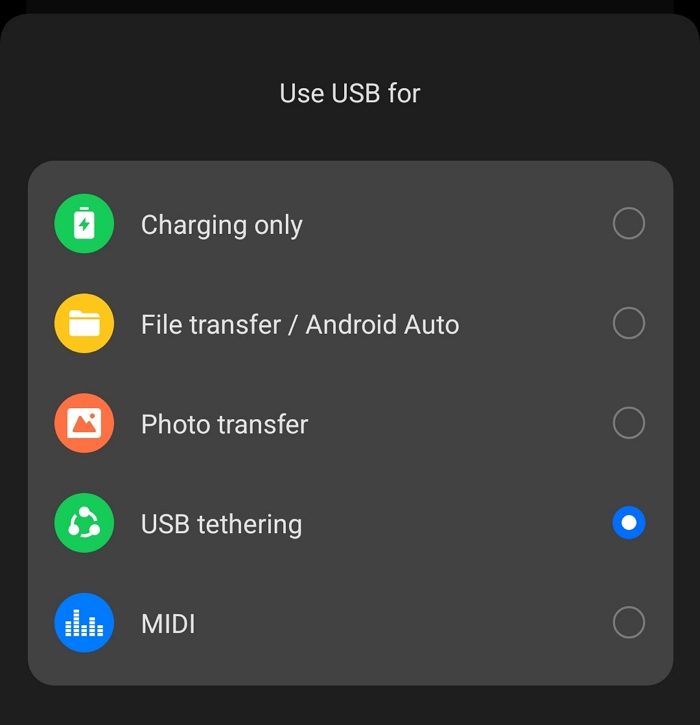
To connect your PC to the internet via USB Tethering on an Android phone, connect your phone to your PC with the USB cable. When you connect your phone to your PC, you will see a notification on your phone. Slide down to open the notification area on your phone and tap on the notification that appears regarding the USB connection to your PC. Then, select USB tethering from the options. It will automatically connect your PC to the internet.
To connect your PC to the internet via USB tethering on an iPhone, connect your iPhone to the PC using the Lightning or USB-C cable you use to charge it. If you are connecting it to the PC for the first time, you will see a notification that says “Trust This Computer?” Tap on Trust and verify your identity by entering your passcode or password when prompted. Then, open the Settings app, select Cellular, and go to Personal Hotspot. Enable Allow Others to Join. Your PC will now connect to the internet using the network on your iPhone.
Read: Windows computer does not recognize iPhone
2] Connect via Bluetooth Tethering
If the USB tethering is not working, you can use Bluetooth to connect your PC to the internet by tethering it from the phone. It is a must for your PC to have Bluetooth. If not, you can skip this method. The downside of connecting your PC to the internet via Bluetooth tethering is that you have to compromise on network speeds, as Bluetooth is too slow.
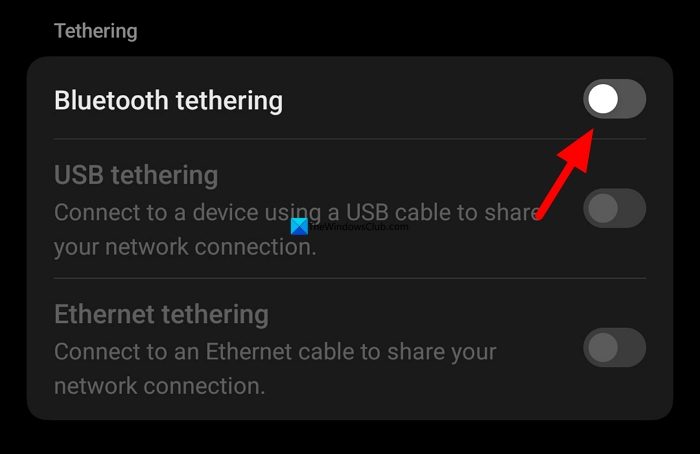
To connect your PC to the internet via Bluetooth tethering on Android, pair your phone with your PC using Bluetooth. After pairing them successfully, open the Settings app, go to Network settings, or Connection & Sharing options (depending on your phone’s options). Then, open Personal Hotspot settings. Toggle the button beside Bluetooth tethering to start sharing the internet from your phone to the paired PC.
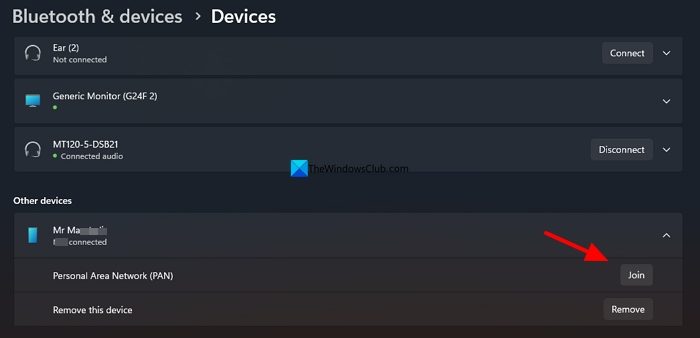
To connect your PC to the internet using Bluetooth on your iPhone, pair your iPhone and PC via Bluetooth. Open the Settings app on your iPhone, go to Personal Hotspot, and turn on Allow Others to Join. Now, open the Settings app on your Windows PC, go to Bluetooth & devices. Then, select the iPhone you have connected and click Join beside Personal Area Network (PAN) under it.
If you are prompted to accept any options on your iPhone, accept them as needed to connect your PC to the internet.
If you have another PC connected to the internet, you can use Bluetooth tethering to connect it to the internet without WiFi or Ethernet, in a similar way. Pair both PCs via Bluetooth and join the Personal Area Network from the PC without internet.
3] Connect using a USB Dongle
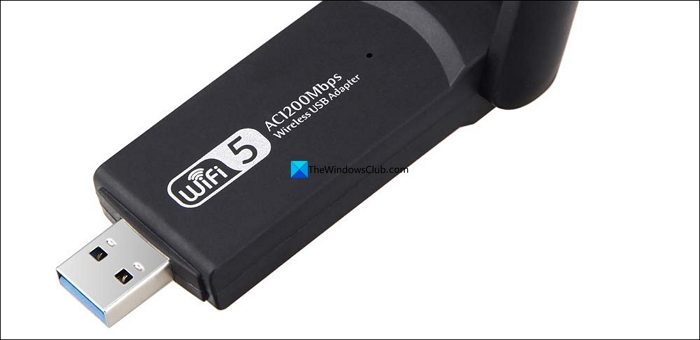
If USB and Bluetooth tethering do not work, your other option is to get a USB Dongle that supports your SIM card installation. It will definitely help you connect your PC to the internet and achieve full-speed performance with your 4G/5G SIM cards. You can get it at any electronic store or online store. Get something that supports many network bands in 4G/5G speeds. You can find this information in the product description you choose to buy. After getting the dongle, insert your SIM card and connect it to your PC via a USB port. You won’t need to do anything as the drivers and other necessary features are installed automatically by the USB dongle.
Read: USB Devices not working in Windows 11
Can I use my phone as a WiFi adapter for a PC?
You can enable personal hotspot on your phone and connect your PC to the internet via Wi-Fi. If your PC does not have WiFi, you can use USB or Bluetooth tethering to connect your PC to the internet. The speeds depend on the kind of connection you have from the ISP.
Can you connect your PC to WiFi without an adapter?
If you do not have a router or an adapter but want to connect your PC to the internet via WiFi, you can enable personal hotspot on your phone and connect to it. You can also use USB tethering to connect to the internet via a wired connection from your phone.
Related read: USB tethering not working on Windows 11 PC
