
Normally, the internet connection on our PC consumes some energy to work. The energy consumption is negligible if we look at the total billing at the end of the month. But using energy efficiently can extend battery life slightly. Windows 11 has options to enable or disable energy-efficient Ethernet without compromising the speeds of our internet connection. Let’s see how to do it.
What is Energy-Efficient Ethernet?
The internet connection on our PC consumes some electricity through the network card. The consumption remains the same irrespective of the usage. It does not decrease when the internet connection is idle. The energy-efficient Ethernet option makes the network card sleep by cutting off electricity when we do not use the internet. When we start using the internet again, the network card becomes active by consuming the energy it requires constantly.
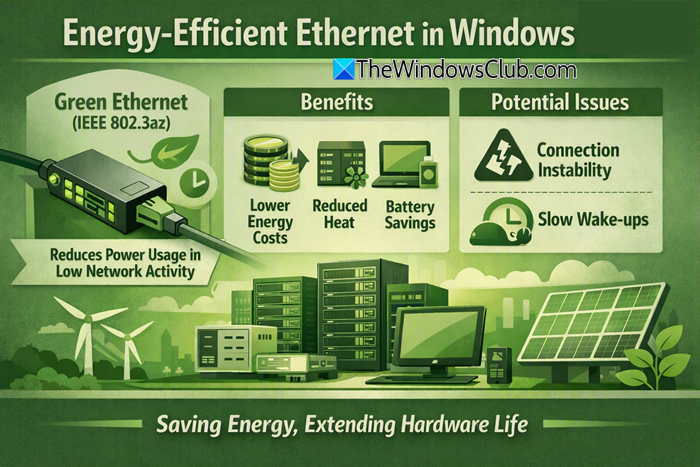
Energy-Efficient Ethernet (EEE) in Windows 11 helps reduce power usage by putting your network adapter into a low-power state when data activity is minimal. It’s based on the IEEE 802.3az standard and is often referred to as “Green Ethernet.” While it saves energy and extends hardware lifespan, it can sometimes cause connection instability, so you can, if you wish, choose to disable it.
An energy-efficient Ethernet option is recommended for general browsing, office work, or tasks that do not require an active internet connection, even when we step away from our PC. It is not recommended to enable energy-efficient Ethernet when your internet connection is unstable or when participating in online games that require a good internet connection.
How to enable or disable Energy-Efficient Ethernet in Windows 11
You can turn on or turn off Energy-Efficient Ethernet on Windows 11 in three different ways. Let’s see what they are and use the convenient method to make the internet connection consume energy efficiently.
- Using the Device Manager
- Using the Registry Editor
- Using PowerShell
Here’s the detailed explanation of every method.
1] Using the Device Manager
Device Manager is one of the simplest ways to enable or disable energy-efficient Ethernet on Windows 11. This option lets us see the changes we are making to our network. Open the Device Manager on your PC and expand Network adapters. Right-click on the Ethernet driver of your PC and select Properties.
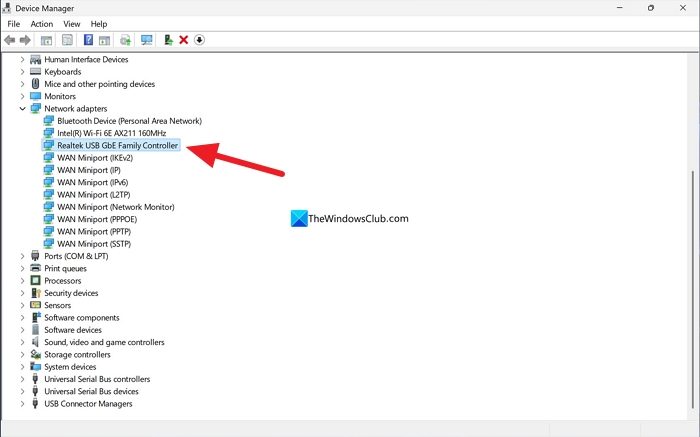
Click the Advanced tab. Look for Energy Efficient Ethernet, Green Ethernet, or Power Saving Mode in the Property list. Select it. Then, under the Value tab, select Enabled to enable it. Click OK to save the changes.
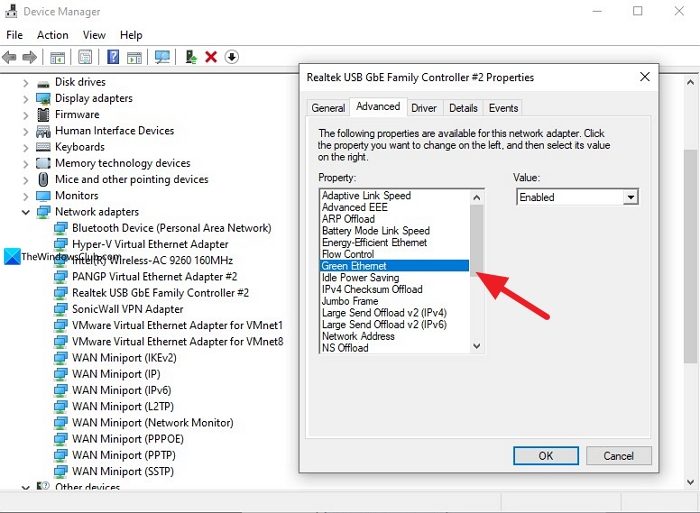
Select Disabled if you want to disable it and click OK.
2] Using the Registry Editor
If you do have any issues with Device Manager or want to permanently enable or disable energy-efficient Ethernet, you can use the Registry Editor. Open the Registry Editor and back up the Registry for safety purposes. Then, navigate to the following path in the Registry Editor.
Computer\HKEY_LOCAL_MACHINE\SYSTEM\CurrentControlSet\Control\Class\{4d36e972-e325-11ce-bfc1-08002be10318}\0001
Find the PnPCapabilities DWORD entry and double-click to open it. Select Base as Decimal and enter 24 in the Value tab. It disables the energy-efficient Ethernet on Windows 11. If you want to enable it, delete the PnP capabilities entry from the Registry. If something is broken or you can’t delete it, you can uninstall the Ethernet driver in Device Manager and restart your PC so Windows installs the driver automatically and creates the Registry entries recommended by Microsoft.
3] Using PowerShell
This method does not require much effort. Just open PowerShell on your PC as an administrator. Copy and paste the following command into PowerShell and press Enter.
Get-NetAdapter
It will list all the network adapters on your Windows PC. Replace “Ethernet” in the following command with your Ethernet adapter name and use the following command to disable it.
Disable-NetAdapterPowerManagement -Name "Ethernet"

To enable the energy-efficient Ethernet again, just replace Disable in the command with Enable.
Read: How to set Metered Connections in Windows 11
What is Green Ethernet?
Energy-efficient Ethernet and Green Ethernet mean the same. They make Ethernet network adapters consume less energy when your PC is not actively using the internet. When you start using the internet again, the network adapter uses the energy it needs. They both exist because manufacturers choose their own nomenclature or terms for certain features.
Related read: Change Network Profile Type to Public or Private in Windows 11.
