
Some users reported that their computer crashed when plugging in the second monitor. This problem can occur for several reasons, such as a faulty cable connecting the display to the PC, an outdated BIOS, unsupported hardware, or a corrupt graphics card driver. This article covers helpful fixes that you can try if your Windows computer crashes when plugging in the second monitor.
Computer crashes when plugging in a second monitor
Use the following fixes if your Windows computer crashes when plugging in a second monitor:
- Preliminary fixes
- Roll back or reinstall your graphics card driver
- Update your monitor firmware
- Disable Hardware-accelerated GPU scheduling (if applicable)
- Uninstall the Windows Update (if applicable)
- Change your power plan settings
- Update your BIOS
- Hardware fault
All these fixes are explained in detail below.
1] Preliminary fixes
Before starting the advanced troubleshooting fixes, try these simple fixes:
- Use another port of cable: Plug the cable connecting your monitor to your PC into another available port. If this works, that particular port might be faulty. Additionally, you can try using a different cable. If you use an HDMI cable, use a DP cable, and vice versa.
- Check hardware requirements: You should also check if your GPU can handle your monitor at maximum resolution. Rendering at higher resolution requires the GPU to process large number of pixels per frame. This puts a load on your GPU and may cause crashes. This usually happens if you run demanding tasks at a higher resolution on your monitor, but your GPU is not capable of handling such tasks. The solution to this is to use the resolution your GPU can handle.
2] Roll back or reinstall your graphics card driver
The problem may be associated with your graphics card driver. Try rolling it back to the previous version. It may help. Follow these steps:

- Open the Device Manager.
- Expand the Display adapters branch.
- Right-click on your graphics card driver and select Properties.
- Go to the Driver tab and click on the Roll Back button.
- Follow the on-screen instructions to roll back your GPU driver to the previous version.
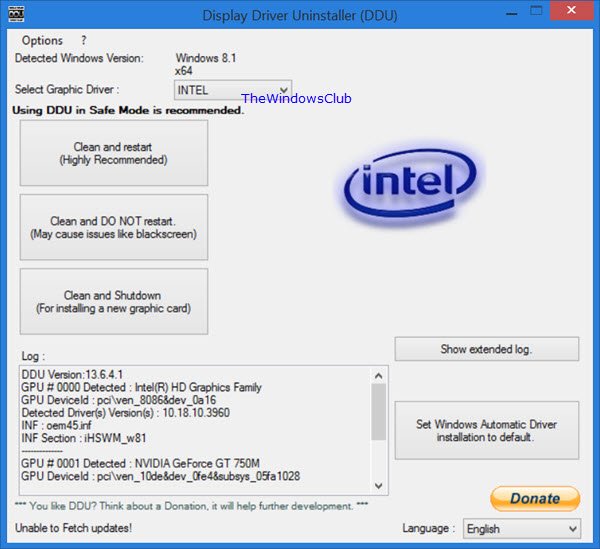
If the Roll Back Driver button is greyed out, try performing its clean installation. First, download the latest version of your GPU driver from the official website of your computer manufacturer. Now, download and install the DDU tool. Run the Display Driver Uninstaller to completely remove your graphics card driver from your system. Now, run the installer file to perform a fresh installation of the GPU driver.
3] Update your monitor firmware
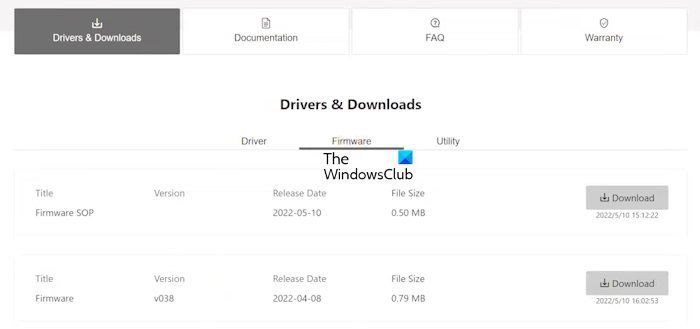
An outdated monitor firmware can also cause this issue. We suggest you update your monitor firmware (if an update is available). Refer to the user manual of your monitor or visit its official website to know how to update its firmware.
4] Disable Hardware-accelerated GPU scheduling (if applicable)
If the issue persists, you can disable the hardware-accelerated GPU scaling. This feature is not available for every graphics card. If your GPU supports this feature, you will see it in your system settings.
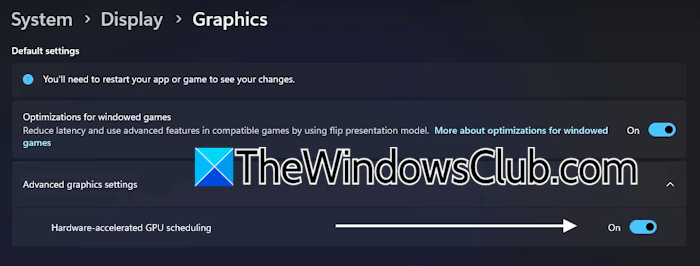
Follow these instructions:
- Open Windows 11 Settings.
- Go to System > Display > Graphics.
- Expand the Advanced graphics settings tab.
- If your GPU supports this feature, you will see the related setting there. Turn off the Hardware-accelerated GPU scheduling option.
5] Uninstall the Windows Update (if applicable)
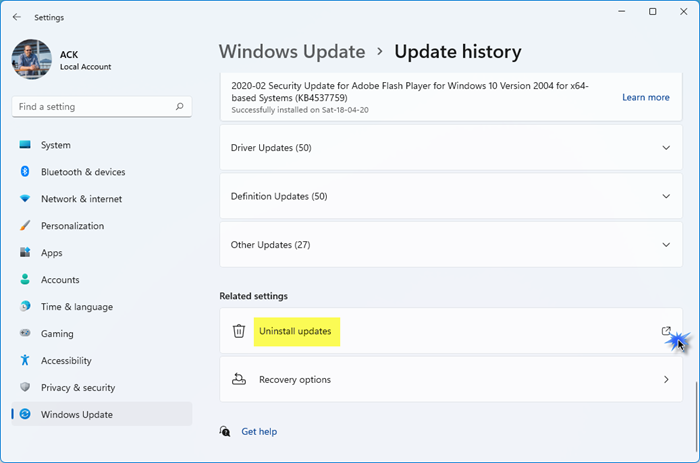
One possible cause of this issue is a recent Windows Update. Sometimes, Windows Update causes issues on a Windows computer. That’s why Microsoft has provided an option to uninstall the Windows Update. If this issue occurred after installing a particular Windows Update, you can use this option. Uninstall the Windows Update and see if it helps.
6] Change your power plan settings
If the issue persists, change your power plan. You can also create a new custom power plan or switch to Windows’ default power plans. However, if the default power plans are missing, you can restore them through the Command Prompt.
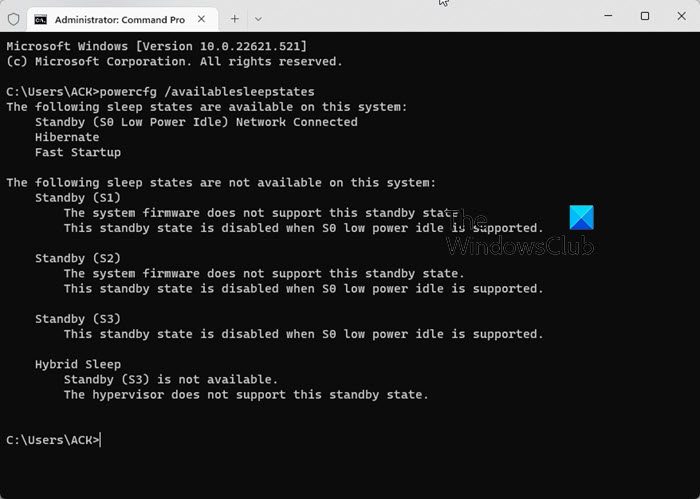
The command to restore the default power plans will not work if the Modern Standby Mode S0 is active on your system. You can check this by executing the following command:
powercfg /a
If the Modern Standby Mode S0 is active on your system, run the following command to disable it:
reg add HKLM\System\CurrentControlSet\Control\Power /v PlatformAoAcOverride /t REG_DWORD /d 0
7] Update your BIOS
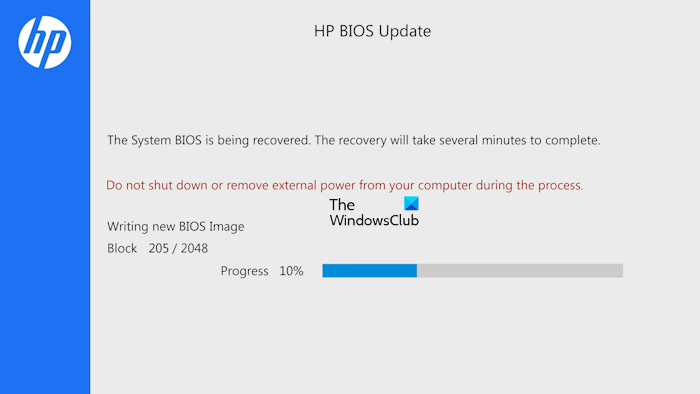
A BIOS update improves hardware compatibility. Therefore, we recommend checking for a BIOS update. You can view the currently installed BIOS version in the System Information section. Now, visit the official website of your computer manufacturer and check if an updated version is available. If yes, download and install it. During a BIOS update, do not turn off your computer, as it will damage your motherboard.
8] Hardware fault
If none of these fixes work, the problem may be with your Power Supply Unit (PSU). If you use a dual-monitor setup and your system crashes when connecting the second monitor, your GPU may be struggling with the Dual-Monitor setup. Contact a professional computer repair technician for further assistance.
That’s it. I hope this helps.
Why did my PC stop recognizing my second monitor?
There can be several reasons why your PC has stopped recognizing the second monitor, such as a loose or faulty cable, issues with the graphics card, power supply issues, etc.
Why is my computer lagging when I plug in two monitors?
If your Windows computer becomes slow on connecting the second monitor, it may be an indication of increased load on the PSU, CPU, and GPU. Moreover, your integrated GPU may not be able to handle the input from the second monitor. Check the minimum hardware requirements of the monitor.
Read next: Second monitor appears blurry.
