
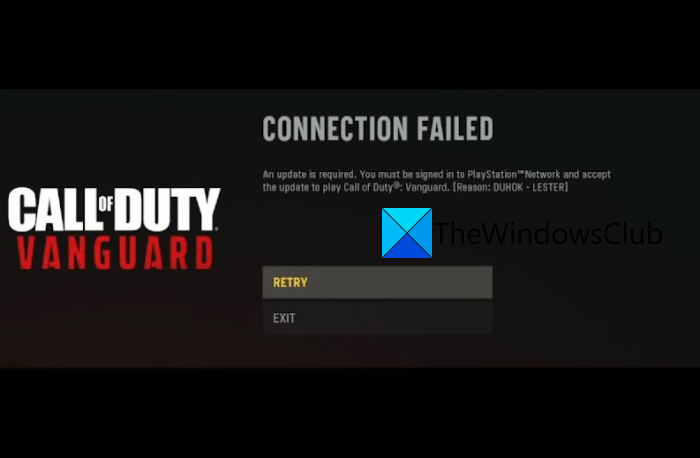
Are you facing the error code DUHOK – LESTER on COD Vanguard? Here is a full guide to resolving the COD Vanguard DUHOK – LESTER error. Call of Duty Vanguard is a popular first-person shooter game, an addition to the Call of Duty franchise. The game is played and loved by millions of gaming enthusiasts. But, what if you are unable to play the game due to an error like DUHOK – LESTER. A lot of COD Vanguard players have complained of getting the error code DUHOK – LESTER when trying to play the game. The error code is accompanied by the error message “Connection Failed: An update is required.”
If you are one of those users getting this game error, this guide will help you fix it. Here, we’ll discuss different methods that should help you resolve the error. So, let us check it out.
COD Vanguard Error DUHOK – LESTER, Connection Failed: An update is required
Here are the solutions that you can try to fix the error code DUHOK – LESTER on Call of Duty Vanguard:
- Check the server status of COD Vanguard.
- Test your internet connection.
- Power cycle your PC/ console and router.
- Turn off On-Demand Texture Streaming.
- Scan and Repair game files.
- Link your Activision account.
- Reinstall COD Vanguard.
1] Check the server status of COD Vanguard
The first step to fix the error is to check the current status of COD Vanguard servers. Make sure the Activision servers aren’t down due to an outage or maintenance. If the game servers are unavailable at the moment, you might see this error. In that case, you will have to wait for the server issue to be fixed from the end of Activision.
You can use a free server-status detector tool using which you can find out the server status of game servers. Or, check the game’s official social media pages for updates on the current server status.
If you confirm there is no server issue but still get the same error, try the next fix.
2] Test your internet connection
This error could result from a weak internet connection. If you are dealing with internet connectivity issues or an unstable connection, you might see the DUHOK – LESTER error code in COD Vanguard. Hence, make sure you are connected to a stable, active, and reliable internet connection. You can test your internet speed and ensure it is good enough for playing online games. If not, you might need to upgrade your internet plan.
You can also try connecting to a different network and see if the error is resolved. Besides that, make sure to troubleshoot the WiFi problems if there are any. A lot of gamers prefer using a wired internet connection as it is more reliable than wireless. So, you can try switching to a wired internet connection and check if the error is fixed.
If you are sure you don’t have an internet issue and your internet is working fine, something else might be triggering the error. So, try the next potential fix to resolve it.
See: Fix CoD Vanguard Error Code 0x00001338 N on Windows PC.
3] Power cycle your PC/ console and router
You can also power cycle your PC/console and router to fix the issue. If a temporary system glitch or bad router cache is causing the error, this should fix it. You can turn off your PC/console, unplug it, wait a few seconds, plug it back into the main switch, and turn it on. Do the same with your router and see if the error stops.
If you get the same error on COD Vanguard, try the next potential fix.
4] Turn off On-Demand Texture Streaming
You can also try disabling the on-demand texture streaming option in your game settings to see if it resolves the error. Here’s how to do that:
- Firstly, launch the game and go to its in-game Settings.
- Now, move to the Graphics tab.
- After that, locate the On-Demand Texture Streaming option and set it to OFF.
- Finally, go to the game and see if the error is fixed now.
If the error continues, try the next potential fix.
Read: Fix Packet burst error in Vanguard Call of Duty.
5] Scan and Repair game files
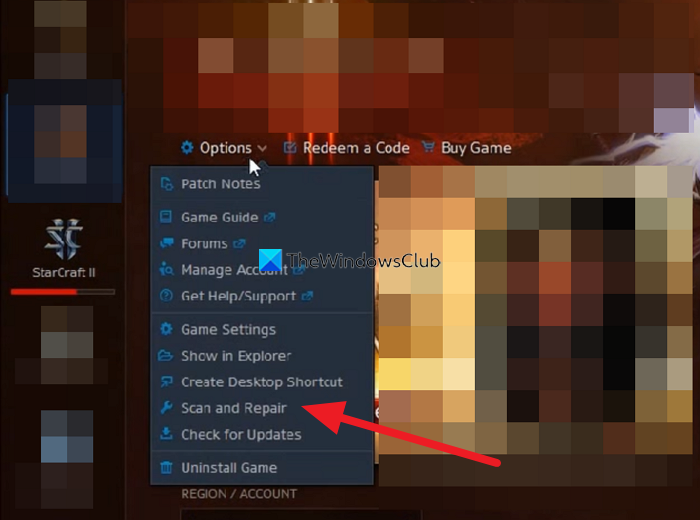
The next step is to scan and repair your game files. This error may be triggered by broken COD Vanguard game files. Verifying and repairing the game files should help fix the error. Here is how you can do that:
- First, start the Battle.net client.
- Now, select the COD Vanguard game from the left side panel.
- Next, click on the Options drop-down button and then tap on the Scan and Repair option.
- After that, follow the onscreen instructions to complete the scanning and repairing process.
- Once the game files are fixed, relaunch the game and check if the error is gone now.
If this method doesn’t resolve the error, try the next solution.
6] Link your Activision account
You also need to ensure that your Activision account is linked with your device. Else, there might be issues with connecting to online services. You can follow the below steps to do that:
- First, visit activision.com in a web browser.
- Next, sign in to your account and then select PROFILE.
- Next, press the Link with Battle.net Account button and follow the prompted steps to comp[lete the process.
- Once done, reopen Battle.net and check if the error is resolved or not.
Read: Fix Error Code VIVACIOUS on COD Vanguard.
7] Reinstall COD Vanguard
If nothing else works, the last resort is to reinstall COD Vanguard. You are likely to see these errors if the game installation is corrupted. So, try uninstalling and then reinstalling the game to fix the error.
To uninstall the game, open Battle.net and select COD: Vanguard. Then click the Options drop-down next to the Play button. From the appeared menu, click on the Uninstall option and follow the prompted instructions to complete the game uninstallation. After you uninstall the game from your PC, reinstall it using the Battle.net application. Hopefully, you won’t face the error now.
On PlayStation, select COD Vanguard from your home screen and press the Options button on your controller. Then choose Delete to remove the game. After that, reinstall the game on your console and see whether the error is fixed.
That’s it.
Why is CoD Vanguard not working?
If COD Vanguard is not working properly on your PC or keeps on crashing, it could be because of outdated graphics drivers. Other reasons for the same could be severe issues, corrupted game files, firewall interferences, outdated Windows, and more.
Why can’t I connect to Vanguard servers?
If Activision servers are down, you won’t be able to connect to COD Vanguard servers. Possible reasons include internet connection issues, high traffic on Vanguard servers, an account problem, firewall settings on your PC, and DNS issues. So, check the game server status and make sure there is no ongoing server issue with the Activision Support team.
Now read:
