
Here is a full guide on how you can fix the Server snapshot error on Call of Duty: Vanguard. Call of Duty: Vanguard has already garnered considerable popularity among gaming enthusiasts. However, some players have reported experiencing the “Server snapshot error” message.
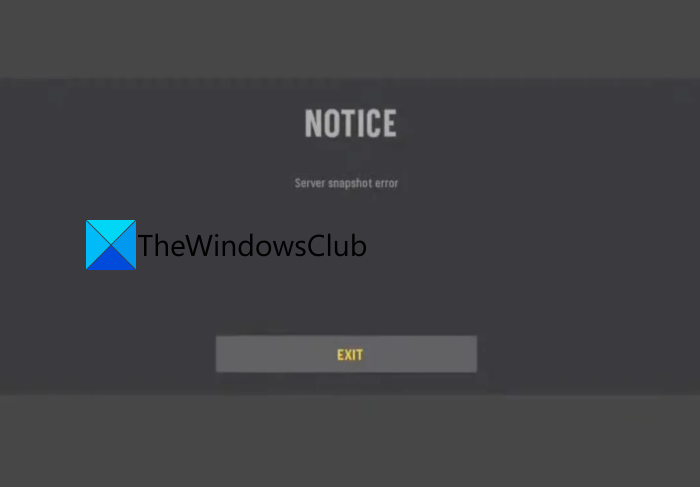
What does a Server Snapshot error mean?
This Server Snapshot error in Call of Duty: Vanguard basically kicks out the players from online matches and prompts them to EXIT the game. And when they try to play the match again, a black screen appears for a moment or two, and the error screen reappears. This error is reported to occur on PC, PlayStation, and Xbox consoles.
Now, if you are one of the users experiencing the same error, this guide is for you. In this post, we will discuss several working fixes to help you resolve the Server snapshot error.
What causes the Server snapshot error on Call of Duty: Vanguard?
Here are the possible causes that might trigger the Server snapshot error on Call of Duty: Vanguard:
- A large number of users have faced this error in the Domination game mode. Considering that, it can be assumed that the error might be occurred due to the Domination game mode glitch. You can try switching off from Domination game mode and then see if the error is fixed.
- It can also occur if the NAT type is not open. Ensure the NAT type is set to open, not closed.
Now that you know the causes of the error, you can try a suitable fix from the list below.
Fix Call of Duty: Vanguard Server snapshot error
Here are the methods to fix the Server snapshot error on Call of Duty: Vanguard:
- Switching from Domination game mode.
- Ensure your NAT Type is Open.
Let us discuss the above solutions in detail now!
1] Switching from Domination game mode
The Server Snapshot error is mostly reported by players who were playing Domination mode. However, it is not yet clear whether the error only occurs when playing Domination mode. Since a vast number of Call of Duty: Vanguard players have reported encountering this error with Domination mode, we recommend that you stay away from playing any kind of Domination game mode.
Here are some of the game modes that don’t seem to get this error. You can play in any of these modes to avoid the error:
- Free-for-All
- Team Deathmatch
- Kill Confirmed
- Search & Destroy
- Hardpoint
- Patrol
- Control
In case you are dealing with the Server Snapshot error with any other game mode, you can try the next potential fix to resolve the error.
2] Ensure your NAT is Open
You are likely to experience this error when your NAT (Network Address Translation) is closed. Hence, it is recommended to check whether you have an Open NAT type. It is basically is used to check whether your machine can to other players when playing online games easily or not. When you have a Closed NAT type, it can cause trouble establishing connections with other players in the same lobby. As a result, you might get the Server Snapshot error on Call of Duty: Vanguard. SO if the scenario is applicable, change your NAT type to Open.
Now, depending on the platform you are on, the steps to check and change NAT type differs. We are sharing the steps for some popular platforms, so check out below.
Check the NAT type on Xbox Console:
First, check whether your NAT type is set to Closed or Open. To check NAT type on the Xbox console, you can go to the Network settings. Here are the steps to check the NAT type on Xbox Console:
- Firstly, press the Xbox button on your Xbox One or Xbox Series X/S console to bring up the guide menu.
- Now, go to the System tab and then click on the All Settings option.
- Next, inside the Settings menu, click on the Network Settings menu.
- After that, under Current Network Status and check whether the NAT Type field is Open or Closed.
- Once complete, you can change the NAT type by enabling UPnP (Universal Plug and Play) through your router’s settings.
Check the NAT type on the PC:
In case you are encountering the error while playing the game on PC, you can follow the steps below to check the NAT type:
- First, open the taskbar search and find the Xbox Console Companion app.
- Now, in the Xbox Console Companion app, press the gear icon present at the bottom-left corner and then tap on the Network tab.
- Next, inside the Network tab, check the status of the NAT type.
- After that, if the status is closed or moderate, you enable UPnP (Universal Plug and Play) by accessing the router settings.
Check the NAT type on Playstation 4 and Playstation 5:
For the Playstation 4 or Playstation 5 users, here are the steps to check the NAT type:
- Firstly, from the main dashboard on PlayStation, click on the Settings menu.
- Now, from the Settings menu, go to Network and navigate to the View Connection Status section.
- After that, see if the NAT type is displayed something else than Type 2. If yes, then you can try enabling UPnP from the router settings.
That’s it!
Now read:
