
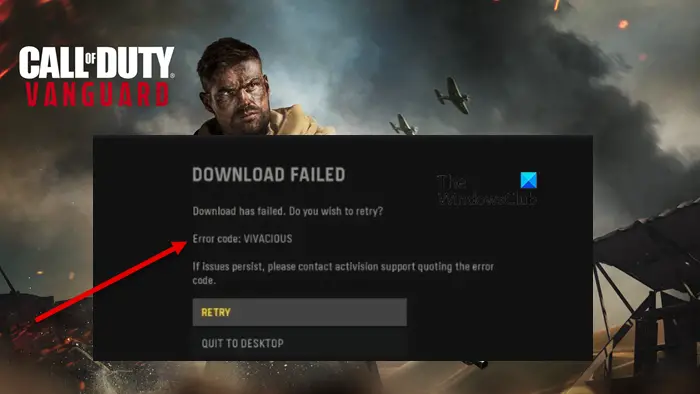
Error Code VIVACIOUS on COD Vanguard has been reported across all major platforms, including Xbox, PC, and PlayStation. The error usually pops up when trying to download a piece of content. In this article, we are going to talk about this issue in detail and see what you need to do to resolve the error code in question. The following is the exact error message one sees when trying to play the game.
DOWNLOAD FAILED
Download has failed. Do you wish to retry?
Error code: VIVACIOUS
If issues persists, please contact activision support quoting the error code
Fix Error Code VIVACIOUS on COD Vanguard
If you are seeing Error Code: VIVACIOUS on COD Vanguard, then, first of all, check Activision server status using a free down detector. If the server is down, there is nothing you can do other than wait for the issue to be resolved. In case, the server is not down, try the following solutions to resolve the issue.
- Restart your devices
- Check your Internet Connection
- Try a VPN
- Repair game files
- Reinstall the game
Let us talk about them in detail.
1] Restart your devices
First up, we need to take the easiest but in this case, most effective solution. We need to restart the device you are running your game on and see if that works. The following are the devices and methods to restart them effectively.
- PlayStation: Press and hold on to the Power button of your console until it beeps twice. Once the console is shut down, remove all the cables and wait for 30 seconds. Now, plug all the cables back in and restart your console.
- Xbox: Press and hold on to the Power button of your console until the lights slowly turn off indicating that the console is turned off. Once it’s shut down completely, remove all the cables and wait for 30 seconds. Now, plug all the cables back in and restart your console.
- PC: PC users should just shut down, unplug the cable, plug them back in and turn on their computer instead of restarting.
Once you have restarted the devices, open the cable and retry downloading. It should do the job for you.
2] Check your Internet Connection
When you are downloading content, if your Internet speed is low, an error message may appear. We need to check whether your bandwidth.
- PlayStation: From main menu, go to Settings > Network > Test Internet Connection.
- Xbox: Go to Profile & system > Settings > General > Network settings > Test Internet Connection.
- PC: You should use a free Internet Speed tester to know your bandwidth. Just run it and your Internet download and upload speed will be fetched. Since we are encountering a download error, we will check the download speed.
If your Internet speed is low, power cycle your router. Turn it off, remove it from the power supply, wait for 30 seconds, plug the cables, and turn the router back on. This should do the job for you.
3] Try a VPN
For some users, the simple act of connecting to a VPN worked. You should also try a free Game VPN or GPN and see if the issue persists. Hopefully, this will work for you.
Related: VPN vs GPN – Differences Explained
4] Repair game files
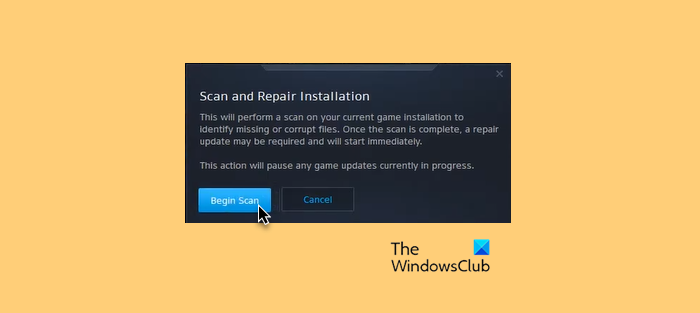
You may also see the error code in question because of corrupted game files. Usually, when the game files get corrupted, the game won’t launch. However, if a specific file in that game is missing or corrupted, error codes and messages can appear. We should try to repair game files using the Battle.net launcher.
- Open Battle.net and go to the Call of Duty: Vanguard game.
- Then click the gear-shaped icon next to the game title.
- Now, select Scan and Repair > Begin Scan and let the process complete.
Finally, restart your computer and retry playing the game. This should do the trick for you.
5] Reinstall the game
If nothing works, then your last resort should be to reinstall the game. This is a pretty basic solution, but should only deploy if nothing is working. After reinstalling the game, check whether you can download the content.
Hopefully, these solutions have resolved the issue for you.
Related: Download Failed, Error Code 47 SPAN in COD Warzone and Modern Warfare
How do I fix Vanguard Vivacious error code?
Error Code: Vivacious is caused by a glitch. More often than not, restarting the device that you are working on and your network devices can fix the problem. However, we would recommend you check the solutions mentioned earlier to troubleshoot this issue.
How do I fix Call of Duty Vanguard?
If Call of Duty: Vanguard is not working on your computer, try repairing corrupted files. You can check the fourth solution to know how to do the same. However, it would be better if you check our guide on what to do when COD: Vanguard is not launching or is crashing.
Also Read:
