
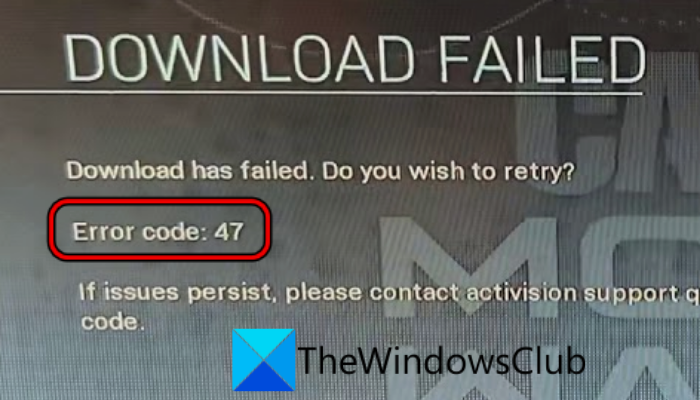
Here is a complete guide on how to fix the error code 47 or SPAN in Call of Duty Warzone and Modern Warfare. Many COD Warzone and Modern Warfare players have reported receiving error code 47 when downloading content or updates for the game. You might also get this error when launching the game. When triggered, you are likely to get the below error message:
DOWNLOAD FAILED
Download has failed. Do you wish to retry?
Error code: 47
If issues persist, please contact activision support quoting the error code.
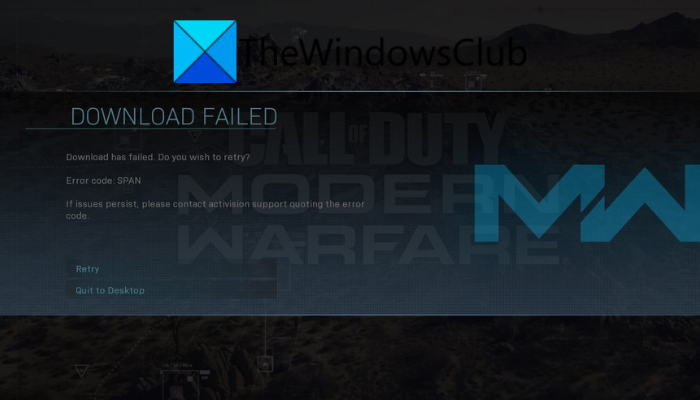
Sometimes, you may also get the error code SPAN with the above error message.
It is reported to occur on PC as well as consoles like Xbox and PS4. Now, there can be different reasons that trigger this error. In any case, if you are also receiving this error, this post is your stop. In this post, we are going to list down all the possible fixes that helped users to get rid of error code 47 on Warzone or Modern Warfare.
What causes error code 47 in COD Warzone and Modern Warfare?
Here are the potential causes that may trigger the error code 47 on Warzone and Modern Warfare:
- It can be caused by a corrupted device or game cache. Hence, you can try clearing the cache on your console. If you use a PC and get this error, clear the game cache to fix it.
- If the game’s saved data on your console is corrupted, it can trigger the error at hand. So, deleting the saved data of Warzone or Modern Warfare on your PS4 console should help you fix the error.
- In many cases, the error is caused due to your overprotective antivirus suite. It might be hindering the game’s regular operations. Hence, try disabling or uninstalling the antivirus to fix the error.
- It can also be triggered if the game installation becomes corrupted. So, in that case, reinstalling the game should help you fix the error.
How do I fix Error 47 on Warzone?
To fix the error 47 on Warzone, you can try clearing the cache on your console or deleting cache files associated with the game. Apart from that, you can try deleting the Warzone save data on PS4, disabling your antivirus, or reinstalling the game. We have shared all the fixes in detail below; so keep on reading to find out.
Download Failed, Error Code 47 or SPAN in COD Warzone and Modern Warfare
Here are the methods that you can use to fix Download Failed, Error Code: 47 or SPAN in COD Warzone or Modern Warfare:
- Clear cache of your PC or console.
- Delete saved data of the game on PS4.
- Clear reserved space for Warzone/Modern Warfare on your Xbox console.
- Disable or uninstall your antivirus.
- Reinstall the Warzone/ Modern Warfare game.
1] Clear cache of your PC or console
You are likely to encounter error code 47 in Warzone due to a corrupted device or game cache. If the scenario applies, you should be able to fix the error by clearing the cache on your PC or console.
You can clear Warzone cache files on your Windows PC using the steps below:
- Firstly, close the Warzone game as well as the game launcher i.e., Battle.net. You can use Task Manager to end all the related processes.
- Now, open File Explorer using Win+E and then navigate to the installation directory of Warzone on your PC.
- Next, double-click on the Data folder to open it and then open the Main folder.
- After that, delete the following cache files:
data0.dcache
data1.dcache
toc0.dcache
toc1.dcache
- Then relaunch Warzone and check if the error is gone.
- If the error persists, delete all files with the .dcache extension from the Main folder. See if this works for you or not.
To clear the cache of a PS4 console, try the below steps:
- Firstly, press the PlayStation button on your PS4 controller and select Turn off PS4.
- Next, when the power light of your console stops blinking, unplug its power cord from the main switch and then for at least 30 seconds.
- After that, plug in your console back to the main switch and switch it on.
- When the console is switched on, open Warzone and see if the error still persists or not.
Similarly, you can clear the cache on an Xbox console.
Read: COD Modern Warfare DEV ERROR 6068, 6065, 6165, 6071.
2] Delete saved data of the game on PS4
If you are receiving the error on a PS4 console, there is a chance that the Warzone save data is corrupted. If the scenario applies, you should be able to fix it by clearing Warzone’s saved data on your PS4 console. Here is how to do that:
- Firstly, open the PS4 Settings and choose the Application Saved Data Management option.
- Now, highlight the Warzone game and tap on the Options key on your controller.
- Next, click on the Delete option.
- Once the saved data is cleared, reboot your console.
- After restarting the console, open Warzone and see if the error code 47 is resolved.
3] Clear reserved space for Warzone/ Modern Warfare on your Xbox console
Xbox uses reserved space on its HDD to store game updates and other data. If any of the data stored in Warzone’s reserved space is corrupted, you might encounter the error at hand. So, if the scenario applies, you can try deleting the Warzone reserved space on your Xbox console. Here are the steps to do that:
- Firstly, go to the Xbox games menu and choose the Warzone game.
- Next, open its Options and then click on the Manage Game & Add–ons option.
- Now, go to Saved Data and tap on the Clear reserved space option.
- After that, reboot your console, then launch Warzone to check whether the error code 47 has been resolved.
If the error persists, try the next potential fix.
See: Fix Error Code 664640 in Call of Duty Modern Warfare or Warzone.
4] Disable or uninstall your antivirus
PC users might be facing this error due to their overprotective security suite. Your antivirus may block Warzone from accessing a system resource required for a specific action or operation. And thus, you get the error code 47 on Warzone. If the scenario applies to you, try disabling your antivirus and see if resolves the error. If yes, you can be sure that your antivirus was the one causing the error. You can uninstall the antivirus to permanently fix the error.
If you don’t want to disable or uninstall your antivirus, there is a way out for that too. You can add Warzone and Battle.net to the exception/exclusion/whitelist in your antivirus settings. This will prevent your antivirus from scanning the game and game launcher.
Read: Fix Memory Error 13-71 in Call of Duty Modern Warfare and WarZone.
5] Reinstall the Warzone/ Modern Warfare game
If none of the above solutions work for you, the last resort is to reinstall the Warzone or Modern Warfare game. There are chances that you are dealing with a corrupted installation of the game, or some installation files are gone or corrupted, which is causing the error at hand. In that case, reinstalling the game should help you fix the error.
Here is how to reinstall the Warzone or Modern Warfare game on Windows PC:
- Firstly, launch the Battle.net app and select the Warzone (or Modern Warfare) game.
- Now, click on the gear icon present next to the Play button.
- Next, tap on the Uninstall option and complete the onscreen instructions to uninstall the game.
- Once done, reboot your PC.
- Lastly, launch the Battle.net client, then reinstall Warzone from the store.
To reinstall Warzone on an Xbox console, follow the steps below:
- Firstly, press the Xbox button on your controller to open the guide menu.
- Now, choose the My games & apps category and select See all.
- Next, choose Games and highlight the Warzone game.
- After that, press the Menu button on your controller.
- Then choose the Uninstall option, and select Uninstall all.
- After the uninstallation is complete, reboot your console, then reinstall Warzone.
In the case of a PS4 console, you can try the steps below to uninstall and then reinstall Warzone:
- Firstly, open the Games menu and select COD Warzone.
- Next, open its Options, then click Delete or Uninstall.
- Now, confirm the uninstallation process.
- After that, reboot your console and reinstall Warzone.
Hopefully, you won’t get the error code 47 now.
Related: Fix Error Code VIVACIOUS on COD Vanguard
How do I fix Dev error 5523?
To fix Dev error 5523 in Warzone, try rebooting your PC to see if that resolves the error. If not, you can try running Battle.net as administrator and disable Full-Screen Optimization. Besides that, you can also try turning off in-game overlays and disabling overclocking.
Now read:
