
Many errors have been experienced by Modern Warfare and Warzone players. In this article, we are going to talk about one of them. We are going to fix Error code 6 Diver that gamers may see while playing the game on their Windows 11/10 PCs.
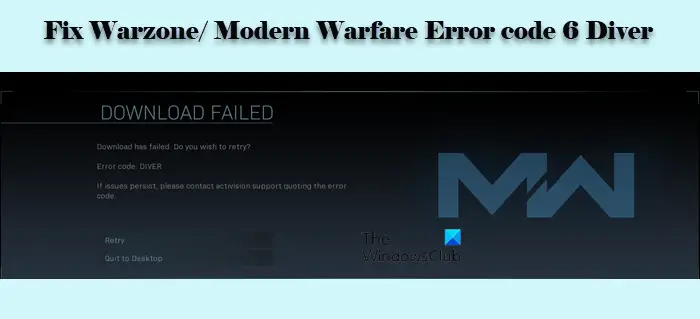
What does Error Code 6 in Warzone/Modern Warfare mean?
Error Code 6 in Warzone or Modern Warfare implies that you have a network issue. This issue can be because of many things, such as faulty Router, Windows Firewall blocking your game, and sometimes, even because of corrupted files.
Users have reported numerous instances; however, this error occurs more often while downloading an update. However, some users have also experienced the Error Code 6 Diver while launching the game. In this post, we will discuss all the potential solutions you can use to resolve the issue.
Fix COD Warzone Error code 6 Diver on PC
If you want to fix COD Warzone/Modern Warfare Black Ops Error code 6 Diver, then follow these solutions.
- Check your Internet Connection
- Reset your Router
- Use Ethernet
- Repair the Game
- Allow the game through Firewall
- Use VPN
Let’s discuss them in detail.
1] Check your Internet Connection
First, check your Internet speed to see if it is low. You can use an Internet Speed tester to do the same and if your bandwidth is low, then check if all the devices connected to that network are experiencing similar bandwidth, if they are, then contact your Internet Service Provided. If yours is the only device with poor Internet, try fixing the slow Internet speed.
2] Reset your Router
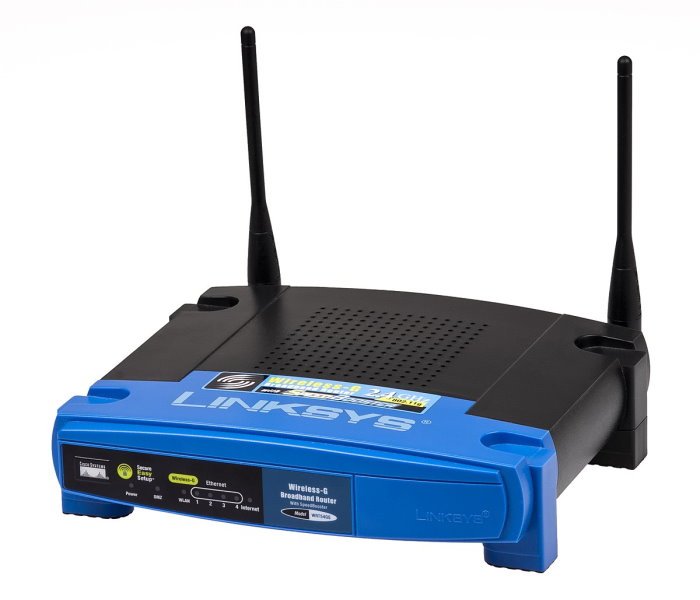
The issue may be due to a glitch in your network connection. Therefore, it is recommended to reset your Router. Follow the steps below to complete the same task.
- Unplug both your Router and Modem.
- Wait for 60 seconds as the device cools down a bit.
- Now, restart your computer and then plug the devices back in.
Finally, connect to the Wi-Fi and see if the issue persists.
3] Use Ethernet
Wireless connections are not reliable and hence, it is recommended to use a wired alternative. You can use an Ethernet cable when trying to play the game if you want an uninterrupted gaming experience.
4] Repair the Game
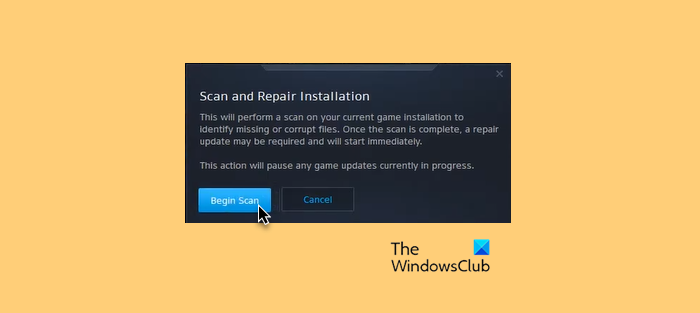
As mentioned earlier, the error in question can occur if the game is corrupted. So, we have to repair the game from the Battle.net client app. Follow the prescribed steps to do the same.
- Open Battle.net.
- From the left panel of the window, select Call of Duty: MW (or Warzone).
- Click Options > Scan and Repair.
- Finally, click Begin Scan.
Now, you can reopen the game and see if the issue persists.
Read: Fix COD Warzone Dev Error 6036 on startup.
5] Allow the game through Firewall
Sometimes, the Windows Firewall can block a third-party application from connecting to the network or downloading updates, even if it is essential for the application to function properly. In that case, we have to allow the game through Firewall. Follow the given steps to do the same in Windows 11/10.
- Search out “Windows Security” from the Start Menu.
- Go to Firewall & network protection and click Allow an app through Firewall.
- Now, allow the game through both Public and Private networks.
Finally, reopen the game and hopefully, the issue will be resolved.
6] Use VPN
If the issue persists, then try using a VPN. You can download the updates over a VPN connection, and then disconnect it. You can use a free VPN to test this solution or go for a gaming VPN, as the latter is perfect for Warfare and Warzone.
Read: Fix CoD Warzone DEV ERROR 5476 or DEV ERROR 6635.
How do I fix error code 6 on Warzone PC?
The first thing to check is your internet connection. As this problem arises from not having a valid internet connection, this is the primary solution. Following that, you can check your Wi-Fi router, change your internet connection, etc. It is also recommended to temporarily disable VPN and proxy services.
